RedactNinja PDF editor user guide
This guide explains how to use RedactNinja PDF, the free PDF editor and toolkit at pdf.redactninja.com. It covers opening and organising documents, editing, redaction, OCR, conversion, batch processing and signatures. Files are processed in the browser on your device and are not uploaded. Updated October 2026.
This guide covers the PDF editor only. The RedactNinja SAR app and Chrome extension have their own guides.
Before you start
RedactNinja PDF is tested in desktop Chrome and Microsoft Edge. Firefox, Safari and mobile browsers are not yet fully tested. Try a small fictional document first on the device you plan to use.
You can use the editor with a keyboard, and dialogs close with Escape. Screen reader testing is not complete, and we do not claim full WCAG conformance.
Keep your original documents. The editor creates downloaded copies; opening or editing a document never overwrites the file it came from. Do not close the tab while a tool is processing, or before you have downloaded or saved the work you need.
The editor needs an internet connection to load, including the fonts and OCR language files it uses. Once it has loaded, your files are processed in the browser on your device and are not uploaded. Do not rely on the editor working offline if it has not fully loaded.
Use a fictional or non-sensitive copy when you try a tool for the first time. Check every page of a converted, repaired, compressed or redacted file before you use it. The editor's automatic checks catch specific failures; they cannot confirm that every sensitive detail has been found or that a document is ready to disclose. A link inside a PDF is not safe just because the file opened.
Find a PDF tool
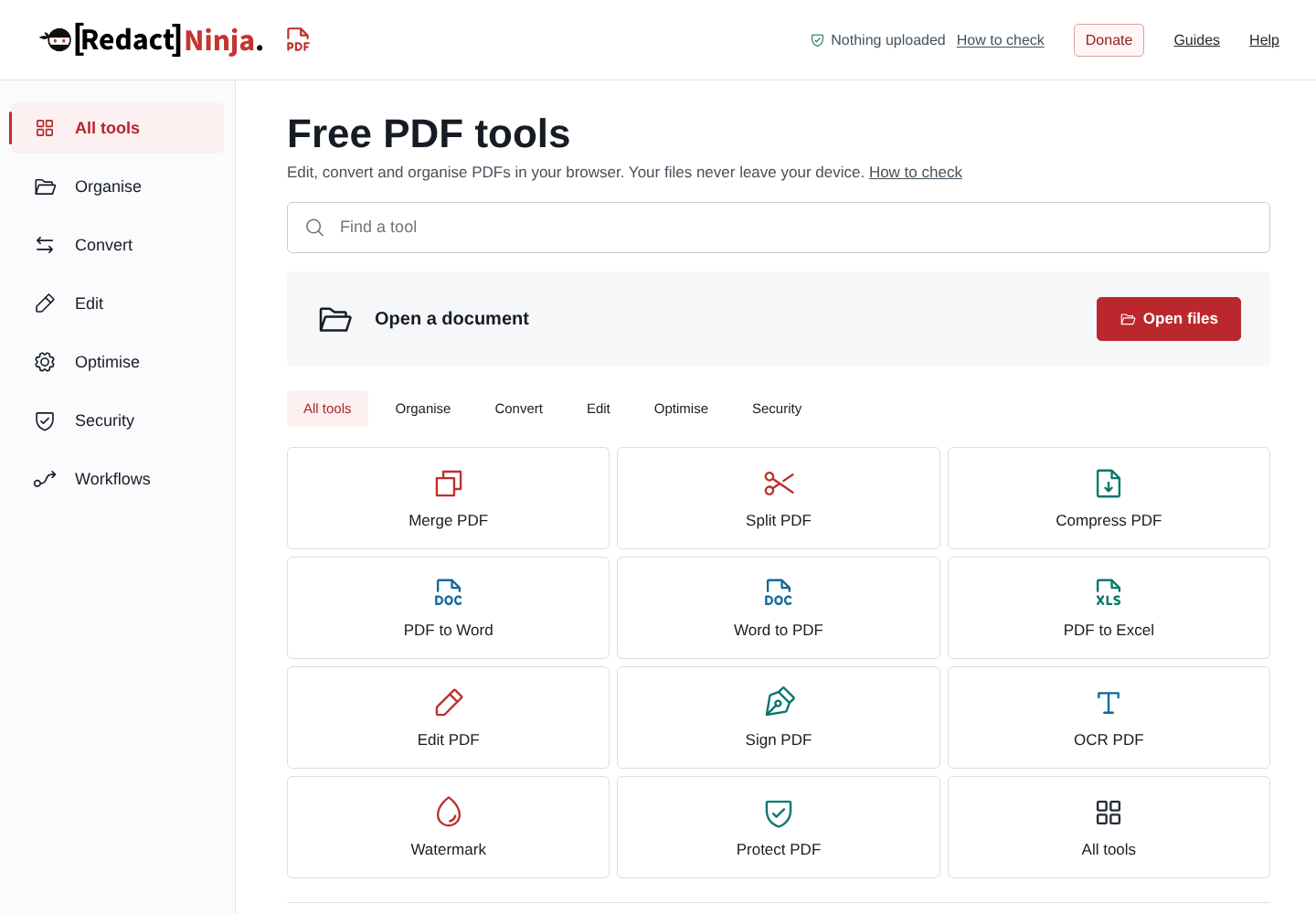
The Free PDF tools home screen groups tools into Organise, Convert, Edit, Optimise, Security and Workflows. Use the Find a tool box to search by name or by a term such as spreadsheet, camera or password. The grid starts with common tools; choose the All tools tile to see the full library. The category buttons filter the list, and Clear filters restores it after a search with no results.
Choose Open files to start editing, or select a tool directly. Tools that work on an open document ask you to choose a PDF or image first, then open their settings. If you cancel the file selection, the tool does not start. Conversions and other standalone tools, such as Compress PDF, Repair PDF and Compare PDFs, have their own file selection. Sign PDF adds a drawn, visible signature; certificate signing is a separate tool called Sign PDF with a certificate. OCR PDF recognises text on the current page; the language and layout settings are in the editor's side panel.
Select PDF tools in the editor toolbar, or the RedactNinja logo, to return to the library without losing your document. Return to document brings it back. Opening more files adds their pages to the current document rather than replacing it. Create blank document adds a blank A4 page. Create workflow opens Batch PDFs, where you can save and reuse settings. The library does not store your files: use Save project or Export before you close the tab.
All PDF tools
Each tool has its own page with instructions and answers to common questions. A few tools have a slightly different name in the editor, shown in brackets.
- Organise: Merge PDF, Split PDF, Organise PDF, Rotate PDF, Delete PDF pages, Extract PDF pages, Crop PDF, Resize PDF pages.
- Convert to PDF: Word to PDF, Excel to PDF, PowerPoint to PDF, HTML to PDF, JPG to PDF, PNG to PDF, Scan to PDF.
- Convert from PDF: PDF to Word, PDF to Excel, PDF to PowerPoint, PDF to JPG, PDF to PNG, PDF to Markdown, PDF to text (Extract PDF text), Extract images (Extract PDF images), PDF to greyscale, PDF to PDF/A (Prepare PDF/A).
- Edit: Edit PDF, Edit PDF text (Edit original text), Find and replace in PDF, PDF comments list (Comments and annotations list), Fill PDF form (Fill or create forms), Sign PDF, Draw on PDF, Watermark PDF, Add page numbers, Bates numbering, Compare PDF.
- Optimise: Compress PDF, Repair PDF, Clean up scans (Adjust scan image), OCR PDF.
- Security: Redact PDF (Find text to redact), Protect PDF, Unlock PDF, Flatten PDF, Remove PDF metadata (Document metadata), Digitally sign PDF (Sign PDF with a certificate), Verify PDF signatures (Inspect PDF signatures).
- Workflows: Batch PDF (Batch PDFs). Save project, in the editor toolbar, is described under Open and organise documents.
Open and organise documents
Browse PDF tools opens a searchable tool chooser. Search by tool name or a term such as spreadsheet, camera or workflows, or filter by category. The star button adds a tool to Favourites. Only the names of your favourite tools are saved in browser storage, never files or their contents. Tools that need a document show Open a document first until a file is open. Escape closes the chooser.
Open PDFs, PNG or JPG images with Open files, or choose Create blank document. Images must be smaller than 10 MiB each, the combined source files must stay below 100 MiB, and a document can have up to 500 pages. If a PDF has a password, enter it and confirm that you are authorised to edit the document; the editor works on an unlocked copy and the original file stays unchanged.
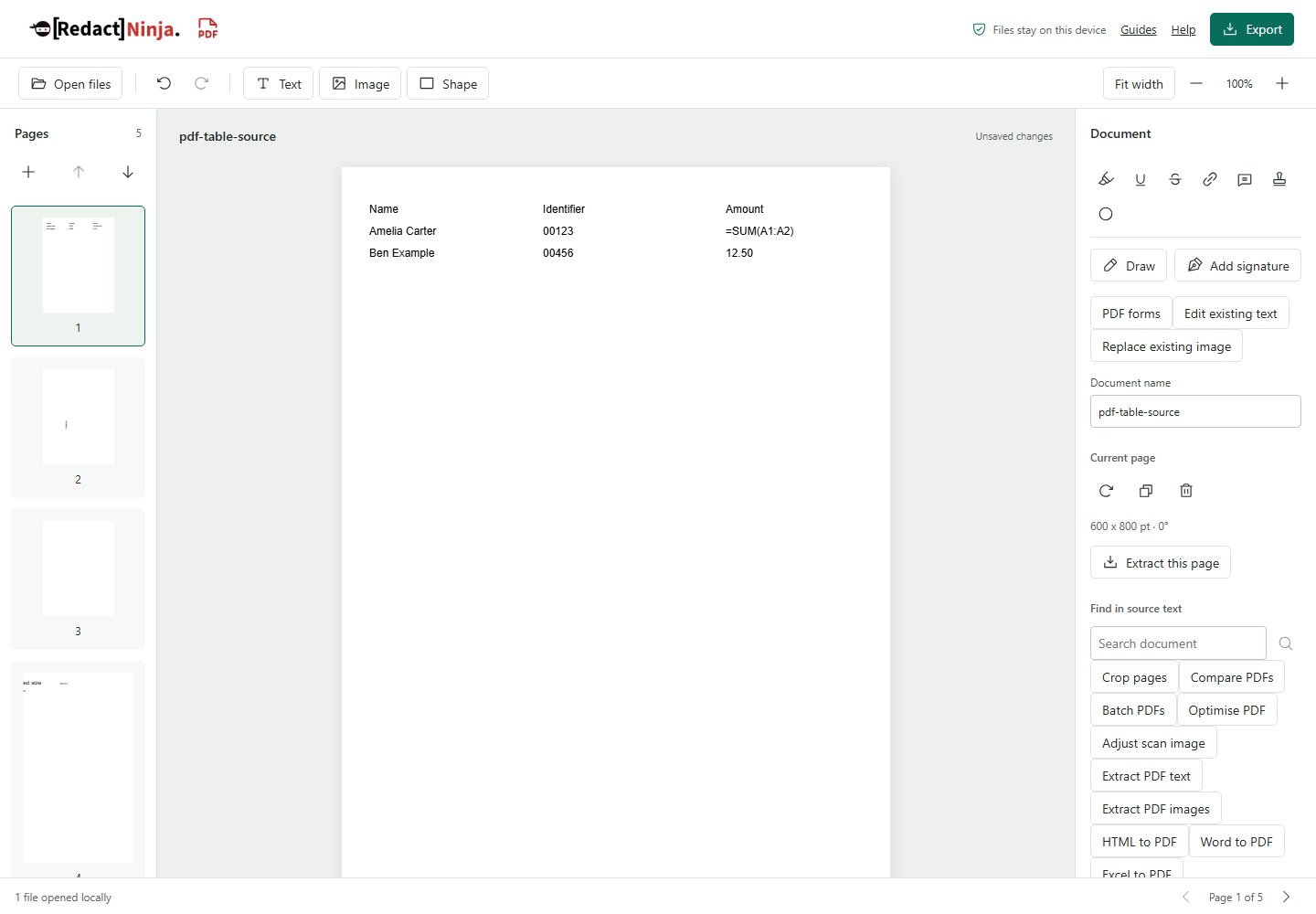
Select a page in the Pages list to view it. The buttons above the list insert a blank page or move the current page earlier or later. Under Current page you can rotate, duplicate, delete or extract the current page. Zoom and Fit width change the view, not the exported page size. Previous page and Next page are in the status bar.
Page tools cover rearranging, duplicating, deleting, rotating, cropping and resizing pages. Alternate pages interleaves two page ranges, for example the fronts and backs of a double-sided scan, and can reverse or rotate the second group. Check the page order before you export. Crop pages hides content outside the area you keep; it is not redaction and does not remove the hidden content.
Organise pages opens a draft of the page order. Select single pages, enter a range or select all. Move the selected pages earlier or later with the arrow buttons, or drag them in front of another page. Rotate or remove the selection where the document allows it. Apply page changes makes all the changes as one step that Undo can reverse; Cancel leaves the document unchanged. Thumbnails are shown twelve at a time, and at least one page must remain. Pages from signed PDFs and interactive forms can be reordered but not rotated or removed here. If a bookmark points to a removed page, the Bookmarks button shows (needs review) so you can fix it before export.
Save project, in the toolbar, saves your pages, edits, text boxes, annotations and bookmarks as one project file (.rnpdf) on your device. Open it again later with Open files. Opening a project replaces the current work, so the editor asks you to confirm first. The project file contains full copies of your PDFs, so store it as carefully as the originals. If a source PDF had a password, the project stores it without the password, and you must confirm this before saving. A project file is not a PDF: use Export when you need a PDF to share.
Images to PDF
Choose JPG and PNG to PDF from the tool library. Select up to 50 images, reorder or remove them, and choose A4, Letter or Image size (96 dpi) pages. Set the orientation to Match each image, Portrait or Landscape, and set the page margin in points. The page previews show how each image fits without cropping. Under Output, choose One PDF with every image or A separate PDF for each image (ZIP). JPG photos go into the PDF as they are, with their rotation tag and colour profile applied, so there is no further quality loss; PNG images are stored losslessly. The download is a new file; the document open in the editor does not change.
Selected images can total up to 100 MiB, and each image can have up to 16 million pixels. If you cancel, images you selected earlier stay in the list. If a newly selected group contains an image that cannot be read, that group is not added and earlier images remain. Image PDFs are not searchable; use OCR PDF afterwards if you need searchable text.
Watermarks, page numbers and Bates numbering
Watermarks, page numbers, headers, footers and Bates numbers are added when you export, in the Export dialog and in Batch PDFs. They are visible overlays, not redactions.
Enter watermark text to show its position, size, angle, opacity, colour and page settings. You can also choose a JPG or PNG image watermark smaller than 2 MiB and four million pixels, and set its width as a percentage of the page. The browser re-encodes the image as a PNG, which removes its metadata. Text and image watermarks can be combined, so check where they sit. Watermark page numbers refer to the exported document, not the editor; leave the field empty to mark every exported page. A watermark that does not fit a page stops the export rather than being cut off.
Export presets can store watermark appearance but not watermark page ranges. Image watermarks are not saved in presets or workflows: remove the image before you save reusable settings, then choose it again next time.
Add page numbers, or use Headers and footers for your own text. In header and footer text, {page} is replaced with the page number and {pages} with the total number of pages in the output. You can set a starting page number: if you continue another document's numbering from page 12, use wording such as Page {page} rather than Page {page} of {pages}, because {pages} counts only the pages in this file. Numbering restarts in each output PDF when you split or batch process. You cannot use Add page numbers and footer text together; put {page} in the footer instead.
Add Bates numbers sets a prefix, suffix, starting number, minimum number of digits and corner position, with a preview of the result. Place Bates numbers on the opposite edge from a header or footer.
Scan to PDF and clean up scans
Choose Scan to PDF from the tool library. Start camera asks for permission to use the camera only, not the microphone. Capture each page, remove any captures you do not want, then select Add pages to document. The pages join the document in the editor, where you can organise and export them. Scan to PDF does not recognise text; use OCR PDF afterwards.
The camera stops when you close the dialog, select Stop camera or switch to another tab. If adding the pages fails, your captures stay in the dialog so you can remove some and try again. One session can hold up to 20 pages and 32 MiB of images, and each capture is scaled to at most 2,048 pixels on its longest side. Camera capture needs a secure (HTTPS) page and camera permission in your browser.
Adjust scan image (the Clean up scans tool) works on a PNG, JPG or PDF scan. It can detect and correct a tilted or upside-down page, correct perspective using four corners, convert to greyscale and adjust brightness, contrast, black level and paper white level. Download the current page as a PNG or PDF, or download a combined PDF of every page. The output pages are images, with no searchable text or interactive content. Strong brightness and contrast settings can erase faint writing, so compare the original and adjusted images before you export.
PDF to Markdown, text and images
Choose PDF to Markdown, select a searchable PDF and select Extract text, then Download Markdown. Simple headings and paragraphs are worked out from the position and size of the text. Attempt simple Markdown tables turns consistent whole-page grids into Markdown tables, with an empty header row so that no source row is treated as a heading. Complex or uncertain grids stay as text, and aligned columns can occasionally be mistaken for a table. Images and complex reading order are not reconstructed. Pages without text, or pages that fail, are listed rather than silently left out. Scanned pages need OCR first.
Extract PDF text works in the same way and downloads plain text. Extract PDF images saves the bitmap images inside a PDF as PNG files, singly or in a ZIP. Vector drawings and text are not images, so they are not extracted.
These tools read the source PDF, not your edits in the editor. Extracted text and images can include hidden or previously covered content: extraction is not redaction.
Reusable batch workflows
Open Batch PDFs and set page rotation, reverse page order, watermark, numbering and optional removal of metadata, embedded files or scripts and actions. Under Reusable workflows, give the settings a name and select Download workflow to save them as a small file. Load workflow and Apply workflow reuse them for another batch; applying a workflow clears the password and page range. Add your PDFs and select Process batch. Download completed files one by one or together as a ZIP, and use Retry unfinished files for any that did not complete.
Workflow files never contain your documents or passwords. Their names, watermarks, headers and footers are readable text and may contain personal information, so check them before sharing a workflow. Removing metadata, attachments or actions is not redaction, and removing actions also removes links and form calculations. Workflows apply page changes, cleanup and PDF export settings; they do not run conversion or OCR steps.
Suggested form fields
In PDF forms, select Create field, then open Suggest fields on this page and select Find underlined blanks. The tool looks for runs of underscore characters on a searchable, unrotated page. Select a suggested box or its name, check the field name and size, and select Add form field. Running the search on its own adds nothing. Drawn boxes, scanned blanks and complex layouts are not detected, so create those fields by hand.
Reusable visible signatures
In Add signature, draw your signature, or select Upload signature image to place a PNG or JPG of it. To reuse a drawn signature, open Reuse a signature and select Download reusable signature to save the drawing as a file on your device. Next time, load that file, select Use saved signature and then Place signature. Keep the file secure, because anyone who has it can reuse the drawing. It is not saved in browser storage. A visible signature is not a certificate signature and is not proof of identity.
Compression presets
Compress PDF opens Optimise PDF. Choose a Compression preset: Preserve image quality, High image quality, Balanced or Smaller images, or set your own image quality and maximum image dimension. Preserve image quality rewrites the PDF structure without changing images. To aim for a file size, enter a Target size in MB: the tool tries lower image settings step by step until the PDF fits or no further saving is possible.
Select Measure and optimise (or Compress to target size) to see the original size, the new size and the saving before you download. Review optimised result and Compare original and result are optional. Image reduction works on standard RGB and greyscale JPEG images and on eight-bit images stored losslessly, such as photos added as PNG or pages from the scan tools. A lossless image is changed to JPEG only when that saves at least a fifth of its size, so screenshots and diagrams usually stay as they are. Other images stay unchanged and are listed. If there is no saving, the original file is kept unchanged. Optimisation stops after three minutes rather than downloading an incomplete result. Files up to 100 MiB and 500 pages are supported.
Additional conversion controls
Excel to PDF offers A4 or Letter paper, portrait or landscape orientation, and 1 to 12 columns per band for wide sheets. These settings control a readable table layout; they do not reproduce Excel print areas, fonts, charts or merged cells. Hidden worksheets, rows and columns are left out unless you choose to include them. Changing a setting clears the earlier result.
OCR page layout offers Automatic, Single text block and Scattered text and labels. Choose the layout before you recognise a page, selected pages or an area. The layout setting does not guarantee accurate recognition or rebuild table cells.
Prepare PDF/A includes Validate original without conversion. This keeps the selected PDF exactly as it is, so that you can match an external validation summary to it without changing the file. The browser checks that the summary belongs to the file; it does not run a PDF/A validator itself.
Interactive forms need extra care. A complete standard form can be reordered and keep its fields. Selecting only some form pages, duplicating them or merging forms requires a flattened copy first. Flattening removes the ability to fill in the fields. Keep signed documents as originals, because any edit can invalidate a digital signature.
Edit content and add annotations
Select existing content outlines the original text and images that can be edited on the current page. Select an outline, or move to it with the keyboard and press Enter, to open its editor. Edit existing text replaces a line of text using the same font and position, and the replacement stays on one line. If the font in the PDF cannot draw a character you typed, the change is refused and the character is named. Replace existing image swaps the selected image for a PNG or JPG, fitted to the original position and size; other copies of the same image are not changed. Original text cannot be reflowed as a paragraph. Some fonts, nested or clipped content and complex pages cannot be edited. Original content editing is not available for signed PDFs or interactive forms, and image replacement is also not available for tagged or layered PDFs.
Text, images, shapes, drawings, links, comments and stamps you add are objects in the editor. Select an object to change it. The arrow keys move selected objects, and Shift with an arrow key moves them further. Undo and redo work throughout the session. Always check the exported PDF as well as the preview.
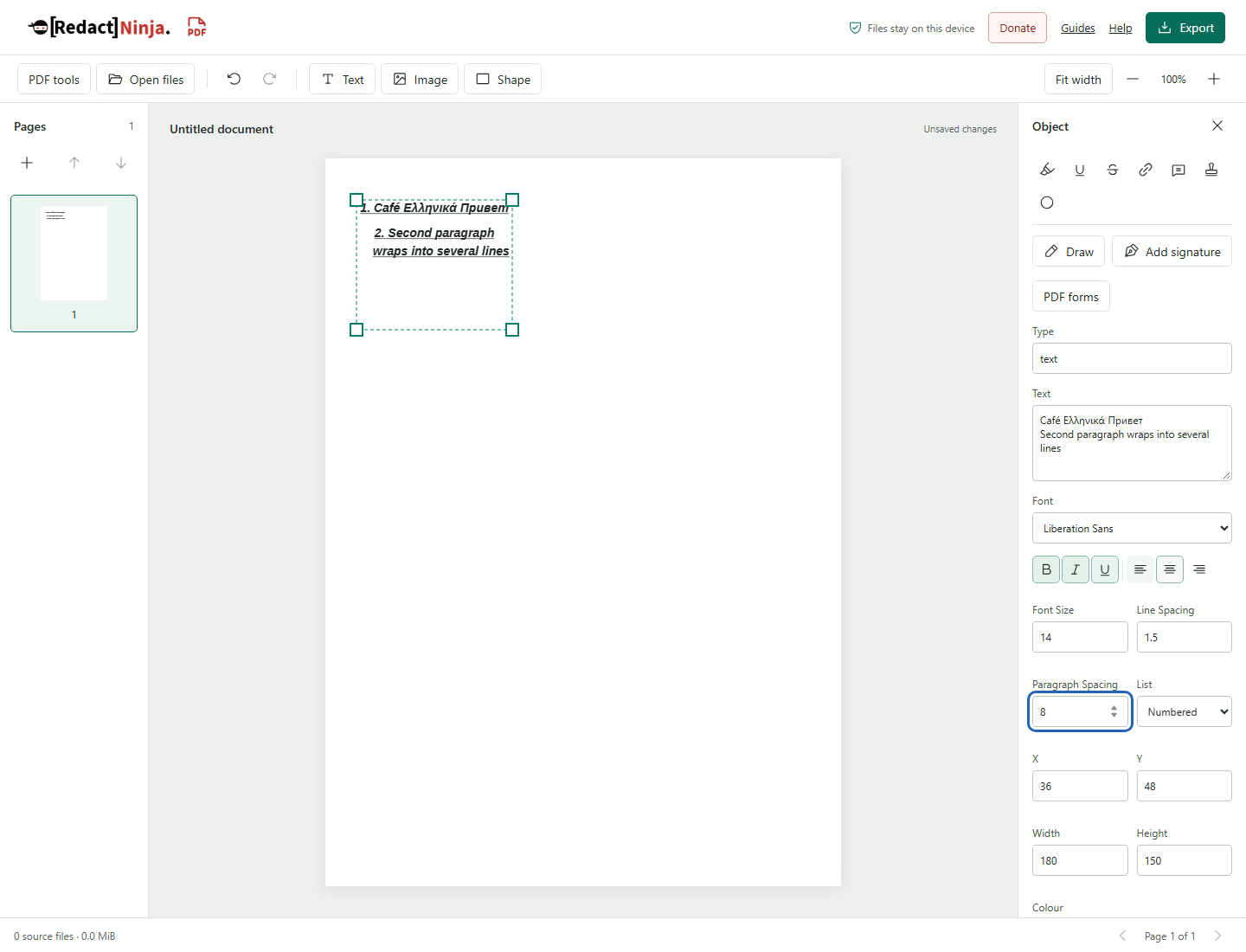
For added text, choose Liberation Sans, Times or Courier, then set bold, italic, underline, alignment, font size, line spacing and paragraph spacing. Text wraps within its box. Each new line starts a new paragraph, and bulleted or numbered lists use one item per paragraph. Formatting applies to the whole text box, not to single words. Liberation Sans is embedded in the exported PDF and supports accented Latin, Greek and Cyrillic characters, but not every script. Times and Courier support fewer characters. If a character is not supported, or the font cannot load, the export stops rather than dropping text. If text does not fit its box, enlarge the box or reduce the font size; text is not shrunk or cut off automatically.
Added PNG and JPG images can be rotated by a quarter turn, flipped, or cropped by a percentage from each edge with Crop image, which previews the area you keep. Keep proportions is on by default for resizing. Edited images are limited to 16 million pixels and 10 MiB each. Undo restores the previous version. Cropping an added image does not clean other content in the PDF and does not replace redaction.
To select several added objects, hold Shift, Ctrl or Command while you select them on the page or under Objects on this page. You can then move, align or duplicate them together. With one object selected, alignment is to the page. Bring to front and Send to back change the order of added objects, but cannot move an added object behind the original page content. Selections are not saved as groups.
Find and replace searches the original PDF text, including words stored in separate pieces, and text boxes you added. Turn on Match case or Whole words only if needed, select Find, untick any matches you want to keep, then replace. The replacement uses the PDF's own font, so a match is skipped, and the missing characters named, if that font cannot draw a character you typed. Undo reverses the whole replacement. Find and replace is not available for interactive forms.
Comments list shows every note, highlight, stamp and other markup in the document, both those already in the PDF and those you added. Filter the list, select Go to page to see a comment in place, or select Download list (CSV) to open it in a spreadsheet.
Adding a white rectangle, replacing visible text or covering content with a shape is not secure redaction. Use Redact a PDF, below, for information that must be removed.
Redact a PDF
- Use Find text to redact to search for exact text, an email address, a National Insurance number or a UK postcode, or use Mark redaction area to draw a region by hand. Matches you select become regions you can adjust.
- Check every marked area against the source. Scanned pages may contain text that a text search cannot find.
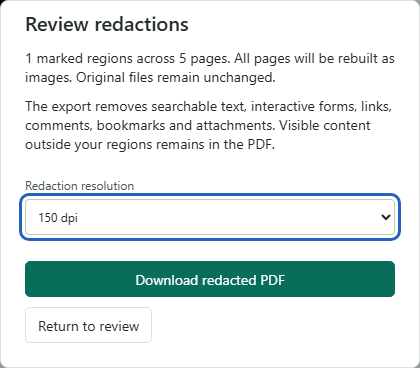
- Select Review redactions, choose the redaction resolution (96, 150 or 300 dpi) and select Download redacted PDF. Every page is rebuilt as an image, and the copy is checked before it downloads.
- Open the downloaded PDF and check every page. If the check fails, no file is downloaded; do not treat a failed attempt as a successful redaction.
- Keep the original separately. Download redaction report saves a JSON record of the marked regions on each page, a fingerprint of the redacted file and the checks it passed. The report is not a legal or disclosure approval.
The redacted PDF has no searchable text, interactive forms, links, comments, bookmarks or attachments. Visible content outside your regions stays on the page.
If preparation stalls, it stops after 90 seconds and you can try again; nothing is downloaded from the failed attempt. If it fails again, try a smaller document.
Ordinary PDF, split and image exports stop after three minutes. Cancelling, or a time-out, prevents a late result from downloading after you start again. Very large documents may not finish within these limits.
Recognise text in scans
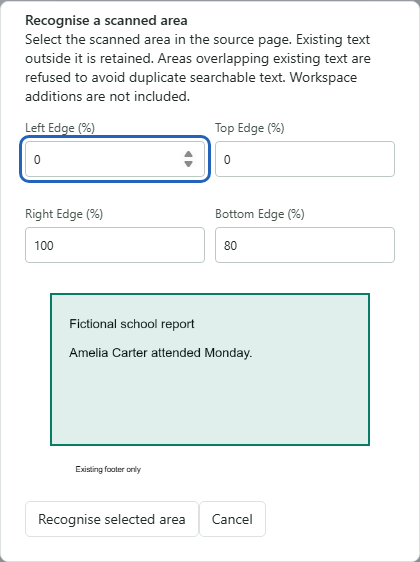
Choose the OCR language. For a document in two languages, also choose an Additional OCR language. The languages available are English, French, German, Spanish, Polish and Welsh. OCR recognises text; it does not translate it.
Use Recognise scanned text for the current page, or Recognise document text for the whole document. Review and correct the recognised words before you add the text layer. Pages that already contain text are kept unchanged. Reviewing is optional, but pages where recognition failed must be excluded before the other results can be applied.
Use Recognise scanned area when a page contains both a scan and existing searchable text. Set the edges of the area around the scan, as percentages of the page, leaving out the existing text. If the area overlaps existing text, the tool refuses rather than adding duplicate words. The original page stays as it is, and the reviewed text is added invisibly to the area you chose.
Rebuild document OCR creates a new image copy of the document and recognises its text again. It can replace an incorrect old text layer, but the pages become images and forms, links, comments, bookmarks and attachments are not kept. Choose it only after reading those limits. Full instructions: OCR workflow.
Convert documents
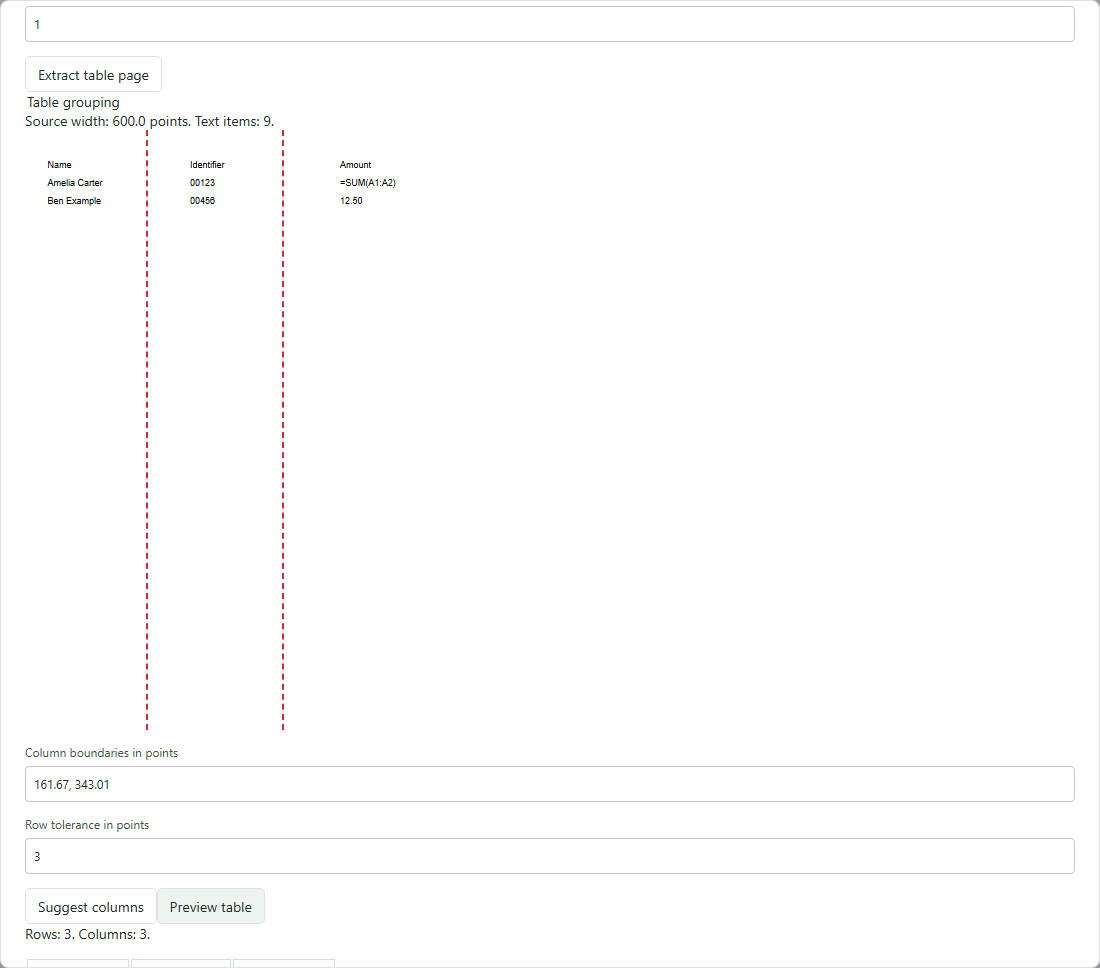
You can download a conversion as soon as it finishes. Previewing the pages is optional. Warnings about content that could not be converted are shown in the tool. If you cancel, or the content is not supported, no incomplete file is offered as a successful result.
| Tool | Output and what to check |
|---|---|
| Word to PDF | Converts a DOCX in the browser. Check pagination, fonts, images, headers, footers and tables against the source; complex Word layouts are not reproduced exactly. Resolve tracked changes, hidden text, macros and embedded objects in a copy first. |
| Excel to PDF | Creates readable tables from the worksheets you select. Check the selected content, layout and values. Saved formula results are used and formulas are not recalculated. Conversion does not remove hidden or sensitive spreadsheet information on its own. |
| PowerPoint to PDF | Creates one image per slide, so the text is not searchable or editable. Check each slide, fonts and graphics. Animations, notes and comments are not included. |
| HTML to PDF | Converts headings, paragraphs, lists, basic tables and PNG or JPG images you supply. Scripts, stylesheets and remote resources are not loaded, so text hidden by CSS may become visible. |
| PDF to Word | Creates an editable DOCX with paragraphs, headings and basic formatting, and optional simple aligned tables. You can convert up to 50 PDFs at once and download them as a ZIP. Images, complex or merged tables and original fonts are not reconstructed. |
| PDF to Excel | Review the suggested or manual column boundaries and cells. All values are text; original spreadsheet formulas are not recovered. |
| PDF to PowerPoint | Page images keeps the look of each page as a picture. Editable text creates positioned text boxes but leaves out images, graphics and original styling. |
| PDF to greyscale | Keep text selectable (recommended) keeps text, links and bookmarks; Image only turns every page into a picture. Choose 96, 150 or 300 dpi for image content. |
Converting a file back to its original format will not usually restore the original. Check converted files in Word, Excel or PowerPoint before you share them. Detailed guides: Word, Excel, PowerPoint.
Process a batch
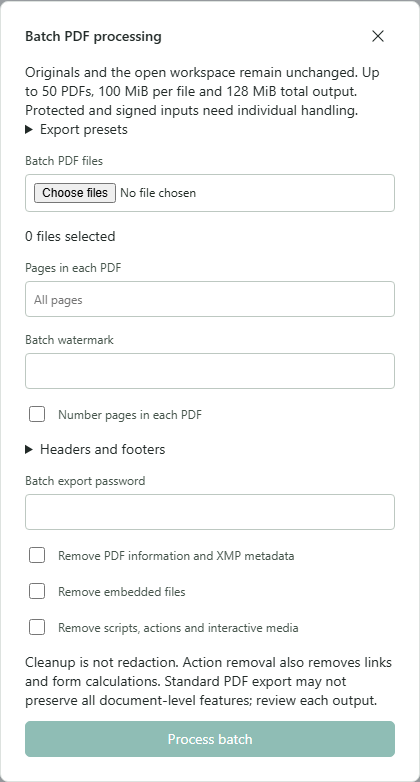
Select Batch PDFs and add up to 50 PDFs. Each file can be up to 100 MiB, and the completed output can total up to 128 MiB. Password-protected and signed files need to be handled one at a time in the editor.
Set the shared page selection, rotation, watermark, page numbers, headers and footers, and cleanup options. You can apply an export preset, but batch processing does not accept presets with sheet layout or Bates numbering. Passwords are never saved in a preset.
Process the batch and download the completed files directly; previews are optional. If you cancel, files that have already finished are kept. Retry unfinished files does not redo the completed ones. Download and check the results before you close the dialog, because closing discards them. A file that failed is never included as a successful output.
The ZIP download includes a batch report (batch-report.json) listing any files that failed or did not finish. The ZIP and the report are not encrypted, even if the PDFs inside have passwords, and the report contains file names. Removing metadata, attachments or actions is not redaction.
Forms, printing and optimisation
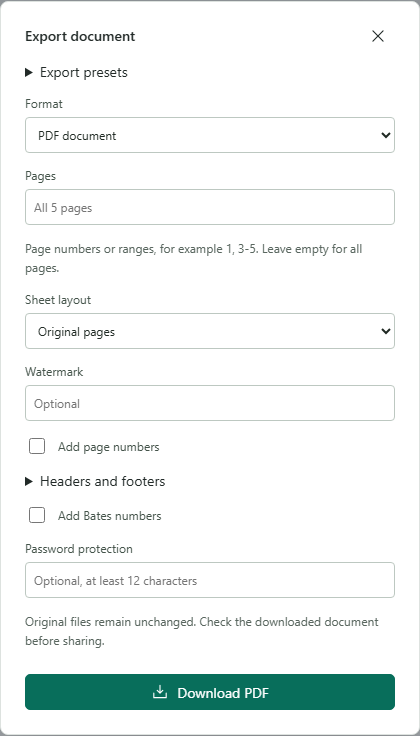
Standard form fields can be filled and exported with Fill fields in PDF forms. Use Flatten form only when the recipient does not need to fill in the fields. Some scripted or unusual forms are not supported.
Booklet and Multiple pages per sheet layouts in the Export dialog include a sheet order preview. The diagram shows where pages go, not the page content. The duplex setting is a preference stored in the PDF; your PDF reader and printer can override it. Before printing a large job, check the PDF and the printer's paper, scaling and duplex settings.
Optimise PDF shows the measured result and offers a preview. A smaller file is not guaranteed. Keep the original if optimisation gives no saving or changes content you need. Check colours, fine text, images and interactive features in the downloaded copy.
Compare, repair and inspect
Compare PDFs shows two PDFs side by side, as an overlay, as pixel differences or as text differences, and you can pair pages yourself. Differences are for you to review; the tool does not decide which version is correct.
Repair PDF can rebuild damaged PDF structure where it can be recovered, but cannot recreate missing content. The repaired copy is checked automatically before you can download it, and the page preview is optional. Repair does not clean the file: actions, attachments and metadata may remain. Signed and encrypted PDFs are not supported, to avoid breaking signatures.
Document metadata, Embedded files and Scripts and actions let you inspect and remove those features from the exported PDF. Removing actions can also remove links and form calculations, so check that this suits the person receiving the file.
Protect, unlock and flatten
Protect PDF: in the Export dialog, enter a password of at least 12 characters under Password protection. Image exports (PNG or JPG pages in a ZIP) cannot be password protected.
Unlock PDF: open the protected PDF, enter its password and confirm that you are authorised to edit it. Then export without a password and confirm that you understand the export has no password protection. You must know the password; the tool does not remove unknown passwords.
Flatten PDF (Export visible pages only) creates a new PDF in which every page is an image at 96, 150 or 300 dpi. Hidden text, metadata, attachments, scripts, form fields, links and bookmarks are not copied, and text is no longer searchable. Visible content, including names and other sensitive details, stays visible: flattening is not redaction. While redaction marks are present, use Review redactions instead.
Signatures and archival candidates
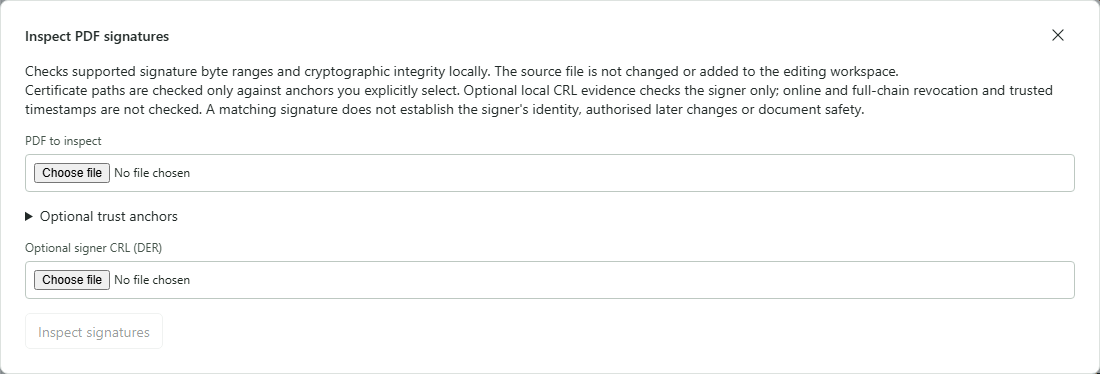
Sign PDF with a certificate and Inspect PDF signatures are separate tools. Sign PDF with a certificate adds an invisible digital signature using a certificate and a PKCS#8 private key; PFX and P12 files are not supported. The signature records the signing time from your computer's clock; it is not a trusted timestamp. Drawing a signature is not certificate signing. A valid cryptographic result on its own does not confirm the signer's identity, a trusted signing time or that later changes are safe.
Inspect PDF signatures checks whether the signed bytes are intact. Optional trust anchors and a signer certificate revocation list (CRL) that you choose allow a limited local check. They do not check the full certificate chain, online revocation status or a trusted signing time. See the signature and CRL guide.
Prepare PDF/A creates a PDF/A-2b candidate from supported PDFs. Download the candidate, optionally preview its pages, and validate it with an independent PDF/A validator before you rely on it. The browser does not validate PDF/A itself. See PDF/A validation.
Troubleshooting
| Situation | Next step |
|---|---|
| Unsupported content or format | Keep the original. Read the message in the tool and use a supported file or another tool. Do not assume that content left out was processed. |
| OCR language error | Reload the page and try again. The language files load from the website, so check your connection. |
| Existing text blocks OCR | Choose a scanned area that does not overlap the text, or use Rebuild document OCR after reading its limits. |
| Operation cancelled or timed out | Check that no file was downloaded for the unfinished work. Try again with fewer pages or smaller files. |
| Unexpected conversion layout | Compare the result with the source in Word, Excel or PowerPoint. Do not share a conversion you have not checked. |
| PDF/A summary rejected | Check that the summary was produced for the exact candidate you downloaded, for PDF/A-2b, with a successful result. |
| Signature result inconclusive | Do not assume the signature is valid. Get the right certificates or revocation information, or use a trusted signature validation application. |
The Help link opens this guide in a new tab, so your document stays open. Screenshots in this guide use fictional files. Read browser support and known limitations before you rely on a tool for important work.
Third-party acknowledgements: this software is based in part on the work of the Independent JPEG Group and the FreeType Team. Third-party software lists the licence notices for bundled components and the source link for the MPL-licensed resvg component. Opening a notice or source link does not send any document.