How to password protect a PDF
- Select or drop the PDF.
- In the export settings, enter a password under Password protection.
- Export the protected PDF and send the password separately.
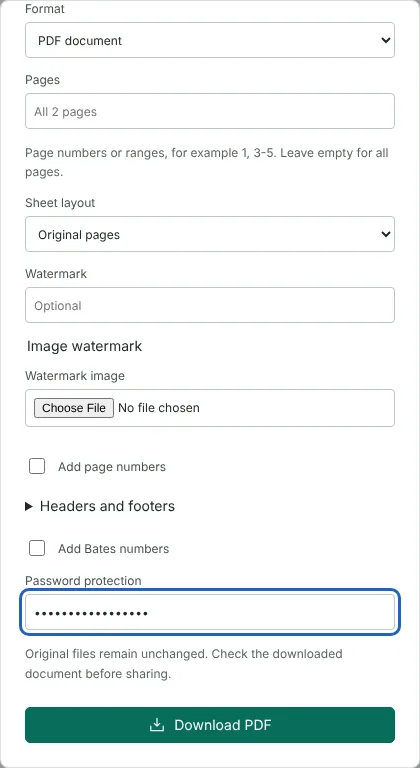
Worked example: password protecting a rent statement
In this test we used a fictional two-page rent statement from Northfield Lettings (44,433 bytes). We selected it on this page, and the export settings opened with the Password protection box ready.
We first typed an 11-character password. The editor showed Use at least 12 characters for the password and kept Download PDF disabled. With a 17-character password the download worked. The protected file was 87,393 bytes and kept both pages.
Checking the file with a PDF inspection tool showed AES-256 encryption. Opening it without the password failed, and with the password it opened normally. No printing, copying or editing restrictions were set, so anyone with the password can use the document as normal. With the password, the extracted text matched the original exactly, and the original file was not changed.
How strong is the PDF password protection
Protect PDF encrypts the whole file with 256-bit AES, and the password is needed to open the document at all. Before the download starts, the editor checks that the new file is encrypted, that it cannot be opened without the password and that it opens with the password you set. If any check fails, nothing is downloaded. In our test, both the page content and the text strings in the file were encrypted with AES-256.
The password must be at least 12 characters. A passphrase of several unrelated words is easier to remember and harder to guess than a short, complex password. Do not reuse a password from an online account.
Open password or permission restrictions
Some PDFs have a second, owner password that limits printing or copying. This tool sets an open password only and adds no restrictions, so anyone who can open the file can print it, copy text and save a copy. Restrictions of that kind depend on the reader software honouring them, so they are weak protection on their own.
If the reader should not be able to select and copy the text, send a copy made with Flatten PDF instead, which has no text layer (OCR can still read the page image), and remove details they should not see with Redact PDF before protecting the file.
Protect several PDFs or combine with other changes
Password protection is part of the normal export, so you can add page numbers, a watermark or remove metadata in the same download. To protect many files with one password, use Batch PDF, which has a Batch export password field. Image exports, such as PNG or JPG pages in a ZIP, cannot be password protected.
The protected file downloads with the same name as your original, so save it in a separate folder or rename it. To remove the password later, open the file in Unlock PDF with the same password.
If a protected PDF will not open for the recipient
Passwords are case sensitive, and a space at the start or end counts as a character, so check exactly what was sent. Very old PDF software may not support AES-256 encryption; ask the recipient to open the file in an up-to-date PDF reader or web browser. Some tools, including PDF to text on this site, ask for an unprotected copy, so finish any other processing before you add the password. If the recipient has lost the password, send the file again rather than trying to recover it.
Good to know
- Use a long, unique password. Short passwords can be guessed.
- Send the password by a different route from the file, such as a phone call or text message.
- If you lose the password, the file cannot be recovered. Keep the original.
Why your files stay on your device
RedactNinja PDF runs in your web browser. When you choose a file, it is read and processed on your own computer, tablet or phone. It is not uploaded to a server, so there is nothing for us to store, read or delete afterwards.
You can check this yourself: open your browser's developer tools, select the Network tab and use a tool. Your document does not appear in the requests. The editor also loads no advertising or analytics code. How to check that nothing is uploaded.
Free, with no sign-up and no watermark
Every tool is free to use without an account. Nothing is added to your documents, and there are no daily task limits. Large files depend on your device's memory, so very big scans may take longer on older machines.
Questions about Protect PDF
How secure is a PDF password?
PDF encryption is strong when the password is long and unpredictable. A weak password is the main risk.
Can I remove the password later?
Yes, if you know it. See Unlock PDF.
Is my password sent anywhere?
No. Encryption happens in your browser.
Are my files uploaded?
No. The tool runs in your browser and processes the file on your device. Nothing is sent to a server.
Is it free?
Yes. There is no account, no watermark and no daily limit.
Further reading
Related tools
All PDF tools
Organise
- Merge PDF
- Split PDF
- Organise PDF
- Rotate PDF
- Delete PDF pages
- Extract PDF pages
- Crop PDF
- Resize PDF pages
- Batch PDF
Convert from PDF
- PDF to Word
- PDF to Excel
- PDF to PowerPoint
- PDF to JPG
- PDF to PNG
- PDF to text
- PDF to Markdown
- Extract images
- PDF to PDF/A
Convert to PDF
Edit and sign
- Edit PDF
- Edit PDF text
- Find and replace in PDF
- PDF comments list
- Fill PDF form
- Sign PDF
- Draw on PDF
- Watermark PDF
- Add page numbers
- Bates numbering