How to compress a PDF
- Select or drop the PDF you want to make smaller.
- Choose a preset: Preserve image quality (the default), High image quality, Balanced, Smaller images or Custom. Or enter a target size, such as 2 MB, and the tool tries stronger settings until the file fits.
- Run the compression, compare the original and result, then download.
Worked example: compressing a photo schedule for email
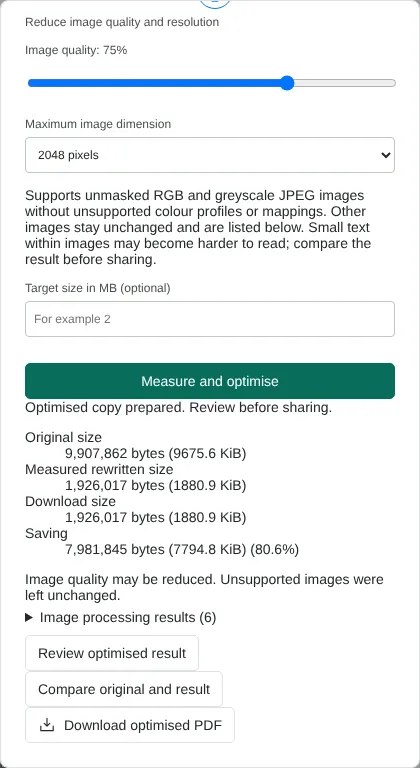
In this test we compressed a fictional 6-page property photo schedule from Northfield Lettings. Each page has one 2400 x 1600 pixel JPEG photo and a short typed caption, and the file was 9,907,862 bytes (9.9 MB). We chose the Balanced preset, which uses 75% image quality and a maximum image dimension of 2048 pixels, and selected Measure and optimise.
The result was 1,926,017 bytes (1.9 MB), a saving of 80.6% as reported by the tool. Checked with pdfimages, each photo was now 2048 x 1365 pixels. The captions were still selectable text, and the title and author in the document properties were unchanged. Image processing results listed all six photos as compressed.
Why a PDF does not get smaller
Compression here reduces photos and scans, whether they are stored as JPEG or losslessly. A lossless image is only changed to JPEG when that saves at least a fifth of its size, so screenshots and diagrams with sharp text usually stay as they are. Text, fonts and vector drawings are kept unchanged, so a PDF that is mostly text may shrink very little. Open Image processing results to see what happened to each image: compressed, unchanged, or unsupported, with the reason.
Some programs store JPEG images in a way the tool does not support yet, for example with an extra encoding layer or a transparency mask. In this test, a copy of the same photo schedule written that way (12,384,018 bytes) had all six images listed as unsupported and saved only 1,936 bytes. Lossless images that act as a transparency mask for another image are also left unchanged.
How to check a compressed PDF before you send it
Compare original and result opens both versions in the compare view, page by page. Zoom in on small print inside photos, such as meter readings or serial numbers. Review optimised result opens the new file on its own, and the dialog lists the original size, the download size and the saving in bytes.
The download is called optimised-document.pdf, or original-document.pdf when no saving was found, so rename it before you send it. Compression does not remove metadata, attachments or scripts; use Remove PDF metadata for that. Signed PDFs are refused, because recompressing them would break the signature, and a password-protected PDF needs an unlocked copy from Unlock PDF first.
Compress a PDF to a target size for an upload limit
With a target size, the tool tries six settings in turn, from 85% quality and 4096 pixels down to 25% quality and 512 pixels, and stops at the first one that fits. If the PDF is already under the target, nothing is changed.
The tool counts 1 MB as 1,048,576 bytes. For a portal with a strict limit such as 2,000,000 bytes, enter a slightly lower figure, for example 1.9.
Good to know
- The saving depends on the content. Scans and photos usually shrink the most; text-only PDFs may barely change.
- Structure only rewrites the file without touching image quality.
- Selectable text, vector drawings and form fields are kept. Check fine print and diagrams before sharing.
Why your files stay on your device
RedactNinja PDF runs in your web browser. When you choose a file, it is read and processed on your own computer, tablet or phone. It is not uploaded to a server, so there is nothing for us to store, read or delete afterwards.
You can check this yourself: open your browser's developer tools, select the Network tab and use a tool. Your document does not appear in the requests. The editor also loads no advertising or analytics code. How to check that nothing is uploaded.
Free, with no sign-up and no watermark
Every tool is free to use without an account. Nothing is added to your documents, and there are no daily task limits. Large files depend on your device's memory, so very big scans may take longer on older machines.
Questions about Compress PDF
How much smaller will my PDF be?
There is no fixed percentage. In our tests the Balanced preset saved between about 60% and 80% on PDFs of photos. A text-only PDF may shrink very little.
Will compression make text blurry?
Selectable text stays sharp. Text inside scanned images can lose detail at stronger settings, so check it in the comparison view.
Can I compress a PDF to a specific size?
Yes. Enter a target size in MB. The tool steps down through image settings until the PDF fits, or tells you the smallest size it could reach.
My file is still too big for email. What next?
Text, fonts and drawings cannot be reduced, so a long document may not reach a small target. Split the PDF by maximum file size so each part fits the limit.
Are my files uploaded?
No. The tool runs in your browser and processes the file on your device. Nothing is sent to a server.
Is it free?
Yes. There is no account, no watermark and no daily limit.
Further reading
Related tools
All PDF tools
Organise
- Merge PDF
- Split PDF
- Organise PDF
- Rotate PDF
- Delete PDF pages
- Extract PDF pages
- Crop PDF
- Resize PDF pages
- Batch PDF
Convert from PDF
- PDF to Word
- PDF to Excel
- PDF to PowerPoint
- PDF to JPG
- PDF to PNG
- PDF to text
- PDF to Markdown
- Extract images
- PDF to PDF/A
Convert to PDF
Edit and sign
- Edit PDF
- Edit PDF text
- Find and replace in PDF
- PDF comments list
- Fill PDF form
- Sign PDF
- Draw on PDF
- Watermark PDF
- Add page numbers
- Bates numbering