How to add page numbers to a PDF
- Select or drop the PDF.
- The export settings open with Add page numbers switched on. Add Bates numbering too if you need a prefix and starting number.
- Export the numbered PDF and check the first and last pages.
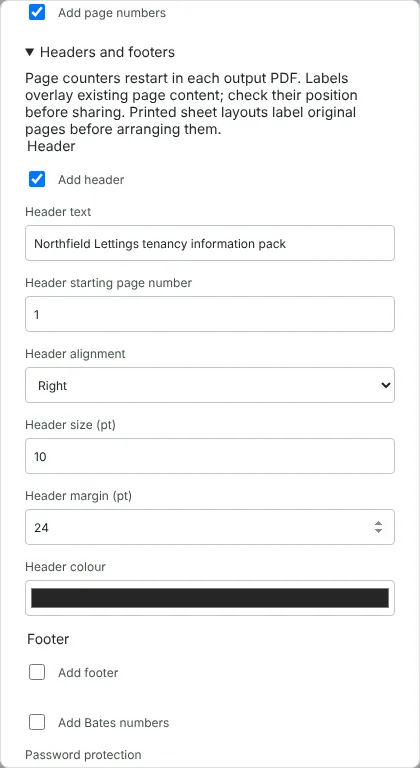
Worked example: numbering an 8-page tenancy pack
In this test we used a fictional 8-page A4 tenancy information pack from Northfield Lettings, 8,241 bytes in size. Opening it from this page started the export settings with Add page numbers already ticked. We also opened Headers and footers and added a right-aligned header reading Northfield Lettings tenancy information pack.
The downloaded PDF still had 8 A4 pages and was 8,855 bytes. Every page showed its number in the form 1 / 8 at the bottom left, 24 points in from the left and bottom edges, and the header sat at the top right. The numbers and the header were real text: a text extraction tool read 1 / 8 on the first page and 8 / 8 on the last.
In a second run we turned Add page numbers off and added a footer instead. The footer text starts as Page {page} of {pages}. With the footer starting page number set to 0 and right alignment, the cover read Page 0 of 8 and the last page read Page 7 of 8.
Simple page numbers or a custom page number footer
Add page numbers is the quickest option. It always uses the format 1 / 8, in small dark grey text at the bottom left of each page, and it has no settings for position, size or starting number.
If you need something else, open Headers and footers in the same export settings. A header or footer can hold up to 160 characters on one line. Type {page} where the page number should go and {pages} for the total, for example Page {page} of {pages} or Section 2, page {page}. You can set the starting page number, the alignment (left, centre or right), the font size from 6 to 36 points, the distance from the edge from 8 to 144 points, and the colour.
A footer and Add page numbers cannot be used together; the tool asks you to put {page} and {pages} in the footer instead. A header and simple page numbers can be combined, as in the example above. If you change the starting number, consider leaving out {pages}, because it always counts the pages in the exported file. A pack numbered from 0 therefore ends with Page 7 of 8.
Page numbers on extracts, split files and printed booklets
Numbers count the pages of each exported file, not the original. If you enter a page range such as 3-6 at the top of the export settings, the first exported page is numbered 1. If you choose Separate PDFs in a ZIP, page counters restart in each output PDF. For a booklet or several pages per sheet, labels are added to the original pages before they are arranged on the printed sheets.
To number a bundle made from several documents, merge them first with Merge PDF so the numbers run on across the whole set. For court and disclosure bundles that need a unique reference such as ABC000123 rather than a page count, use Bates numbering.
Checking the numbered PDF before you send it
Numbers and labels are drawn on top of the existing page content. Nothing is moved out of the way, so check pages where text or images run close to the edges. If a header or footer is too long for the page, the export stops and names the page it does not fit; shorten the text or reduce its size or margin. The labels use a standard font, so some characters, for example Chinese or Arabic script, cannot be used and the export shows a message instead.
The exported file also takes the Document name shown in the editor as its title in the PDF properties. In this test the title changed from the one set by the original software to the file name, northfield-tenancy-pack. Change Document name in the editor before exporting if the title matters. Your original file is not changed.
Good to know
- Numbers are added to the page content of the downloaded copy.
- Bates numbering supports a prefix, suffix, starting number and minimum digits for legal and evidence bundles.
- Combine with Merge PDF to number a whole bundle continuously.
Why your files stay on your device
RedactNinja PDF runs in your web browser. When you choose a file, it is read and processed on your own computer, tablet or phone. It is not uploaded to a server, so there is nothing for us to store, read or delete afterwards.
You can check this yourself: open your browser's developer tools, select the Network tab and use a tool. Your document does not appear in the requests. The editor also loads no advertising or analytics code. How to check that nothing is uploaded.
Free, with no sign-up and no watermark
Every tool is free to use without an account. Nothing is added to your documents, and there are no daily task limits. Large files depend on your device's memory, so very big scans may take longer on older machines.
Questions about Add page numbers
Can I start numbering at a different number?
Yes. Set the starting page number in the header and footer settings, or use Bates numbering with its own starting number.
Can I skip the cover page?
Export the cover separately, or delete it, number the rest and merge.
Can I number several PDFs at once?
Yes, with Batch PDF processing.
Are my files uploaded?
No. The tool runs in your browser and processes the file on your device. Nothing is sent to a server.
Is it free?
Yes. There is no account, no watermark and no daily limit.
Related tools
All PDF tools
Organise
- Merge PDF
- Split PDF
- Organise PDF
- Rotate PDF
- Delete PDF pages
- Extract PDF pages
- Crop PDF
- Resize PDF pages
- Batch PDF
Convert from PDF
- PDF to Word
- PDF to Excel
- PDF to PowerPoint
- PDF to JPG
- PDF to PNG
- PDF to text
- PDF to Markdown
- Extract images
- PDF to PDF/A
Convert to PDF
Edit and sign
- Edit PDF
- Edit PDF text
- Find and replace in PDF
- PDF comments list
- Fill PDF form
- Sign PDF
- Draw on PDF
- Watermark PDF
- Add page numbers
- Bates numbering