How to redact a PDF
- Select or drop the PDF.
- Search for names, numbers or phrases and review each match. Draw redaction areas for anything else, including images.
- Export with the redaction workflow and check the downloaded file before sharing.
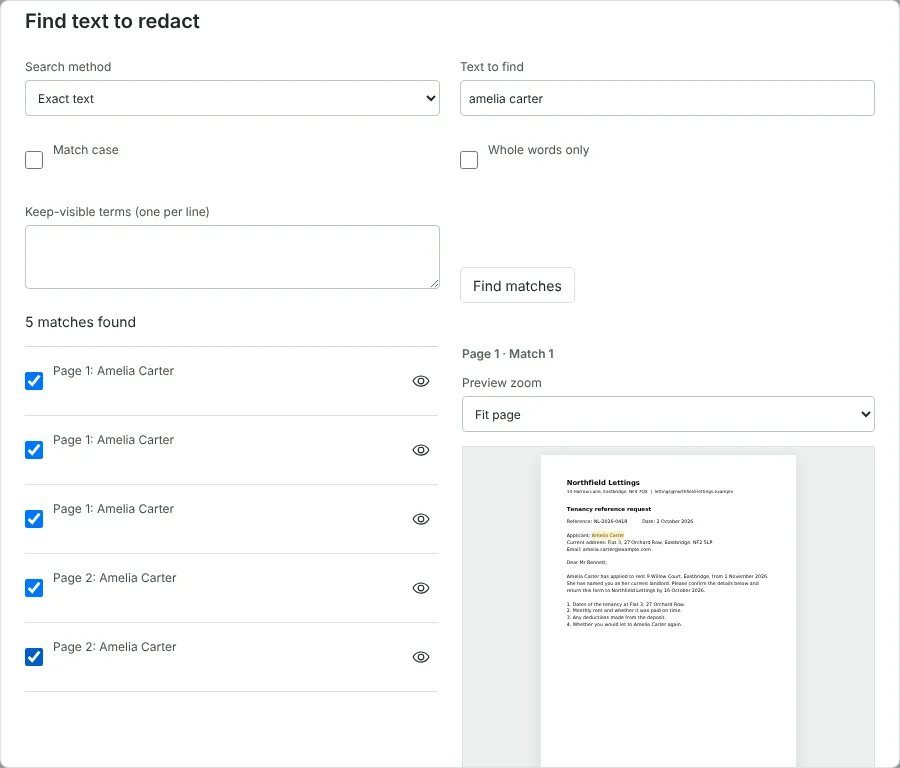
Worked example: redacting a name and an email address from a tenancy reference
In this test we used a fictional two-page tenancy reference request from Northfield Lettings (44,740 bytes). The applicant, Amelia Carter, is named five times across the two pages, and her email address appears once, near the agency's own email address.
In Find text to redact we searched for amelia carter. Matching ignores case unless you tick Match case, and the search found all five matches, each listed with its page and a preview. We ticked all five and added them as regions. A second search with the Email address pattern, with the agency address entered as a keep-visible term, offered only the applicant's email; the agency address was marked as overlapping a keep-visible term and could not be ticked. Review redactions then reported 90 marked regions across 2 pages, one for each character.
We exported at 150 dpi. The redacted PDF was 148,146 bytes, with each of the 2 pages stored as a single 1241 x 1754 pixel image. No text could be extracted from it, and it held no document information or metadata. The redaction report recorded the same SHA-256 fingerprint as the downloaded file.
What the redaction export removes from the PDF
Redact PDF does not hide text under a box. When you choose Download redacted PDF, every page is rendered as a picture, the pixels inside each marked region are set to solid black, and a new PDF is built from those pictures alone. The original text, fonts, form fields, links, comments, bookmarks, attachments and document metadata are not carried into the new file.
That is why the whole document stops being searchable, not just the redacted parts, and why the file usually gets larger. Choose 300 dpi for small print or 96 dpi for a smaller file. Your original PDF is not changed.
How the redacted file is checked before it downloads
The editor checks the new file before it lets you have it. It confirms that the page count and page sizes match, that each page holds one image and nothing else, that there is no searchable text and there are no annotations, and that every pixel inside each marked region is opaque black. If any check fails, nothing is downloaded.
After a successful export you can choose Download redaction report. The JSON report lists the marked regions on each page, the resolution and a SHA-256 fingerprint of the exported PDF, so you can show which file it belongs to. It is not a certificate: the checks prove that the marked areas are black, not that everything sensitive was marked. Read the downloaded PDF yourself before sharing it.
Finding names, email addresses and NI numbers to redact
Exact text search has Match case and Whole words only options. The Search method list also offers patterns for email addresses, UK postcodes and National Insurance numbers. Pattern matches are suggestions, so check each one in the preview before ticking it. Keep-visible terms stop a search from selecting text that must stay, such as your organisation's own address.
Nothing is added until you tick matches and choose Add selected regions. Each matched character becomes its own region, and the workspace holds up to 1,000 objects, so select fewer matches if you reach the limit. If the search reports pages with no searchable text, those pages are scans or images: cover the content with Mark redaction area, or run OCR PDF first so the words can be found.
Good to know
- A black rectangle drawn in an ordinary editor can leave the text underneath. This tool removes it.
- Check scanned pages and images separately: text inside a picture is not found by a text search.
- Automatic search helps you find matches; it cannot guarantee that every sensitive detail has been found.
Why your files stay on your device
RedactNinja PDF runs in your web browser. When you choose a file, it is read and processed on your own computer, tablet or phone. It is not uploaded to a server, so there is nothing for us to store, read or delete afterwards.
You can check this yourself: open your browser's developer tools, select the Network tab and use a tool. Your document does not appear in the requests. The editor also loads no advertising or analytics code. How to check that nothing is uploaded.
Free, with no sign-up and no watermark
Every tool is free to use without an account. Nothing is added to your documents, and there are no daily task limits. Large files depend on your device's memory, so very big scans may take longer on older machines.
Questions about Redact PDF
Is redaction permanent?
In the exported copy, yes. Keep your original safe, because the original file is unchanged.
Can I redact a scanned document?
Yes, by drawing redaction areas over the content. Run OCR PDF first if you want to search the text.
I am handling a Subject Access Request. Is there more help?
Yes. The RedactNinja SAR workspace adds case records, email evidence and disclosure packs.
Are my files uploaded?
No. The tool runs in your browser and processes the file on your device. Nothing is sent to a server.
Is it free?
Yes. There is no account, no watermark and no daily limit.
Further reading
Related tools
All PDF tools
Organise
- Merge PDF
- Split PDF
- Organise PDF
- Rotate PDF
- Delete PDF pages
- Extract PDF pages
- Crop PDF
- Resize PDF pages
- Batch PDF
Convert from PDF
- PDF to Word
- PDF to Excel
- PDF to PowerPoint
- PDF to JPG
- PDF to PNG
- PDF to text
- PDF to Markdown
- Extract images
- PDF to PDF/A
Convert to PDF
Edit and sign
- Edit PDF
- Edit PDF text
- Find and replace in PDF
- PDF comments list
- Fill PDF form
- Sign PDF
- Draw on PDF
- Watermark PDF
- Add page numbers
- Bates numbering