How to convert JPG to PDF
- Select or drop one or more JPG or PNG images.
- Choose the paper size, the orientation (or Match each image) and the margin.
- Create the PDF, check that nothing is cut off, and download it.
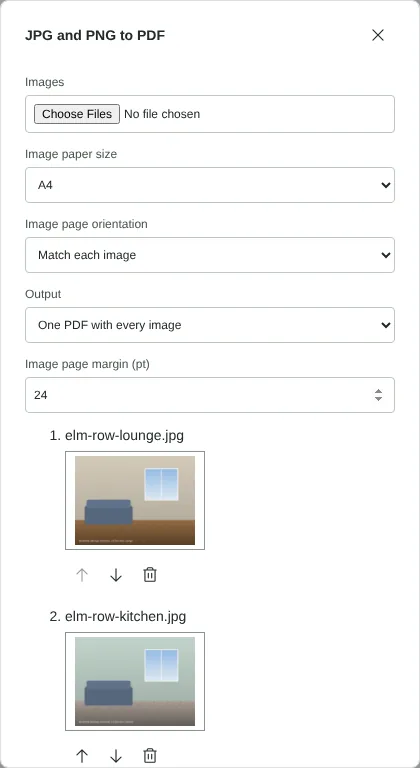
Worked example: three inventory photos in one PDF
In this test we used three fictional inventory photos of a rented house at 14 Elm Row, the kind a letting agent takes at check-in: a lounge and a kitchen in landscape (4032 x 3024 pixels each) and a hallway in portrait (3024 x 4032 pixels). Together the three JPG files came to 7.3 MB.
We kept the default settings: A4 paper, Match each image, One PDF with every image and a 24 pt margin. The download, converted-images.pdf, had 3 pages. The two landscape photos were placed on landscape A4 pages and the hallway photo on a portrait A4 page, so no photo was shrunk to fit a page the wrong way round. Each photo kept its full pixel size, which works out at about 398 pixels per inch on the page.
The PDF was 7,277,797 bytes, almost exactly the 7,276,119 bytes of the three photos, because each JPG went into the PDF as it was. Running it through Compress PDF with the Balanced preset, which limits images to 2048 pixels on the long edge, gave a 408,726 byte copy. Choosing A separate PDF for each image instead gave a ZIP named images-to-pdf-3-files.zip containing elm-row-lounge.pdf, elm-row-kitchen.pdf and elm-row-hallway.pdf, one page each.
How JPG photos are stored in the PDF
A PDF can hold JPG data directly, so the tool places each photo in the PDF exactly as it is. Nothing is decoded and compressed again, so there is no further loss of quality and the PDF is about the size of the photos. Photos with an embedded colour profile keep it, so colours look the same as in your photo viewer. A few unusual JPG files, such as CMYK images from print software, are stored losslessly instead, which makes those pages larger.
If size matters, for an email attachment or an upload limit for example, run Compress PDF on the result, as in the example above. It can reduce the photos' pixel dimensions and JPG quality, and you can compare the result before downloading. A photo 2000 pixels on its long edge still gives about 170 pixels per inch across a full A4 page.
Page size, orientation and margins for photos
A4 and Letter scale each photo to fit inside the margin and centre it on the page, keeping its proportions, so nothing is cropped or stretched. Match each image uses a landscape page for a wide photo and a portrait page for a tall one. Choose Portrait or Landscape instead if every page should face the same way, for a printed bundle for example. The margin can be set from 0 to 144 pt, where 72 pt is one inch.
Image size (96 dpi) makes each page the size of the photo rather than a sheet of paper, at 0.75 pt per pixel. A 4032 x 3024 photo would give a page 42 by 31.5 inches, which is awkward to print, so for camera photos A4 or Letter is usually the better choice. It suits screenshots better.
Phone photos taken sideways often store their rotation as a tag rather than in the pixels. The tool applies that tag when it places the photo, without changing the photo data: in a separate test, a JPG stored as 1512 x 1134 pixels with a tag saying it should be turned 90 degrees came out as an upright portrait page. If a photo still appears on its side, turn the page afterwards with Rotate PDF.
Photo limits and checking the PDF before you send it
You can add up to 50 images per PDF, up to 100 MiB in total. Each image can have up to 16 million pixels, which covers a 12 megapixel phone photo but not a 24 megapixel camera file, so reduce larger photos first. HEIC photos are not accepted; export them as JPG on your phone or computer.
Before you send the file, open it and zoom in on one page to check that the detail you need, such as a meter reading or a mark on a wall, is clear. The tool confirms that the PDF has one page per image before it downloads. If the photos show documents and you need to search or copy their text, run OCR PDF on the finished file.
Good to know
- Each image becomes a page, in the order shown.
- The text in a photo is not searchable. Use OCR PDF afterwards to recognise it.
- Each JPG goes into the PDF as it is, so the PDF is about the size of the photos. To make it smaller, run Compress PDF on the result.
Why your files stay on your device
RedactNinja PDF runs in your web browser. When you choose a file, it is read and processed on your own computer, tablet or phone. It is not uploaded to a server, so there is nothing for us to store, read or delete afterwards.
You can check this yourself: open your browser's developer tools, select the Network tab and use a tool. Your document does not appear in the requests. The editor also loads no advertising or analytics code. How to check that nothing is uploaded.
Free, with no sign-up and no watermark
Every tool is free to use without an account. Nothing is added to your documents, and there are no daily task limits. Large files depend on your device's memory, so very big scans may take longer on older machines.
Questions about JPG to PDF
Can I put several photos into one PDF?
Yes. Select them all at once and they become pages of one PDF.
Can I make a separate PDF from each image?
Yes. Choose A separate PDF for each image and you get one PDF per photo, downloaded together as a ZIP.
Does it support PNG and HEIC?
JPG and PNG are supported. Convert HEIC photos to JPG on your phone or computer first.
Will the image quality drop?
No. Each JPG is placed in the PDF without being compressed again, and PNG images are stored losslessly.
Are my files uploaded?
No. The tool runs in your browser and processes the file on your device. Nothing is sent to a server.
Is it free?
Yes. There is no account, no watermark and no daily limit.
Further reading
Related tools
All PDF tools
Organise
- Merge PDF
- Split PDF
- Organise PDF
- Rotate PDF
- Delete PDF pages
- Extract PDF pages
- Crop PDF
- Resize PDF pages
- Batch PDF
Convert from PDF
- PDF to Word
- PDF to Excel
- PDF to PowerPoint
- PDF to JPG
- PDF to PNG
- PDF to text
- PDF to Markdown
- Extract images
- PDF to PDF/A
Convert to PDF
Edit and sign
- Edit PDF
- Edit PDF text
- Find and replace in PDF
- PDF comments list
- Fill PDF form
- Sign PDF
- Draw on PDF
- Watermark PDF
- Add page numbers
- Bates numbering