How to compare two PDFs
- Select the original PDF and the revised PDF.
- Choose side by side, overlay, text differences or pixel differences.
- Step through the paired pages and review each change.
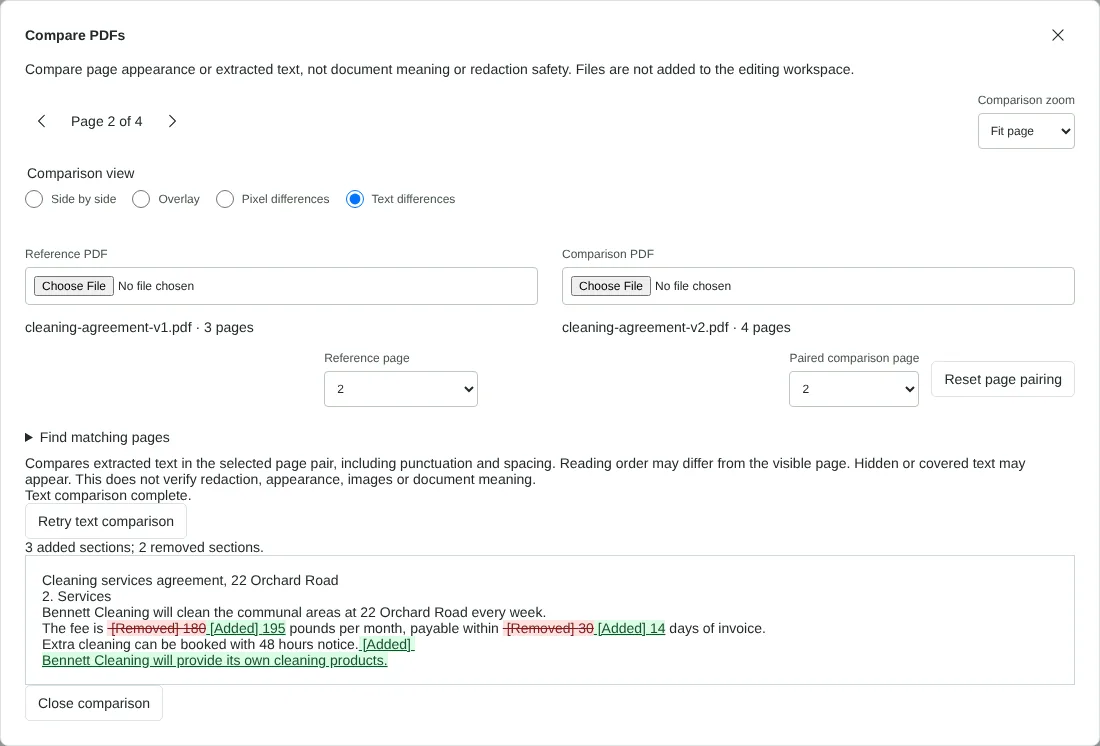
Worked example: finding changes between two versions of a service agreement
In this test we compared two fictional versions of a cleaning services agreement between Northfield Lettings and Bennett Cleaning. Version 1 had 3 pages and was 3,120 bytes. Version 2 had 4 pages and was 3,833 bytes: page 2 had been edited and a new page about insurance had been added after it.
Find matching pages suggested 2 pairs: reference page 1 with comparison page 1, and reference page 3 with comparison page 4. Reference page 2 had no identical match because its text had changed, so it stayed paired with page 2.
On page 2, Text differences reported 3 added sections and 2 removed sections: the fee changed from 180 to 195 pounds, the payment term changed from 30 to 14 days, and a new sentence about cleaning products was added. Pixel differences on the same page found 3,823 changed pixels (0.19%) at 144 dpi. On page 1, which had not changed, it found 0 changed pixels.
Pairing pages when pages were added or removed
Pages are first paired by position: page 2 with page 2, page 3 with page 3. When a page has been inserted or deleted, every later page is paired with the wrong one. In the example, reference page 3 was paired with the new insurance page until we accepted a suggestion.
Open Find matching pages and select Find unique text matches. A pair is suggested only when a page has the same text in both files, ignoring spacing, and that text appears once in each file. Select Use comparison page to accept a suggestion. Pages with changed text, no text or repeated text are not matched, so choose their partner in Paired comparison page. Reset page pairing returns to pairing by position.
Text differences or pixel differences
Text differences compare the extracted text of one page pair word by word, including punctuation and spacing, and mark each section as added or removed. This is the view for wording changes in contracts and policies. It cannot see images, layout or colour, and it needs selectable text, so a scanned page shows no text until both files have been through OCR PDF. It handles pages of up to 200,000 characters, and a PDF that does not allow text copying cannot be compared this way.
Pixel differences draw both pages at 144 dpi and mark changed pixels in red, with a count and a percentage. Use it for drawings, signatures, stamps, logos or moved images. Raise the difference tolerance to ignore faint changes, such as smoothing at the edges of text. Pixel differences and Overlay only work when both pages are the same size; otherwise use Side by side.
Side by side shows the two pages next to each other, and Link scrolling keeps them moving together when you zoom in with Comparison zoom. Overlay places the comparison page over the reference page; move the Comparison opacity slider to fade between them, which makes small shifts in position easy to spot.
What a PDF comparison does not check
The comparison looks at what is drawn on the pages and at their text. It does not compare metadata or attachments, and it cannot tell you whether a change matters. Text differences can include text that is hidden or covered on the page. Neither view confirms that a redaction worked.
Nothing is downloaded or saved by the comparison, and the two files are not added to the editing workspace. To keep a record, note the page numbers and changes as you go.
Good to know
- Text differences show added and removed words.
- Pixel differences catch visual changes such as moved images or altered drawings.
- Pages are paired by position. If pages were added or removed, Find matching pages suggests pairs for pages with the same text, and you accept each one.
Why your files stay on your device
RedactNinja PDF runs in your web browser. When you choose a file, it is read and processed on your own computer, tablet or phone. It is not uploaded to a server, so there is nothing for us to store, read or delete afterwards.
You can check this yourself: open your browser's developer tools, select the Network tab and use a tool. Your document does not appear in the requests. The editor also loads no advertising or analytics code. How to check that nothing is uploaded.
Free, with no sign-up and no watermark
Every tool is free to use without an account. Nothing is added to your documents, and there are no daily task limits. Large files depend on your device's memory, so very big scans may take longer on older machines.
Questions about Compare PDF
Can it compare scanned documents?
Use pixel differences or overlay for scans. Text comparison needs selectable text.
Does it compare Word files?
Convert them with Word to PDF first, then compare.
Is my contract uploaded?
No. Both files are compared in your browser.
Are my files uploaded?
No. The tool runs in your browser and processes the file on your device. Nothing is sent to a server.
Is it free?
Yes. There is no account, no watermark and no daily limit.
Related tools
All PDF tools
Organise
- Merge PDF
- Split PDF
- Organise PDF
- Rotate PDF
- Delete PDF pages
- Extract PDF pages
- Crop PDF
- Resize PDF pages
- Batch PDF
Convert from PDF
- PDF to Word
- PDF to Excel
- PDF to PowerPoint
- PDF to JPG
- PDF to PNG
- PDF to text
- PDF to Markdown
- Extract images
- PDF to PDF/A
Convert to PDF
Edit and sign
- Edit PDF
- Edit PDF text
- Find and replace in PDF
- PDF comments list
- Fill PDF form
- Sign PDF
- Draw on PDF
- Watermark PDF
- Add page numbers
- Bates numbering