How to view and remove PDF metadata
- Select or drop the PDF.
- The Document metadata panel opens with the information stored in the file.
- Choose Remove information fields and XMP metadata, or replace them with four fields you set, then export.
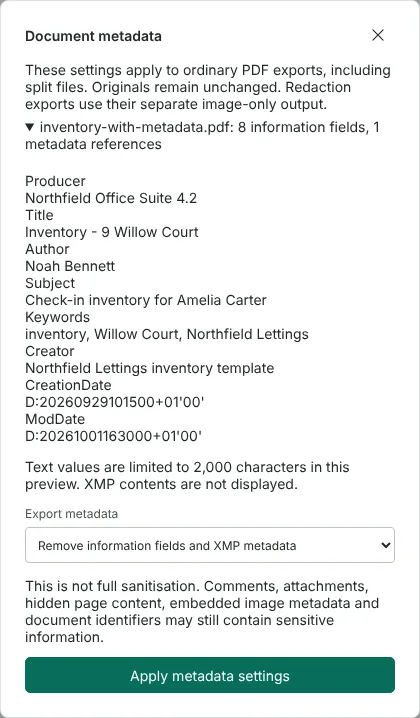
Worked example: removing the author and XMP data from an inventory
In this test we used a fictional two-page inventory for a flat let by Northfield Lettings (44,804 bytes). Its document information held eight fields, including the author Noah Bennett, a subject naming the tenant Amelia Carter, keywords, the creating software and two dates. It also had an XMP metadata stream repeating the author and title.
Document metadata listed all eight fields and reported one metadata reference. We chose Remove information fields and XMP metadata, applied it and exported the PDF. The 2-page result was 79,441 bytes. It had no title, author, subject, keywords, creator, producer or dates, and no XMP metadata stream. The page text was unchanged.
For comparison, a default export of the same file also dropped the original author and subject, but wrote a new title taken from the file name, RedactNinja PDF as the producer, the name of the PDF library and the export date. Replace with the fields below kept only the title we typed.
What hidden information a PDF can reveal
PDF metadata is stored in two places. The document information dictionary holds fields such as Title, Author, Subject, Keywords, Creator, Producer and the creation and modification dates. XMP is a block of XML that often repeats the same details and can also be attached to pages or images. Software often fills these fields in automatically, for example with the account name of the person who created the file. Either can show who wrote a document, which organisation or software made it, when it was edited, or a working title you never meant to share. The Document metadata panel lists the information fields and their values. It counts XMP references but does not show their contents.
Remove, replace or keep PDF metadata
Remove information fields and XMP metadata deletes the information dictionary and every XMP reference in the file, then checks the exported copy. If any remains, nothing is downloaded. Replace with the fields below writes only the title, author, subject and keywords you enter, and removes everything else, including the original dates and producer. It suits a file that needs a proper title for a website or records system but nothing more. The default keeps normal export behaviour, which sets a title and producer; some source metadata can remain, especially in PDFs with form fields.
The setting applies to every ordinary PDF export from the editor, including split files. You can combine it with other export options, such as page numbers or a password, in one download.
What metadata removal does not clean
This is not full sanitisation. Comments, attachments, hidden page content, details stored inside embedded images and document identifiers can still hold personal information. Review attachments and scripts with their own tools, and use Redact PDF for anything visible on the page. Redact PDF and Flatten PDF build a new image-only file with no document information or XMP at all, which suits a minimal copy for sharing.
To check the result, open the downloaded file's document properties in your PDF reader and confirm that the author, title and other fields are empty. The download has the same file name as the original, so keep the two apart.
Good to know
- Removes document information and XMP metadata from the exported copy.
- Embedded files and scripts are separate; review them with the embedded files and scripts tools.
- Visible text on the pages is not changed. Use Redact PDF for that.
Why your files stay on your device
RedactNinja PDF runs in your web browser. When you choose a file, it is read and processed on your own computer, tablet or phone. It is not uploaded to a server, so there is nothing for us to store, read or delete afterwards.
You can check this yourself: open your browser's developer tools, select the Network tab and use a tool. Your document does not appear in the requests. The editor also loads no advertising or analytics code. How to check that nothing is uploaded.
Free, with no sign-up and no watermark
Every tool is free to use without an account. Nothing is added to your documents, and there are no daily task limits. Large files depend on your device's memory, so very big scans may take longer on older machines.
Questions about Remove PDF metadata
What metadata can a PDF contain?
Typically the author, title, subject, keywords, creating software and dates, sometimes in two places.
Can I remove metadata from many PDFs?
Yes, with Batch PDF processing.
Does this remove tracked changes from Word?
Tracked changes are not usually carried into a PDF, but check comments and hidden text with Redact PDF.
Are my files uploaded?
No. The tool runs in your browser and processes the file on your device. Nothing is sent to a server.
Is it free?
Yes. There is no account, no watermark and no daily limit.
Further reading
Related tools
All PDF tools
Organise
- Merge PDF
- Split PDF
- Organise PDF
- Rotate PDF
- Delete PDF pages
- Extract PDF pages
- Crop PDF
- Resize PDF pages
- Batch PDF
Convert from PDF
- PDF to Word
- PDF to Excel
- PDF to PowerPoint
- PDF to JPG
- PDF to PNG
- PDF to text
- PDF to Markdown
- Extract images
- PDF to PDF/A
Convert to PDF
Edit and sign
- Edit PDF
- Edit PDF text
- Find and replace in PDF
- PDF comments list
- Fill PDF form
- Sign PDF
- Draw on PDF
- Watermark PDF
- Add page numbers
- Bates numbering