How to split a PDF into separate files
- Select or drop the PDF you want to split.
- Choose a split method: fixed page count, pages containing a phrase, bookmark sections or a maximum file size.
- Download the separate PDFs as a ZIP and check where each file starts and ends.
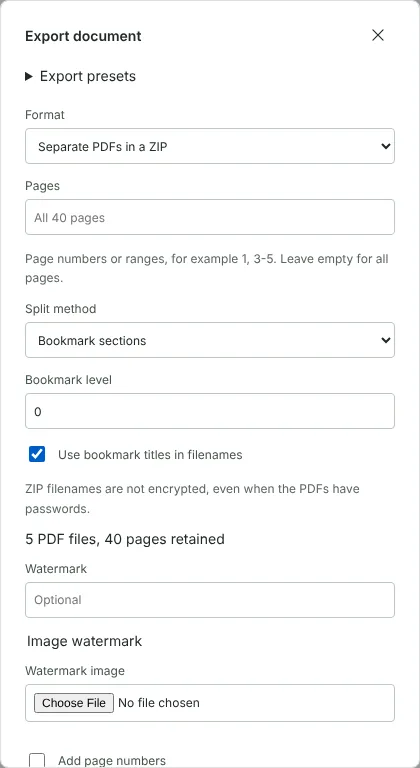
Worked example: splitting an annual report into chapters
In this test we split a fictional 40-page annual property report from Northfield Lettings (37,375 bytes). It has five top-level bookmarks, one at the start of each chapter. We set Split method to Bookmark sections, left Bookmark level at 0 and ticked Use bookmark titles in filenames. Before downloading, the dialog showed 5 PDF files, 40 pages retained.
The ZIP (32,669 bytes) was named after the report and held five PDFs, from part-0001-Introduction.pdf to part-0005-Finance summary.pdf. They had 4, 8, 12, 9 and 7 pages, and each one started on its chapter heading. Each file kept the bookmark for its own chapter.
Which split method to choose
Fixed page count suits documents that repeat every few pages, such as 2-page invoices scanned into one file. Set Pages per file to 1 to get one PDF per page, named page-0001.pdf, page-0002.pdf and so on.
Bookmark sections follows the document's own structure. Level 0 is the top level of bookmarks and level 1 the next level down. Pages before the first bookmark become their own file, titled Before first bookmark. If no bookmarks at the chosen level point to the selected pages, the tool says so and you can try another level.
Pages containing a phrase starts a new file at every page where your text appears, such as Statement date. Match case is optional. The phrase must be in searchable text, so a page without text stops the split unless you tick the option to include pages without searchable text. Run OCR PDF on scans first.
Maximum PDF size measures each file as it is built and fits in as many pages as it can under your limit, which you set in MiB from 0.01 to 100. If one page on its own is over the limit, the split stops, nothing downloads and the message names the page, so you can compress it or raise the limit.
Split only part of a PDF, and what each file keeps
The Pages box works with every split method, so you can split pages 5-24 and leave out the rest. Bookmarks for the pages in each file are kept. Page numbers added with Add page numbers start again in each file, while Bates numbers continue from one file to the next, which suits legal bundles.
PDFs with interactive form fields and signed PDFs cannot be split until you have a flattened or unsigned copy. The whole split output is limited to 128 MiB, so export a very large document in sections. Bookmark titles used in file names can be read by anyone who receives the ZIP, even if each PDF has a password.
How to check split files before you send them
For fixed page counts and bookmark sections, the summary under the settings shows how many files and pages you will get before you download. For phrase and size splits, the number of files is worked out during export. Open the ZIP and check the first and last page of each file.
Splitting does not compress the pages, so the parts together are about the size of the original. In this test the ZIP of five parts was 32,669 bytes, against 37,375 bytes for the report. If a part is still too large to send, use Compress PDF on it.
Good to know
- Split by bookmarks to turn a long report into one file per chapter, using the bookmark titles as file names.
- Split by maximum size to keep each file under an email or upload limit.
- Splitting chooses pages. It does not remove sensitive information from the pages you keep.
Why your files stay on your device
RedactNinja PDF runs in your web browser. When you choose a file, it is read and processed on your own computer, tablet or phone. It is not uploaded to a server, so there is nothing for us to store, read or delete afterwards.
You can check this yourself: open your browser's developer tools, select the Network tab and use a tool. Your document does not appear in the requests. The editor also loads no advertising or analytics code. How to check that nothing is uploaded.
Free, with no sign-up and no watermark
Every tool is free to use without an account. Nothing is added to your documents, and there are no daily task limits. Large files depend on your device's memory, so very big scans may take longer on older machines.
Questions about Split PDF
Can I extract just a few pages?
Yes. Use the page range in the export settings, or see Extract PDF pages.
Why do the page numbers not match the printed numbers?
Ranges use the position of the page in the file. A report with a cover and contents pages may have printed numbers that start later.
Is splitting the same as redaction?
No. Use Redact PDF to remove information before sharing.
Are my files uploaded?
No. The tool runs in your browser and processes the file on your device. Nothing is sent to a server.
Is it free?
Yes. There is no account, no watermark and no daily limit.
Further reading
Related tools
All PDF tools
Organise
- Merge PDF
- Split PDF
- Organise PDF
- Rotate PDF
- Delete PDF pages
- Extract PDF pages
- Crop PDF
- Resize PDF pages
- Batch PDF
Convert from PDF
- PDF to Word
- PDF to Excel
- PDF to PowerPoint
- PDF to JPG
- PDF to PNG
- PDF to text
- PDF to Markdown
- Extract images
- PDF to PDF/A
Convert to PDF
Edit and sign
- Edit PDF
- Edit PDF text
- Find and replace in PDF
- PDF comments list
- Fill PDF form
- Sign PDF
- Draw on PDF
- Watermark PDF
- Add page numbers
- Bates numbering