How to unlock a PDF (remove a password you know)
- Select or drop the protected PDF.
- Enter the password when asked.
- Export the PDF without password protection and confirm that you understand it will be unprotected.
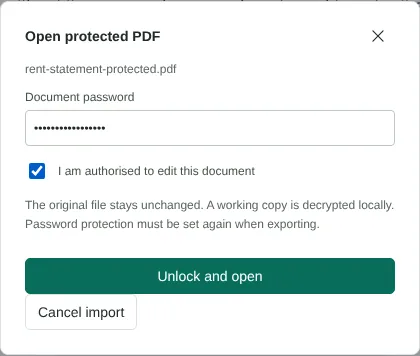
Worked example: removing a known password from a rent statement
In this test we used the fictional rent statement from our Protect PDF test: 2 pages, 87,393 bytes, encrypted with AES-256. We knew the password because we had set it.
When we selected the file, Open protected PDF asked for the document password and a tick in I am authorised to edit this document; Unlock and open stays disabled until you tick it. A deliberately wrong password gave the message The PDF could not be unlocked. Check the password and that the file is complete. With the correct password the document opened and the export settings appeared. Download PDF stayed disabled until we ticked I understand this export has no password protection.
The unlocked copy was 80,017 bytes with both pages. It was no longer encrypted, and its extracted text matched the original statement exactly. The protected file itself was not changed and still needed the password to open.
Which PDF passwords can remove protection
A protected PDF can have two passwords. The open password lets you read it. An owner password, if one was set, controls editing, printing and copying. This tool decrypts the file only when the password you enter allows editing.
In our test, a fictional file had a view-only open password and a separate owner password. The open password was refused with This password allows viewing but not editing. Ask the document owner for editing access. The owner password worked. If you only have the view password, ask the sender for an editable copy. Passwords are case sensitive, and a space at the start or end counts as a character. Nothing here guesses or recovers passwords.
When a PDF password cannot be removed
Password removal is refused for digitally signed PDFs, because changing the file would break the signature. XFA forms are not supported. The file must have between 1 and 500 pages and be no larger than 100 MiB. Your protected original is never changed: a working copy is decrypted in your browser and you download a new file. If you are sure the password is right but it is still rejected, the file may be incomplete, so download it again from the sender.
Keep the unlocked copy safe
The unlocked copy downloads with the same file name as the protected file, so rename it to avoid sending the wrong one. Anyone who gets it can open it, so store it with the same care as the original.
If you only want a different password, enter a new one of at least 12 characters under Password protection in the same export instead of ticking the unprotected option. The new file is then encrypted with AES-256. An unlocked copy also works with tools that cannot open protected files, such as PDF to text and PDF to greyscale.
Unlocking several protected PDFs
Batch PDF needs protected and signed files to be handled individually, so unlock each protected file here first, one at a time. You can then process the unlocked copies together in Batch PDF, for example to remove metadata from all of them or to give them one new password with the Batch export password field.
Good to know
- This tool does not crack or bypass passwords. It only works with the correct password.
- An unprotected copy can be opened by anyone who gets it. Store it carefully.
- The original protected file is not changed.
Why your files stay on your device
RedactNinja PDF runs in your web browser. When you choose a file, it is read and processed on your own computer, tablet or phone. It is not uploaded to a server, so there is nothing for us to store, read or delete afterwards.
You can check this yourself: open your browser's developer tools, select the Network tab and use a tool. Your document does not appear in the requests. The editor also loads no advertising or analytics code. How to check that nothing is uploaded.
Free, with no sign-up and no watermark
Every tool is free to use without an account. Nothing is added to your documents, and there are no daily task limits. Large files depend on your device's memory, so very big scans may take longer on older machines.
Questions about Unlock PDF
I forgot the password. Can you remove it?
No. Ask the sender for the password or an unprotected copy.
Why am I asked to confirm the export?
To make sure you mean to save a copy without protection.
Can I add a new password instead?
Yes. Set a new password under Password protection when exporting.
Are my files uploaded?
No. The tool runs in your browser and processes the file on your device. Nothing is sent to a server.
Is it free?
Yes. There is no account, no watermark and no daily limit.
Further reading
Related tools
All PDF tools
Organise
- Merge PDF
- Split PDF
- Organise PDF
- Rotate PDF
- Delete PDF pages
- Extract PDF pages
- Crop PDF
- Resize PDF pages
- Batch PDF
Convert from PDF
- PDF to Word
- PDF to Excel
- PDF to PowerPoint
- PDF to JPG
- PDF to PNG
- PDF to text
- PDF to Markdown
- Extract images
- PDF to PDF/A
Convert to PDF
Edit and sign
- Edit PDF
- Edit PDF text
- Find and replace in PDF
- PDF comments list
- Fill PDF form
- Sign PDF
- Draw on PDF
- Watermark PDF
- Add page numbers
- Bates numbering