How to repair a damaged PDF
- Select or drop the damaged PDF.
- Select Repair PDF and read the repair limits.
- Preview the repaired PDF and download it if the pages look right.
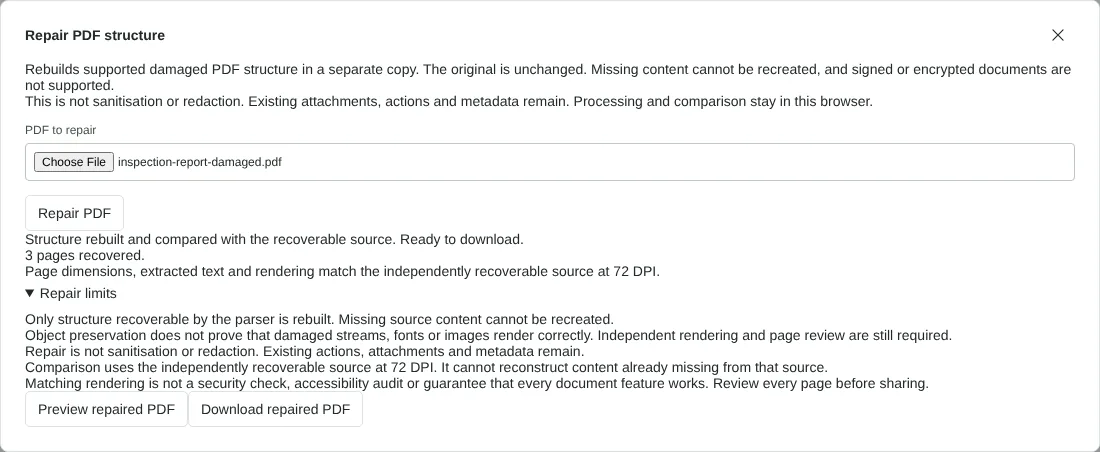
Worked example: repairing a report with a broken cross-reference pointer
In this test we took a fictional three-page property inspection report and damaged it on purpose. The startxref value at the end of the file, which tells a PDF reader where the cross-reference table starts, was changed to the wrong position. The damaged file was 45,020 bytes, and a PDF checking tool reported it as damaged.
We selected the file on this page and chose Repair PDF. The tool reported 3 pages recovered and confirmed that page dimensions, extracted text and rendering matched the recoverable source at 72 DPI. The download, inspection-report-damaged-repaired.pdf, was 44,846 bytes.
The same checking tool found no syntax or stream errors in the repaired copy. It had 3 pages, kept its document title, and its text matched the undamaged original exactly. We also tried a copy cut off before its cross-reference table, as an interrupted download might be. It was refused with Source could not be opened by the independent verifier, and no repaired file was offered.
What Repair PDF can and cannot fix
Repair PDF reads every object it can find in the file and writes a fresh copy with a new cross-reference table and trailer. This fixes faults in the file's index, such as a wrong startxref position or a damaged cross-reference table, when the content itself is intact.
It does not recreate anything that is missing. If a page refers to an object that is not in the file, if the page count does not add up, or if the file is too badly cut off to open, the tool stops and says why rather than giving you a partial file. Encrypted files must be unlocked first with Unlock PDF. Digitally signed PDFs are refused, because rebuilding the file would invalidate the signature, so keep the signed original.
How the repaired PDF is checked
Before offering the download, the tool confirms that every object recovered from the damaged file is present and unchanged, and that the page tree and trailer match. It then opens both files with a separate PDF engine and compares each page's size, extracted text and rendering at 72 DPI. If any page differs, no repaired file is returned.
Use Preview repaired PDF to look through the pages, then open the download in your usual PDF reader. A 72 DPI comparison can miss small faults in fonts or images, so zoom in on detailed pages.
What to do after repairing a PDF
Repair keeps everything it recovers, including metadata, attachments, links and scripts, so it is not a way to clean a file. Use Remove PDF metadata or Redact PDF for that. Some PDF readers rebuild a damaged index silently while others refuse the file. In our test, one checking tool read the damaged report without complaint while another flagged it as damaged, so a file that opens on your computer may still fail for the person you send it to. Sending the repaired copy avoids that. If you need an archive copy, the repaired file can go on to PDF to PDF/A. If a PDF still will not open, get it again from its source, because data that is missing cannot be restored.
Good to know
- Works for recoverable damage such as a broken cross-reference table. A file cut off part way through usually cannot be repaired.
- Severely corrupted or truncated files may not be fully recoverable.
- Check every page of the repaired copy, especially images and forms.
Why your files stay on your device
RedactNinja PDF runs in your web browser. When you choose a file, it is read and processed on your own computer, tablet or phone. It is not uploaded to a server, so there is nothing for us to store, read or delete afterwards.
You can check this yourself: open your browser's developer tools, select the Network tab and use a tool. Your document does not appear in the requests. The editor also loads no advertising or analytics code. How to check that nothing is uploaded.
Free, with no sign-up and no watermark
Every tool is free to use without an account. Nothing is added to your documents, and there are no daily task limits. Large files depend on your device's memory, so very big scans may take longer on older machines.
Questions about Repair PDF
Can every broken PDF be repaired?
No. If parts of the file are missing, those parts cannot be restored.
Why does my PDF not open?
Common causes are an interrupted download, a failed email attachment or a faulty export. Try downloading it again first.
Will repair change my document?
The structure is rebuilt. Content is kept where it can be read.
Are my files uploaded?
No. The tool runs in your browser and processes the file on your device. Nothing is sent to a server.
Is it free?
Yes. There is no account, no watermark and no daily limit.
Related tools
All PDF tools
Organise
- Merge PDF
- Split PDF
- Organise PDF
- Rotate PDF
- Delete PDF pages
- Extract PDF pages
- Crop PDF
- Resize PDF pages
- Batch PDF
Convert from PDF
- PDF to Word
- PDF to Excel
- PDF to PowerPoint
- PDF to JPG
- PDF to PNG
- PDF to text
- PDF to Markdown
- Extract images
- PDF to PDF/A
Convert to PDF
Edit and sign
- Edit PDF
- Edit PDF text
- Find and replace in PDF
- PDF comments list
- Fill PDF form
- Sign PDF
- Draw on PDF
- Watermark PDF
- Add page numbers
- Bates numbering