How to edit text in a PDF
- Select or drop the PDF and go to the page.
- Select the text you want to change.
- Type the replacement, apply it and export.
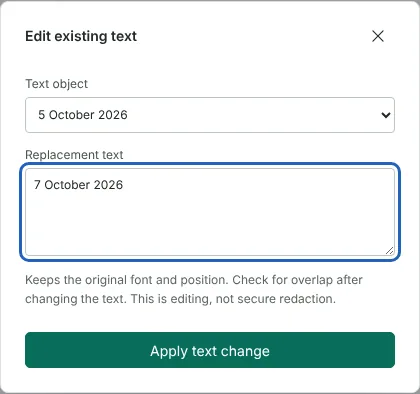
Worked example: correcting a date and a job title in a letter
In this test we used a fictional two-page tenancy renewal letter from Northfield Lettings (32,816 bytes), exported from LibreOffice Writer with embedded subset fonts. When it opened, the tool listed 20 editable text objects on page 1, one for each line of the letter.
We chose the date line and changed 5 October 2026 to 7 October 2026, then opened Edit existing text again and changed Lettings Manager, Northfield Lettings to Senior Lettings Manager, Northfield Lettings. Comparing the extracted text before and after showed that exactly those two lines had changed, and both still used the letter's own Carlito font. The exported PDF had 2 pages and was 43,542 bytes.
The job title line became longer and simply extended further to the right. That was fine here, but on a full-width line the new text could run into the margin, because nothing moves to make room.
Why PDF text is edited one line at a time
A PDF does not store paragraphs. It stores text objects, each fixed at a position on the page. In many PDFs one object is one line, as in our letter; in others an object can be a single word or a few letters. The Text object list shows the objects on the current page, and you replace one at a time. You can also choose Select existing content in the editor and click a line on the page to open it directly.
The replacement must be a single line, and the text after it does not reflow. For a longer correction, change a few neighbouring lines so that each still fits, or add a new text box with Edit PDF. To change the same word in many places at once, use Find and replace.
Check new characters before you share the edited PDF
The tool keeps the original font, and many PDFs embed only the letters they actually use. Before changing anything, it checks that the font can draw every new letter. In a separate test on the same letter, changing Amelia to Amélie was refused with a message saying the font cannot show "é", and the line was left as it was, because that letter had never been embedded in the font.
Digits, capitals and punctuation can be missing too, not only accented letters: in the same letter, the regular font had no capital E. If a change is refused, choose wording that uses letters already in the document, or delete the line and add new text with the Text tool in Edit PDF. After each change, zoom in on the line in the exported file to check its spacing.
PDFs whose text cannot be edited here
Scanned pages hold a picture of the text, so there is nothing to change; add new text over them with Edit PDF. PDFs with interactive form fields and PDFs with a digital signature are blocked. For signed PDFs, the tool refuses rather than invalidating the signature. Some text sits in nested content groups, and the dialog tells you how many of those it cannot edit.
The dialog itself says that this is editing, not secure redaction. To remove a name, account number or other personal detail before sharing, use Redact PDF.
Good to know
- Replacement works one line at a time and keeps the original position.
- The original font is used. PDFs often contain only the letters they use, so a change that needs a letter the font does not have, such as an accented letter, is refused with a message.
- Scanned pages have no text to edit. Use Edit PDF to add text instead.
Why your files stay on your device
RedactNinja PDF runs in your web browser. When you choose a file, it is read and processed on your own computer, tablet or phone. It is not uploaded to a server, so there is nothing for us to store, read or delete afterwards.
You can check this yourself: open your browser's developer tools, select the Network tab and use a tool. Your document does not appear in the requests. The editor also loads no advertising or analytics code. How to check that nothing is uploaded.
Free, with no sign-up and no watermark
Every tool is free to use without an account. Nothing is added to your documents, and there are no daily task limits. Large files depend on your device's memory, so very big scans may take longer on older machines.
Questions about Edit PDF text
Can I rewrite a whole paragraph?
Change it line by line. Full paragraph reflow is not supported.
Why can I not select some text?
It may be part of an image, or stored in a way that cannot be edited safely.
Can I edit a signed PDF or a form?
No. Editing is blocked for signed PDFs, because any change would invalidate the signature, and for PDFs with form fields. Use Fill PDF form for forms.
Are my files uploaded?
No. The tool runs in your browser and processes the file on your device. Nothing is sent to a server.
Is it free?
Yes. There is no account, no watermark and no daily limit.
Related tools
All PDF tools
Organise
- Merge PDF
- Split PDF
- Organise PDF
- Rotate PDF
- Delete PDF pages
- Extract PDF pages
- Crop PDF
- Resize PDF pages
- Batch PDF
Convert from PDF
- PDF to Word
- PDF to Excel
- PDF to PowerPoint
- PDF to JPG
- PDF to PNG
- PDF to text
- PDF to Markdown
- Extract images
- PDF to PDF/A
Convert to PDF
Edit and sign
- Edit PDF
- Edit PDF text
- Find and replace in PDF
- PDF comments list
- Fill PDF form
- Sign PDF
- Draw on PDF
- Watermark PDF
- Add page numbers
- Bates numbering