How to convert PDF to PNG
- Select or drop the PDF.
- Choose PNG, the resolution and the page range in the export settings.
- Download the ZIP of PNG images.
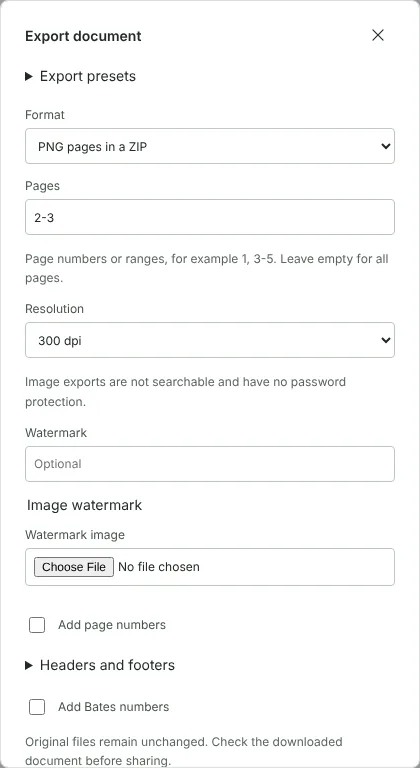
Worked example: diagram pages from a heating guide at 300 dpi
In this test we used a fictional 3-page heating and hot water guide from a letting agent, 68 KB in size. Page 2 is a flow chart and page 3 a timetable, both drawn as vector graphics with small text, including a line of 7 pt fine print.
We chose PNG pages in a ZIP, 300 dpi and the page range 2-3. The download, elm-row-heating-guide.zip, was 552 KB and held two PNG files of 2481 x 3508 pixels, 311 KB and 241 KB. Every pixel was fully opaque on a white background. The files were named page-0001.png and page-0002.png: numbering follows the order of the export, not the original page numbers, so rename the files if the page numbers matter.
Exporting all three pages at 150 dpi instead gave 1241 x 1754 pixel images in a 327 KB ZIP.
Which resolution to use for PNG exports
PNG files grow with the number of pixels, and doubling the resolution from 150 to 300 dpi gives four times as many. For documentation, wikis and slides that people read on screen, 150 dpi is usually enough for an A4 page. Choose 300 dpi for printing, for cropping a small part of a page such as one diagram, or when a page has small print or fine lines. 72 and 96 dpi suit thumbnails and previews.
Each page can be up to 16 million pixels. An A4 page at 300 dpi is about 8.7 million pixels, so it fits, but an A3 page at 300 dpi is about 17.4 million and does not; export A3 and larger pages at 150 dpi. If the ZIP would go over 128 MiB, the export stops with a message asking you to export fewer pages or choose a lower resolution.
PNG for documentation, slides and diagrams
PNG is lossless, so every pixel of the rendered page is kept exactly, with no blur or speckles around letters and lines. That makes it the better format for pages of text, tables, charts and technical drawings that you want to paste into a wiki, a help article, a slide or a ticket. For photo-heavy pages such as brochures, JPG makes smaller files, so use PDF to JPG there. With the same heating guide at 150 dpi, the three pages came to 327 KB as PNG against 235 KB as JPG at 90% quality, so PNG cost about 40% more space here in return for exact edges.
Exported pages are flat pictures, so links do not work and form fields cannot be filled. If you need the words as well as the picture, run PDF to text on the same file, or keep the PDF alongside the images.
Checking a PNG export before you share it
Open one image at 100% and read the smallest text on the page. If it is soft, export again at a higher resolution. Check that you have the pages you meant: when the Pages box is empty the dialog shows All followed by the page count, and a range such as 2-3 or 1, 4 exports only those pages.
You can add a text or image watermark and page numbers in the same dialog, and they are drawn into every PNG. Image exports cannot be password protected. If the PDF you opened was protected, the export asks you to confirm that you understand this before it starts, because anyone who receives the PNG files can open them. Your original PDF is not changed.
Good to know
- PNG is lossless, so text and line drawings stay sharp. Files are larger than JPG.
- Pick 300 dpi when you need to zoom in or print.
- Exported images do not keep selectable text.
Why your files stay on your device
RedactNinja PDF runs in your web browser. When you choose a file, it is read and processed on your own computer, tablet or phone. It is not uploaded to a server, so there is nothing for us to store, read or delete afterwards.
You can check this yourself: open your browser's developer tools, select the Network tab and use a tool. Your document does not appear in the requests. The editor also loads no advertising or analytics code. How to check that nothing is uploaded.
Free, with no sign-up and no watermark
Every tool is free to use without an account. Nothing is added to your documents, and there are no daily task limits. Large files depend on your device's memory, so very big scans may take longer on older machines.
Questions about PDF to PNG
Is PNG better than JPG for PDFs?
For text, charts and diagrams, yes. For photos, JPG gives smaller files.
Can I get a transparent background?
No. Pages are exported with their white page background.
Can I export a single page?
Yes. Enter just that page number as the range.
Are my files uploaded?
No. The tool runs in your browser and processes the file on your device. Nothing is sent to a server.
Is it free?
Yes. There is no account, no watermark and no daily limit.
Related tools
All PDF tools
Organise
- Merge PDF
- Split PDF
- Organise PDF
- Rotate PDF
- Delete PDF pages
- Extract PDF pages
- Crop PDF
- Resize PDF pages
- Batch PDF
Convert from PDF
- PDF to Word
- PDF to Excel
- PDF to PowerPoint
- PDF to JPG
- PDF to PNG
- PDF to text
- PDF to Markdown
- Extract images
- PDF to PDF/A
Convert to PDF
Edit and sign
- Edit PDF
- Edit PDF text
- Find and replace in PDF
- PDF comments list
- Fill PDF form
- Sign PDF
- Draw on PDF
- Watermark PDF
- Add page numbers
- Bates numbering