How to add a watermark to a PDF
- Select or drop the PDF.
- In the export settings, enter watermark text or choose an image, and set its style.
- Export and check the watermark on each page.
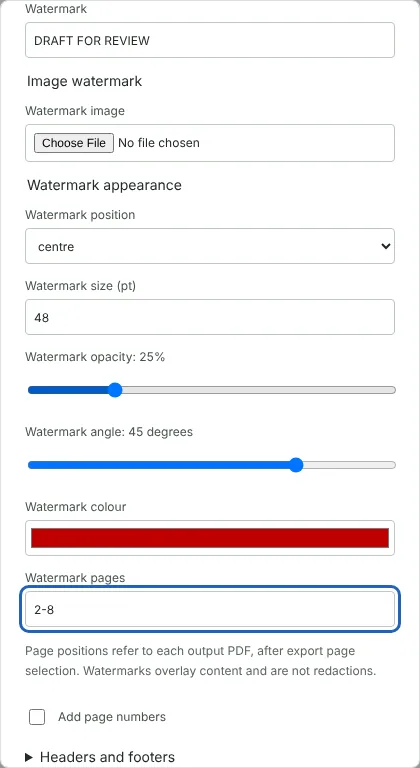
Worked example: a draft watermark and a logo on a tenancy pack
In this test we used a fictional 8-page A4 tenancy pack from Northfield Lettings, 8,241 bytes in size. We entered DRAFT FOR REVIEW as the watermark, set the size to 48 points, the angle to 45 degrees, the opacity to 25% and the colour to dark red, and entered 2-8 in Watermark pages so that the cover page stayed clean.
The downloaded PDF had 8 pages and was 8,376 bytes. Page 1 had no watermark, and pages 2 to 8 showed the diagonal text across the centre. The watermark was stored as text: a text extraction tool found DRAFT FOR REVIEW on pages 2 and 8 but not on page 1.
In a second run we chose a fictional 600 by 200 pixel PNG logo, set the image width to 40% of the page and the position to bottom right. The PDF was 15,386 bytes, and the same image object was used on all 8 pages rather than one copy per page.
Text and image watermark settings
A text watermark can be up to 80 characters on one line. You can set the size from 6 to 120 points, the opacity from 5% to 100%, the angle from minus 90 to 90 degrees in steps of 5, the colour, and the position: the centre or one of the four corners. Unless you change them, the text is 28 point dark grey at 20% opacity, level and centred.
An image watermark must be a JPG or PNG smaller than 2 MiB and under four million pixels. Its width is set as a percentage of the page width, from 5% to 80%, and it uses the same position, opacity, angle and page settings as text. A PNG with a transparent background suits a logo. You can add text and an image in the same export.
The watermark has to fit inside a 24 point margin on every page. If it does not, the export stops and names the page; reduce the size or angle, or shorten the text.
How to watermark only some pages of a PDF
Use Watermark pages to choose where the watermark appears, for example 2-8 to leave a cover page clean, or 1, 3, 5 for odd pages. Leave it empty to mark every exported page. The numbers in this field refer to pages of the exported file, after any page range set at the top of the export settings, so if you export pages 5 to 10, page 1 in Watermark pages means original page 5.
For many files at once, Batch PDF has the same text and image watermark settings. A text watermark and its style can be saved in an export preset, but the image and the Watermark pages setting are not saved, so set them again each time.
What a PDF watermark does not do
A watermark is drawn on top of the page. The text and images underneath stay in the file and can still be selected, copied or extracted, so a watermark does not hide anything. Use Redact PDF to remove information.
A text watermark is real text, so it can appear when someone copies text from the page or searches the document. It uses a standard font, so some characters, for example Chinese or Arabic script, are refused with a message. Check the downloaded copy at full size before you send it, especially where a corner watermark could overlap page numbers or a footer.
Good to know
- Text and image watermarks are supported.
- A watermark labels a document. It does not hide or remove information, so it is not a redaction.
- Watermark several PDFs at once with Batch PDF processing.
Why your files stay on your device
RedactNinja PDF runs in your web browser. When you choose a file, it is read and processed on your own computer, tablet or phone. It is not uploaded to a server, so there is nothing for us to store, read or delete afterwards.
You can check this yourself: open your browser's developer tools, select the Network tab and use a tool. Your document does not appear in the requests. The editor also loads no advertising or analytics code. How to check that nothing is uploaded.
Free, with no sign-up and no watermark
Every tool is free to use without an account. Nothing is added to your documents, and there are no daily task limits. Large files depend on your device's memory, so very big scans may take longer on older machines.
Questions about Watermark PDF
Can I use my logo?
Yes. Choose a PNG or JPG image as the watermark.
Can someone remove the watermark?
A determined person with editing software may be able to. Protect PDF adds an open password only, so anyone who can open the file could still edit it. For a copy that is hard to edit, use Flatten PDF after watermarking.
Can I watermark only some pages?
Yes. Enter the pages in Watermark pages, for example 2-8, and the other pages are left unmarked.
Are my files uploaded?
No. The tool runs in your browser and processes the file on your device. Nothing is sent to a server.
Is it free?
Yes. There is no account, no watermark and no daily limit.
Related tools
All PDF tools
Organise
- Merge PDF
- Split PDF
- Organise PDF
- Rotate PDF
- Delete PDF pages
- Extract PDF pages
- Crop PDF
- Resize PDF pages
- Batch PDF
Convert from PDF
- PDF to Word
- PDF to Excel
- PDF to PowerPoint
- PDF to JPG
- PDF to PNG
- PDF to text
- PDF to Markdown
- Extract images
- PDF to PDF/A
Convert to PDF
Edit and sign
- Edit PDF
- Edit PDF text
- Find and replace in PDF
- PDF comments list
- Fill PDF form
- Sign PDF
- Draw on PDF
- Watermark PDF
- Add page numbers
- Bates numbering