How to verify the digital signatures in a PDF
- Select or drop the signed PDF.
- Optionally add trust anchor certificates and the signer's revocation list (CRL).
- Inspect the signatures and read the integrity result and limitations.
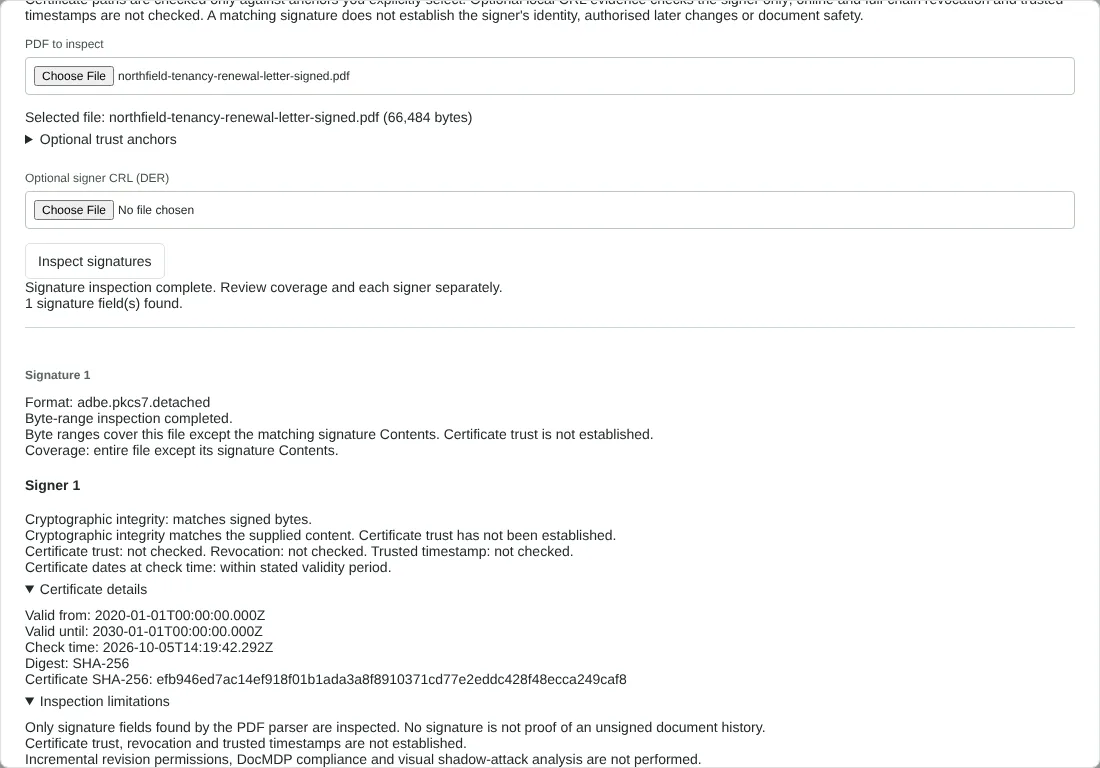
Worked example: checking a signed letter and an altered copy
In this test we inspected a fictional tenancy renewal letter that we had signed with Sign PDF with a certificate, using a disposable self-signed test certificate (66,484 bytes). The tool found 1 signature field in the adbe.pkcs7.detached format. Coverage was the entire file except its signature contents, and cryptographic integrity matched the signed bytes. Certificate trust, revocation and trusted timestamp were each reported as not checked, and Certificate details listed the validity dates, the SHA-256 digest and the certificate's SHA-256 fingerprint.
We then changed a single byte inside the signed range of a copy, in the document information. The same check on that copy reported that cryptographic integrity does not match, because the signed message digest no longer matched the content.
Finally we inspected a signed sample from RedactNinja's own tests, with its fictional root certificate as a trust anchor and the matching revocation list. The result showed that the local certificate path matched the selected trust anchor, and that the signer was not listed in the supplied CRL.
How to read PDF signature verification results
Each signature is reported in layers. Coverage tells you whether the signed byte ranges reach the end of the file. If they do not, the result warns that trailing bytes are not signed, which happens when something was saved after signing, and the integrity result then does not cover the document as you see it now.
Cryptographic integrity tells you whether the signed bytes still match the signature. Matches means they have not changed since signing. Does not match means they have changed, or the signature is damaged.
Certificate trust is a separate question. Without trust anchors it is always reported as not checked. The results show the certificate's dates and fingerprint rather than a verified name, so if you need to know which certificate was used, compare the fingerprint with one the sender gives you by phone or another trusted route.
Using trust anchors and a certificate revocation list
Under Optional trust anchors you can choose a certificate file from an authority you trust. The tool shows each certificate's SHA-256 fingerprint first, and you confirm that you have checked them before they are used. They apply to this check only and are not saved or added to your browser.
Anchors are meant for certificates issued by a certificate authority. In our test, choosing the self-signed signing certificate itself as the anchor gave a result of not established, while the sample signed under a separate fictional root matched that root. For a self-signed signature, compare the fingerprint under Certificate details instead.
The optional CRL must be a DER file from the signer's issuer. It is checked for the signer only, must be current, and nothing is fetched online. Delta, indirect and scoped CRLs are not supported.
What signature inspection does not check
Signatures in formats other than adbe.pkcs7.detached and ETSI.CAdES.detached are listed as unsupported, and up to 32 signatures per file are inspected. The tool does not check permissions for later changes, tricks that make a signed document display differently or online revocation. When a signature records a signing time, it is shown as the time stated by the signer's computer, not a proven time; certificate dates are compared with the time of the check.
If no signature is found, that is not proof the PDF was never signed or changed. The PDF you inspect is not modified or added to the editor.
Good to know
- The check confirms whether the signed bytes are intact and which certificate was used.
- Trust depends on the anchors you provide. This is not a blanket statement that a signer is trustworthy.
- Revocation is checked only against a CRL you supply.
Why your files stay on your device
RedactNinja PDF runs in your web browser. When you choose a file, it is read and processed on your own computer, tablet or phone. It is not uploaded to a server, so there is nothing for us to store, read or delete afterwards.
You can check this yourself: open your browser's developer tools, select the Network tab and use a tool. Your document does not appear in the requests. The editor also loads no advertising or analytics code. How to check that nothing is uploaded.
Free, with no sign-up and no watermark
Every tool is free to use without an account. Nothing is added to your documents, and there are no daily task limits. Large files depend on your device's memory, so very big scans may take longer on older machines.
Questions about Verify PDF signatures
Does a valid result mean the document is genuine?
It means the signed content has not changed and was signed with the certificate shown. Whether you trust that certificate is a separate decision.
Why does trust show as not checked or not established?
Trust is only checked against anchor certificates you add, and a self-signed certificate is not established that way. Confirm the certificate fingerprint with the sender by another route.
Can I sign PDFs here too?
Yes, with Sign PDF with a certificate.
Are my files uploaded?
No. The tool runs in your browser and processes the file on your device. Nothing is sent to a server.
Is it free?
Yes. There is no account, no watermark and no daily limit.
Further reading
- PDF signature images and certificate signatures explained
- Inspect PDF signatures and revocation lists (CRL)
Related tools
All PDF tools
Organise
- Merge PDF
- Split PDF
- Organise PDF
- Rotate PDF
- Delete PDF pages
- Extract PDF pages
- Crop PDF
- Resize PDF pages
- Batch PDF
Convert from PDF
- PDF to Word
- PDF to Excel
- PDF to PowerPoint
- PDF to JPG
- PDF to PNG
- PDF to text
- PDF to Markdown
- Extract images
- PDF to PDF/A
Convert to PDF
Edit and sign
- Edit PDF
- Edit PDF text
- Find and replace in PDF
- PDF comments list
- Fill PDF form
- Sign PDF
- Draw on PDF
- Watermark PDF
- Add page numbers
- Bates numbering