How to delete pages from a PDF
- Select or drop the PDF.
- In Organise pages, select the pages to remove, singly or by range.
- Delete them, apply the changes and export.
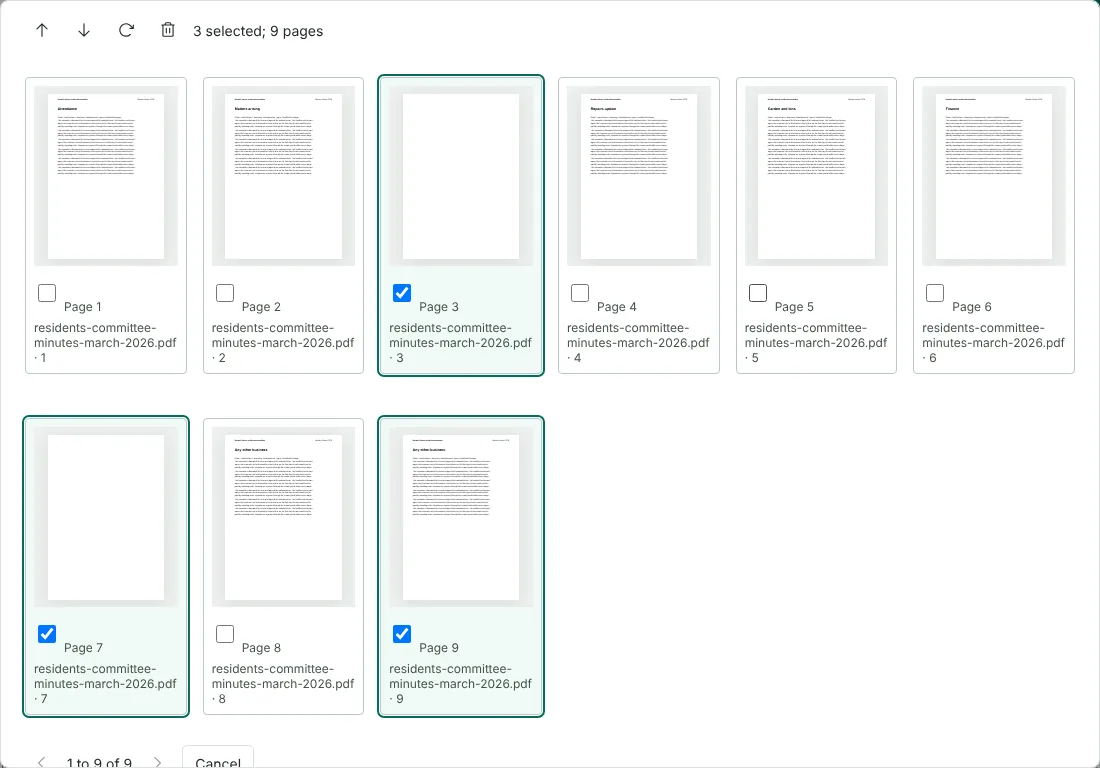
Worked example: removing blank and duplicate pages from minutes
In this test we used fictional minutes from the Harwick House residents committee: 9 pages and 8,490 bytes. Pages 3 and 7 were blank, as often happens when a double-sided scan picks up empty backs, and page 9 repeated page 8. We typed 3, 7, 9 in Page selection and chose Select range. The status line read 3 selected; 9 pages.
We selected Remove selected pages, which changed the status to 0 selected; 6 pages, then chose Apply page changes and exported. The download had 6 pages in their original order, from Attendance to Any other business, and was 5,188 bytes. The text on the remaining pages could still be selected.
How to delete pages from a long PDF quickly
Page selection accepts single pages and ranges together, such as 3, 7, 12-15. That is quicker than ticking boxes, because the organiser shows 12 thumbnails at a time. Ticks are kept when you move between screens of thumbnails, so you can select pages from all through the document before you remove them.
Thumbnails help you spot blank pages. In the example, pages 3 and 7 showed as plain white thumbnails, and the label under each one gives the file name and its original page number. If you open several PDFs together, you can remove pages from any of them in the same pass, and the download combines what is left.
Nothing changes in the document until you choose Apply page changes, and Cancel leaves it as it was. To remove only the page you are looking at in the editor, use Delete page under Current page in the side panel. You cannot remove every page: the tool asks you to keep at least one.
Delete the same pages from many PDFs, and what happens to file size
To remove the same pages from a set of files, use Batch PDF and type the pages to keep in Pages in each PDF, for example 2-5 to drop a cover page from 5-page files. A file with fewer pages than the range fails and is listed, while the others carry on.
Removing pages usually makes the file smaller, as in the example, where 8,490 bytes became 5,188. Fonts and images that the remaining pages still use stay in the file, so the saving depends on what was on the pages you removed.
Why export stops after deleting a bookmarked page
If a bookmark points to a page you remove in Organise pages, that bookmark is left without a destination. In a separate test with a fictional tenancy agreement, removing the page that its Signatures bookmark pointed to stopped the export with the message: Resolve or remove bookmarks marked as needing a destination before exporting.
To fix it, open Bookmarks in the editor. The button shows needs review. Point the bookmark to another page or delete it, then export again.
Pages that cannot be deleted here
Pages from a PDF with fillable form fields or a digital signature cannot be removed in the organiser. A signed PDF cannot be exported after changes at all, because removing pages would invalidate the signature. For a form, make a flattened copy first, then delete pages from that copy.
Before you share the shorter file, compare its page count in your PDF reader with the number the organiser showed, and check that the pages either side of each gap are the ones you meant to keep.
Good to know
- Your original file is not changed. Only the downloaded copy has the pages removed.
- Removing pages does not remove information from the pages you keep.
- Use Extract PDF pages if it is easier to choose the pages you want to keep.
Why your files stay on your device
RedactNinja PDF runs in your web browser. When you choose a file, it is read and processed on your own computer, tablet or phone. It is not uploaded to a server, so there is nothing for us to store, read or delete afterwards.
You can check this yourself: open your browser's developer tools, select the Network tab and use a tool. Your document does not appear in the requests. The editor also loads no advertising or analytics code. How to check that nothing is uploaded.
Free, with no sign-up and no watermark
Every tool is free to use without an account. Nothing is added to your documents, and there are no daily task limits. Large files depend on your device's memory, so very big scans may take longer on older machines.
Questions about Delete PDF pages
Can I delete several pages at once?
Yes. Select a range or several pages, then delete.
Can I get a deleted page back?
Use undo before exporting, or reopen the original file.
Does deleting pages make the file smaller?
Usually, yes. Compress the PDF if you need it smaller still.
Are my files uploaded?
No. The tool runs in your browser and processes the file on your device. Nothing is sent to a server.
Is it free?
Yes. There is no account, no watermark and no daily limit.
Related tools
All PDF tools
Organise
- Merge PDF
- Split PDF
- Organise PDF
- Rotate PDF
- Delete PDF pages
- Extract PDF pages
- Crop PDF
- Resize PDF pages
- Batch PDF
Convert from PDF
- PDF to Word
- PDF to Excel
- PDF to PowerPoint
- PDF to JPG
- PDF to PNG
- PDF to text
- PDF to Markdown
- Extract images
- PDF to PDF/A
Convert to PDF
Edit and sign
- Edit PDF
- Edit PDF text
- Find and replace in PDF
- PDF comments list
- Fill PDF form
- Sign PDF
- Draw on PDF
- Watermark PDF
- Add page numbers
- Bates numbering