How to digitally sign a PDF with a certificate
- Select or drop the PDF.
- Add your certificate (PEM, CER, CRT or DER) and a PKCS#8 private key (PEM, DER or KEY), preview the certificate details and confirm you are authorised to sign. PFX and P12 files are not accepted.
- Sign and download the signed PDF.
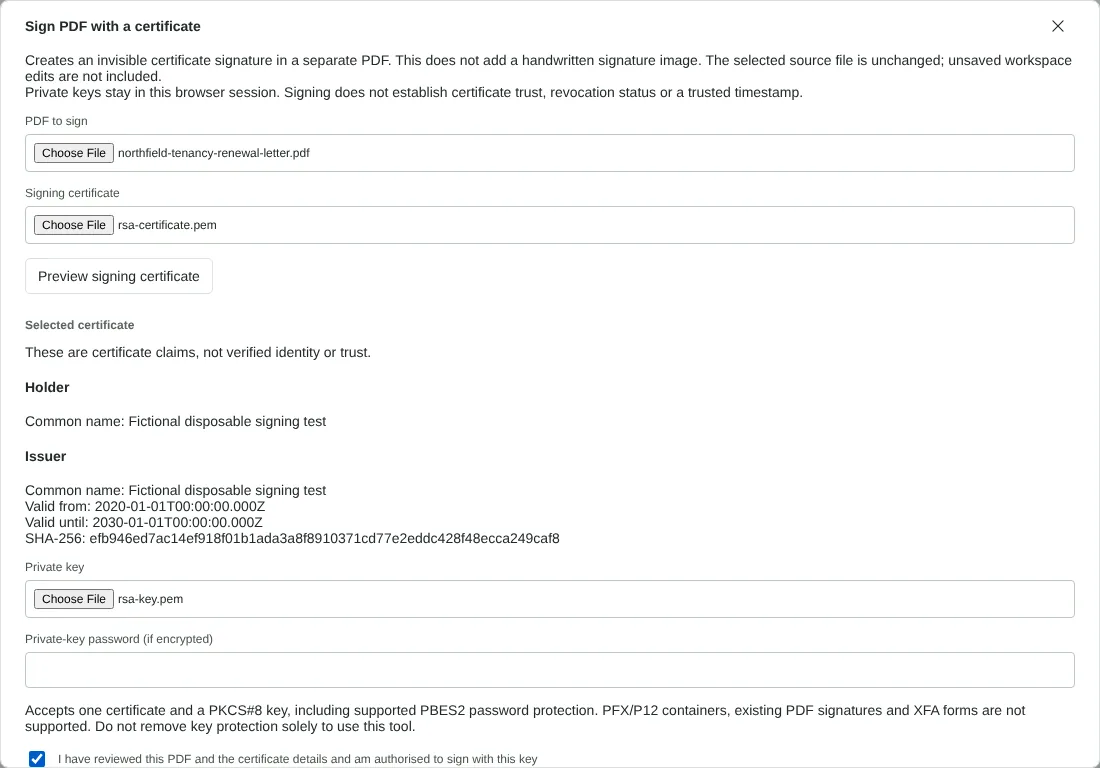
Worked example: signing a letter with a disposable test certificate
In this test we signed a fictional two-page tenancy renewal letter (32,816 bytes) with the disposable RSA test identity that RedactNinja's own tests create: a self-signed 2,048-bit certificate named Fictional disposable signing test, valid from 1 January 2020 to 1 January 2030, and its unencrypted PKCS#8 private key.
Preview signing certificate showed the holder, issuer, validity dates and SHA-256 fingerprint. After we ticked the authorisation box and selected Sign PDF, the dialog reported that integrity matched the complete output file and cleared the private key selection.
The download, northfield-tenancy-renewal-letter-signed.pdf, was 66,484 bytes. It has one invisible signature field on page 1 in the adbe.pkcs7.detached format with SHA-256. The signed byte ranges cover the whole file except the signature value, and an independent check with OpenSSL confirmed that the signature matched the signed bytes.
What a certificate signature adds to your PDF
The tool adds one invisible signature field and a signature made with SHA-256, using an RSA key of 2,048 to 8,192 bits or an elliptic curve key on P-256, P-384 or P-521. It reserves 16 KB for the signature, stored as 32,768 hexadecimal characters, which is why our 32,816-byte letter roughly doubled in size. The page content does not change and nothing visible is added. If you want a signature on the page as well, add it first with Sign PDF.
Only the signing certificate is included, not any intermediate certificates. The signature records the signing time from your computer's clock, in the signature field and in the signature itself, but there is no trusted timestamp from a timestamp authority and no long-term validation data. If the recipient requires these, check with them before you use this tool.
Certificate and private key files that work
You need two separate files: one certificate in PEM, CER, CRT or DER format, and its private key in PKCS#8 form, either PEM text starting BEGIN PRIVATE KEY or BEGIN ENCRYPTED PRIVATE KEY, or the DER equivalent. Password-protected keys must use PBES2 with AES; type the password in the box provided. PFX and P12 files and older keys starting BEGIN RSA PRIVATE KEY are not accepted, so export the certificate and key separately first.
Before signing, the tool checks that the certificate is within its validity dates, that it allows digital signatures, and that the key matches the certificate. If any check fails, nothing is signed and the dialog explains why.
When a PDF cannot be signed with a certificate here
A PDF that already has a signature field cannot be signed again, because keeping the earlier signature needs incremental saving, which this tool does not do. In our test, signing the signed letter a second time was refused with that explanation. Password-protected PDFs must be unlocked first, and XFA forms are not supported.
The tool signs the file you select, not unsaved changes in the editor. Make your edits, export them, then select the exported PDF. In this test, a letter with a drawn signature exported from the editor, and a filled-in form whose fields stayed interactive, were both signed without problems. After signing, open the result in Verify PDF signatures to see how the signature is reported.
Good to know
- The private key is used only inside your browser.
- Whether a signature shows as trusted depends on the certificate and the reader's trust settings.
- The signing time comes from your computer clock. No trusted timestamp or long-term validation data is added. Check the requirements of the organisation receiving the document.
Why your files stay on your device
RedactNinja PDF runs in your web browser. When you choose a file, it is read and processed on your own computer, tablet or phone. It is not uploaded to a server, so there is nothing for us to store, read or delete afterwards.
You can check this yourself: open your browser's developer tools, select the Network tab and use a tool. Your document does not appear in the requests. The editor also loads no advertising or analytics code. How to check that nothing is uploaded.
Free, with no sign-up and no watermark
Every tool is free to use without an account. Nothing is added to your documents, and there are no daily task limits. Large files depend on your device's memory, so very big scans may take longer on older machines.
Questions about Digitally sign PDF
What is the difference from a drawn signature?
A certificate signature lets anyone check that the document has not changed since it was signed with that certificate. The certificate details are claims by whoever issued it, not proof of identity on their own. A drawn signature is only a mark on the page.
Where do I get a certificate?
From your organisation or a certificate provider. A self-signed certificate works technically but may not be trusted by recipients.
Can I check a signed PDF?
Yes. Use Verify PDF signatures.
Are my files uploaded?
No. The tool runs in your browser and processes the file on your device. Nothing is sent to a server.
Is it free?
Yes. There is no account, no watermark and no daily limit.
Further reading
Related tools
All PDF tools
Organise
- Merge PDF
- Split PDF
- Organise PDF
- Rotate PDF
- Delete PDF pages
- Extract PDF pages
- Crop PDF
- Resize PDF pages
- Batch PDF
Convert from PDF
- PDF to Word
- PDF to Excel
- PDF to PowerPoint
- PDF to JPG
- PDF to PNG
- PDF to text
- PDF to Markdown
- Extract images
- PDF to PDF/A
Convert to PDF
Edit and sign
- Edit PDF
- Edit PDF text
- Find and replace in PDF
- PDF comments list
- Fill PDF form
- Sign PDF
- Draw on PDF
- Watermark PDF
- Add page numbers
- Bates numbering