How to flatten a PDF
- Select or drop the PDF you want to flatten.
- Choose the image resolution: 96, 150 or 300 dpi.
- Download the image-only PDF and open it to check every page.
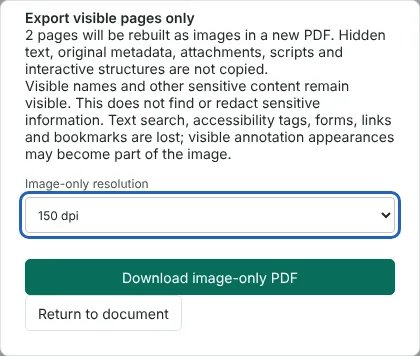
Worked example: flattening a filled tenancy application form
In this test we used a fictional two-page tenancy application from Northfield Lettings (52,960 bytes). Page 1 had six form fields, four text boxes filled in with Amelia Carter's details and two tick boxes, plus a comment note with its own icon.
We selected the file on this page, which opened Export visible pages only straight away. At 150 dpi the download was 68,678 bytes, with each page stored as one 1241 x 1754 pixel image. The copy had no form fields, no annotations and no extractable text. The filled values, the tick and the comment icon were all visible in the page image, but the text inside the comment was not kept.
The same file was 39,437 bytes at 96 dpi and 169,227 bytes at 300 dpi. Pages with photos or dense graphics will give larger files.
Flatten PDF or Fill PDF form: which to use
Flatten PDF turns each whole page into a picture. Use it when you need a copy that cannot be filled in again and has no selectable text (OCR can still read the page image), such as a completed application or checklist you are sending outside your organisation. If you only want to lock the answers in a form and keep the rest of the page searchable, use Fill PDF form and choose Flatten form instead.
Flattening does not remove anything you can see. To take out names or numbers, use Redact PDF, which builds the same kind of image-only file but blacks out the areas you mark. While redaction marks are in the editor, Flatten PDF is unavailable and you use Review redactions instead.
What is kept and what is lost when you flatten a PDF
The new PDF is built from scratch, with one image per page at the original page size. What appears on the page is kept: typed form entries, ticks, stamps and comment icons that have a stored appearance. Pop-up comment text is not part of the page, so it is lost, and a comment with no stored appearance may not appear at all.
Everything else is left behind: the text layer, form fields, links, bookmarks, accessibility tags, the document title and author, attachments and scripts. Search and copy stop working, and screen readers cannot read the result, so keep the original. If the source is password protected, you must confirm that you authorise an unprotected copy.
PDFs that cannot be flattened here
Files with layers (optional content), XFA forms or digital signatures are refused with a message instead of being flattened. In our test, a fictional rent statement with one layer was refused with the message that layered or XFA PDFs need a reviewed static copy before image-only export. Each page image is limited to 16 million pixels, so a very large drawing may need 150 or 96 dpi rather than 300 dpi. One export can include up to 500 pages.
Good to know
- Every page is rebuilt as an image, so the copy has no selectable text, form fields, links, bookmarks or accessibility tags. PDFs with layers are refused.
- Hidden text, metadata, attachments and scripts from the original are not copied.
- Flattening does not hide anything that is visible. Names and numbers you can see stay readable; use Redact PDF to remove them.
Why your files stay on your device
RedactNinja PDF runs in your web browser. When you choose a file, it is read and processed on your own computer, tablet or phone. It is not uploaded to a server, so there is nothing for us to store, read or delete afterwards.
You can check this yourself: open your browser's developer tools, select the Network tab and use a tool. Your document does not appear in the requests. The editor also loads no advertising or analytics code. How to check that nothing is uploaded.
Free, with no sign-up and no watermark
Every tool is free to use without an account. Nothing is added to your documents, and there are no daily task limits. Large files depend on your device's memory, so very big scans may take longer on older machines.
Questions about Flatten PDF
What does flattening a PDF mean?
It merges everything you can see on a page, including form entries, stamps and comments, into the page itself so it can no longer be changed or selected separately.
Can I flatten just the form fields and keep the text searchable?
Yes. Open Fill PDF form and choose Flatten form. Only the fields are flattened and the rest of the page is unchanged.
Which resolution should I choose?
150 dpi suits screen reading and most printing. Choose 300 dpi for small print or detailed drawings, which makes a larger file, or 96 dpi for the smallest file.
Are my files uploaded?
No. The tool runs in your browser and processes the file on your device. Nothing is sent to a server.
Is it free?
Yes. There is no account, no watermark and no daily limit.
Further reading
Related tools
All PDF tools
Organise
- Merge PDF
- Split PDF
- Organise PDF
- Rotate PDF
- Delete PDF pages
- Extract PDF pages
- Crop PDF
- Resize PDF pages
- Batch PDF
Convert from PDF
- PDF to Word
- PDF to Excel
- PDF to PowerPoint
- PDF to JPG
- PDF to PNG
- PDF to text
- PDF to Markdown
- Extract images
- PDF to PDF/A
Convert to PDF
Edit and sign
- Edit PDF
- Edit PDF text
- Find and replace in PDF
- PDF comments list
- Fill PDF form
- Sign PDF
- Draw on PDF
- Watermark PDF
- Add page numbers
- Bates numbering