How to list and export PDF comments
- Select or drop the PDF.
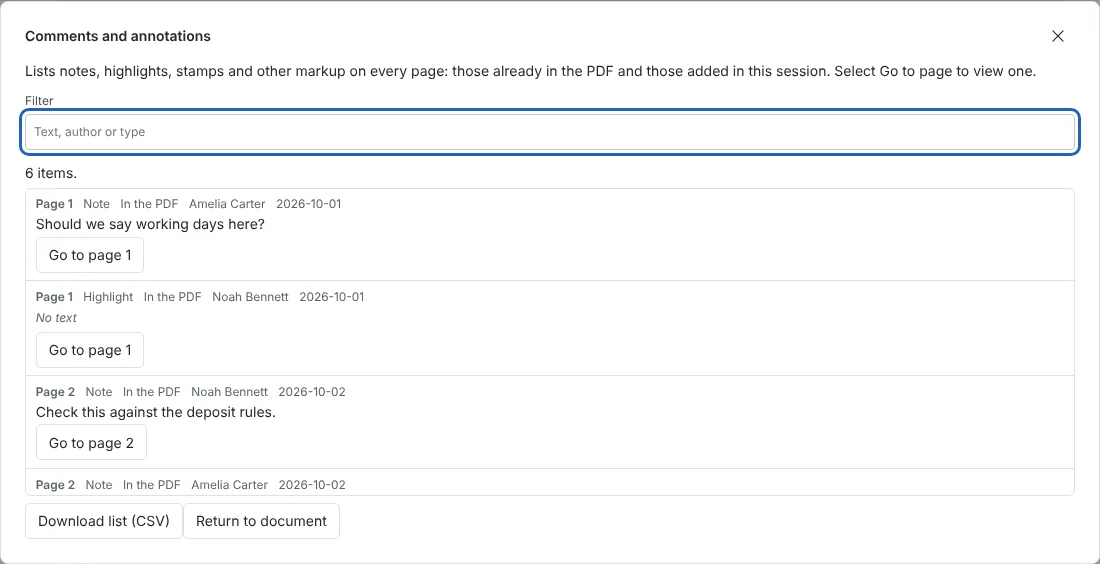
- Read the list, filter it by text, author or type, and select Go to page to see a comment in place.
- Download the list as a CSV file to open in Excel or share with the team.
Worked example: collecting reviewer comments from a draft policy
In this test we used a fictional 3-page draft pet policy from Northfield Lettings, 3,913 bytes in size, reviewed by Amelia Carter and Noah Bennett. The file held 7 annotations: three notes, one of them a reply, a highlight, a text box, a Draft stamp and a web link.
The list showed 6 items, because the link was left out. Each entry showed the page, type, author and date, and the highlight and the stamp showed No text because they had no typed note. The reply appeared as its own Note entry on page 2. Typing Amelia in the filter showed 3 of the 6 items.
Download list (CSV) saved pet-policy-draft-reviewed-comments.csv, 449 bytes, with a header row and one row per item under the columns Page, Type, Source, Author, Modified and Text.
Which PDF annotations the list includes
The list covers markup that sits on top of the page: notes, text boxes, highlights, underlines, strikethroughs, squiggly underlines, rectangles, ellipses, lines, polygons, drawings, stamps, insertion marks, attached files and redaction marks. Each entry shows its type in plain words, for example Note for a sticky note and Text box for text typed onto the page.
Links, form fields and pop-up windows are not listed. Replies are listed as separate entries in page order, without a link to the comment they answer, so read entries on the same page together. The Modified column shows the date only, without a time. Comments added in the editor in this session are marked Added in this session, and comments from the file are marked In the PDF.
The filter matches the comment text, the author and the type, so typing Highlight shows only highlights. Select Go to page on any entry to close the list and open that page in the editor. For a comment you added in this session, the comment itself is selected, so you can change or delete it there.
Opening the exported comments CSV in Excel
The CSV file is saved as UTF-8 with a marker that helps Excel show accented letters and symbols correctly. Cells that start with =, +, - or @ are saved with an apostrophe in front, so Excel treats them as text, not formulas. Commas, quotation marks and line breaks inside a comment are quoted, so each comment stays in one cell.
The file name is based on the document name. Sort or filter by the Author column to give each reviewer their own list, or by Page to work through the feedback in order.
When another tool fits better
The list reads comments but does not change them. To add your own notes or highlights, use Edit PDF. To see what changed between two drafts, rather than what reviewers said about them, use Compare PDF. To get the body text of the document as plain text, use PDF to text.
Markup that has been flattened into the page content, for example in a copy that was printed and scanned, is no longer an annotation, so it does not appear in the list. Only comments that are still separate annotations in the PDF can be listed and exported.
Comments often contain names and other personal details, so check the CSV before you share it outside your team.
Good to know
- Comments already in the PDF and annotations you add in the editor are both listed.
- Author and date appear when the PDF stores them.
- Links and form fields are not included in the list.
Why your files stay on your device
RedactNinja PDF runs in your web browser. When you choose a file, it is read and processed on your own computer, tablet or phone. It is not uploaded to a server, so there is nothing for us to store, read or delete afterwards.
You can check this yourself: open your browser's developer tools, select the Network tab and use a tool. Your document does not appear in the requests. The editor also loads no advertising or analytics code. How to check that nothing is uploaded.
Free, with no sign-up and no watermark
Every tool is free to use without an account. Nothing is added to your documents, and there are no daily task limits. Large files depend on your device's memory, so very big scans may take longer on older machines.
Questions about PDF comments list
Can I export PDF comments to Excel?
Yes. Download the list as CSV and open it in Excel, Google Sheets or LibreOffice.
Why are some comments blank?
Highlights and stamps often have no typed note. They are still listed so you can find them.
Are replies to comments included?
Replies stored as separate notes are listed as their own entries.
Are my files uploaded?
No. The tool runs in your browser and processes the file on your device. Nothing is sent to a server.
Is it free?
Yes. There is no account, no watermark and no daily limit.
Further reading
Related tools
All PDF tools
Organise
- Merge PDF
- Split PDF
- Organise PDF
- Rotate PDF
- Delete PDF pages
- Extract PDF pages
- Crop PDF
- Resize PDF pages
- Batch PDF
Convert from PDF
- PDF to Word
- PDF to Excel
- PDF to PowerPoint
- PDF to JPG
- PDF to PNG
- PDF to text
- PDF to Markdown
- Extract images
- PDF to PDF/A
Convert to PDF
Edit and sign
- Edit PDF
- Edit PDF text
- Find and replace in PDF
- PDF comments list
- Fill PDF form
- Sign PDF
- Draw on PDF
- Watermark PDF
- Add page numbers
- Bates numbering