How to extract pages from a PDF
- Select or drop the PDF.
- Enter the pages to keep as a range, for example 1-3, 7.
- Export the new PDF containing only those pages.
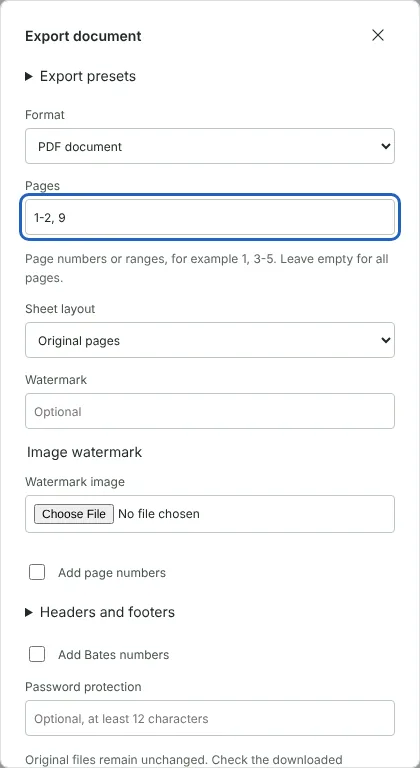
Worked example: extracting three pages from a staff handbook
In this test we used a fictional 12-page staff handbook from Harbourside Dental Practice (13,412 bytes), with one bookmark per section. This page opens the export settings with Format set to PDF document. We typed 1-2, 9 in Pages and selected Download PDF.
The new PDF had 3 pages, Welcome, Contacts and Expenses policy, and was 2,997 bytes. It kept the three bookmarks for those sections, each pointing to the right page. The file downloaded with the same name as the handbook, harbourside-dental-staff-handbook.pdf, so rename it to avoid mixing up the two.
One PDF or one file per page
Format decides what you get. PDF document gives one file with all the pages you listed. Separate PDFs in a ZIP gives several files: with Pages per file set to 1, each page becomes its own PDF, named page-0001.pdf, page-0002.pdf and so on. Use Split PDF instead when the files should follow bookmarks, a phrase or a size limit.
To save only the page you are viewing, select Extract this page under Current page in the editor's side panel. It downloads that page straight away, with -page added to the file name.
Choosing pages to keep suits a few pages from a long file. When only a few pages must go, Delete PDF pages is quicker.
Change the page order while you extract
Pages are saved in the order you type them. In a second run, 9, 1-2 produced Expenses policy first, then Welcome and Contacts. Each range must count upwards, so write 3-5 rather than 5-3, and a page listed twice is included once. If the Pages box contains something the tool cannot use, such as a page number higher than the page count, it shows the reason and the download button stays unavailable.
In that reordered run the bookmarks still opened the right pages, but stayed in their original order in the bookmark list. Check them in your PDF reader, or edit them in Bookmarks in the editor before you export.
Add page numbers, a watermark or a password to extracted pages
The same export settings can finish the extracted file. Add page numbers counts only the pages you extract, so three pages are numbered 1 / 3 to 3 / 3. You can also add a text or image watermark, Bates numbers, or a password of at least 12 characters, which protects the new PDF with AES-256 encryption.
To take the same pages from many files, such as the first page of every report, use Batch PDF and enter them in Pages in each PDF.
Before you share extracted pages
Extraction copies whole pages, including anything on them that is hidden from view, such as text covered by a shape. It does not remove information; use Redact PDF for that.
Pages from a PDF with fillable form fields cannot be extracted until the form is flattened, and a signed PDF cannot be exported. For a password-protected PDF you enter the password to open it, and the export settings then ask you to set a new password or confirm that the extracted copy will have none.
Good to know
- Page numbers refer to the position in the file, not the printed page numbers.
- Choose Separate PDFs in a ZIP under Format to save the pages as separate files.
- The source PDF is not changed.
Why your files stay on your device
RedactNinja PDF runs in your web browser. When you choose a file, it is read and processed on your own computer, tablet or phone. It is not uploaded to a server, so there is nothing for us to store, read or delete afterwards.
You can check this yourself: open your browser's developer tools, select the Network tab and use a tool. Your document does not appear in the requests. The editor also loads no advertising or analytics code. How to check that nothing is uploaded.
Free, with no sign-up and no watermark
Every tool is free to use without an account. Nothing is added to your documents, and there are no daily task limits. Large files depend on your device's memory, so very big scans may take longer on older machines.
Questions about Extract PDF pages
How do I write the page range?
Use commas and hyphens, for example 2-5, 9, 12-14.
Can I extract every page as a separate file?
Yes. Use Split PDF with one page per file.
Are links and bookmarks kept?
Links within the extracted pages are kept where possible. Check bookmarks in the new file.
Are my files uploaded?
No. The tool runs in your browser and processes the file on your device. Nothing is sent to a server.
Is it free?
Yes. There is no account, no watermark and no daily limit.
Related tools
All PDF tools
Organise
- Merge PDF
- Split PDF
- Organise PDF
- Rotate PDF
- Delete PDF pages
- Extract PDF pages
- Crop PDF
- Resize PDF pages
- Batch PDF
Convert from PDF
- PDF to Word
- PDF to Excel
- PDF to PowerPoint
- PDF to JPG
- PDF to PNG
- PDF to text
- PDF to Markdown
- Extract images
- PDF to PDF/A
Convert to PDF
Edit and sign
- Edit PDF
- Edit PDF text
- Find and replace in PDF
- PDF comments list
- Fill PDF form
- Sign PDF
- Draw on PDF
- Watermark PDF
- Add page numbers
- Bates numbering