How to batch process PDF files
- Select or drop the PDFs.
- Choose the changes: rotate, reverse order, number pages, watermark, password, and remove metadata, embedded files or scripts.
- Process the batch and download the completed PDFs as a ZIP.
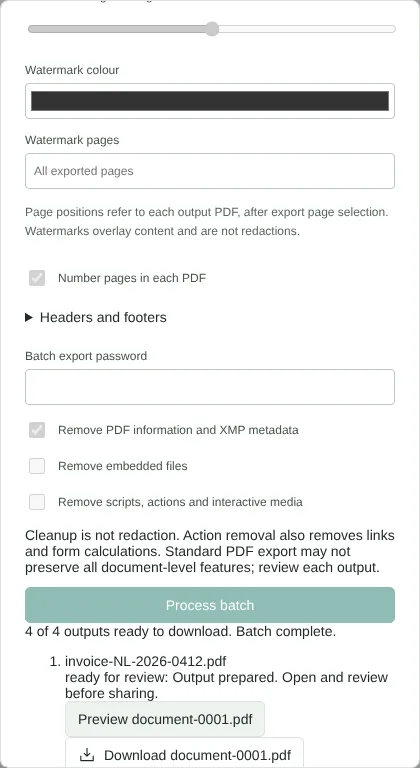
Worked example: stamping four invoices as copies
In this test we processed four fictional 2-page rent invoices from Northfield Lettings, each about 2.8 KB, with a title, author and subject saved in its document properties. We typed COPY as the Batch watermark, ticked Number pages in each PDF and ticked Remove PDF information and XMP metadata, then selected Process batch. The status read 4 of 4 outputs ready to download. Batch complete.
Download completed PDFs as ZIP gave processed-pdfs.zip (12,352 bytes), holding document-0001.pdf to document-0004.pdf and a batch-report.json file. Each PDF still had 2 pages and carried the COPY watermark and a page number in the form 1 / 2. Checked with pdfinfo, none had a title, author or subject left.
How batch output files are named
Processed files are named by position, document-0001.pdf, document-0002.pdf and so on, not by their original names. The batch-report.json file in the ZIP lists each original file name with its output name, page count and status, so keep it if you need to match them up. The report is not encrypted, even when the PDFs have a password, and it contains the original file names.
You can also preview or download each finished PDF on its own from the results list. Closing the dialog discards results you have not downloaded.
Choose pages, order and a password for every file
Pages in each PDF keeps only the pages you list in every file, for example 1 to keep just the first page. A file with fewer pages than the range fails and is listed. Reverse page order in each PDF suits stacks that were scanned last page first.
A Batch export password must be at least 12 characters. It is applied to every output with AES-256 encryption, so everyone who receives the files needs the same password.
What a batch keeps and removes
Each output is a new PDF built from the pages of its source. In a separate run, web links on the pages were kept but bookmarks were not carried over, and with metadata removal off the title was set to Processed document. If bookmarks matter, process that file on its own in the editor.
Remove scripts, actions and interactive media also removes links and form calculations. Bates numbering and print layouts such as booklets are not available in a batch, so use Bates numbering on each file instead.
Limits, failed files and saved workflows
A batch takes up to 50 PDFs, each up to 100 MiB, with a total output of 128 MiB. Files are processed one at a time on your device. A file that fails, for example because it has a password or a digital signature, is listed with the reason while the others carry on. Unlock a protected file with Unlock PDF, then add it to a new batch.
Download workflow, under Reusable workflows, saves the rotation, page order, cleanup and export settings as a small JSON file. Files, passwords and page ranges are left out. Watermark and header text is stored as readable text, so check it before you share a workflow with colleagues. A loaded workflow shows a summary of its steps before you apply it.
Good to know
- Save your settings as a workflow to reuse next time.
- Files that fail can be retried without redoing the whole batch.
- Each file is processed in your browser, so large batches depend on your device memory.
Why your files stay on your device
RedactNinja PDF runs in your web browser. When you choose a file, it is read and processed on your own computer, tablet or phone. It is not uploaded to a server, so there is nothing for us to store, read or delete afterwards.
You can check this yourself: open your browser's developer tools, select the Network tab and use a tool. Your document does not appear in the requests. The editor also loads no advertising or analytics code. How to check that nothing is uploaded.
Free, with no sign-up and no watermark
Every tool is free to use without an account. Nothing is added to your documents, and there are no daily task limits. Large files depend on your device's memory, so very big scans may take longer on older machines.
Questions about Batch PDF
How many PDFs can I process?
It depends on file sizes and your device. Start with a small batch to check the settings.
Can I compress many PDFs at once?
Compression runs one file at a time in Compress PDF.
Can I save my settings?
Yes, as a reusable workflow file.
Are my files uploaded?
No. The tool runs in your browser and processes the file on your device. Nothing is sent to a server.
Is it free?
Yes. There is no account, no watermark and no daily limit.
Related tools
All PDF tools
Organise
- Merge PDF
- Split PDF
- Organise PDF
- Rotate PDF
- Delete PDF pages
- Extract PDF pages
- Crop PDF
- Resize PDF pages
- Batch PDF
Convert from PDF
- PDF to Word
- PDF to Excel
- PDF to PowerPoint
- PDF to JPG
- PDF to PNG
- PDF to text
- PDF to Markdown
- Extract images
- PDF to PDF/A
Convert to PDF
Edit and sign
- Edit PDF
- Edit PDF text
- Find and replace in PDF
- PDF comments list
- Fill PDF form
- Sign PDF
- Draw on PDF
- Watermark PDF
- Add page numbers
- Bates numbering