How to convert PDF to PDF/A
- Select or drop the PDF.
- Prepare the PDF/A candidate and read the changes and limits.
- Download the candidate and validate it with an independent PDF/A validator such as veraPDF.
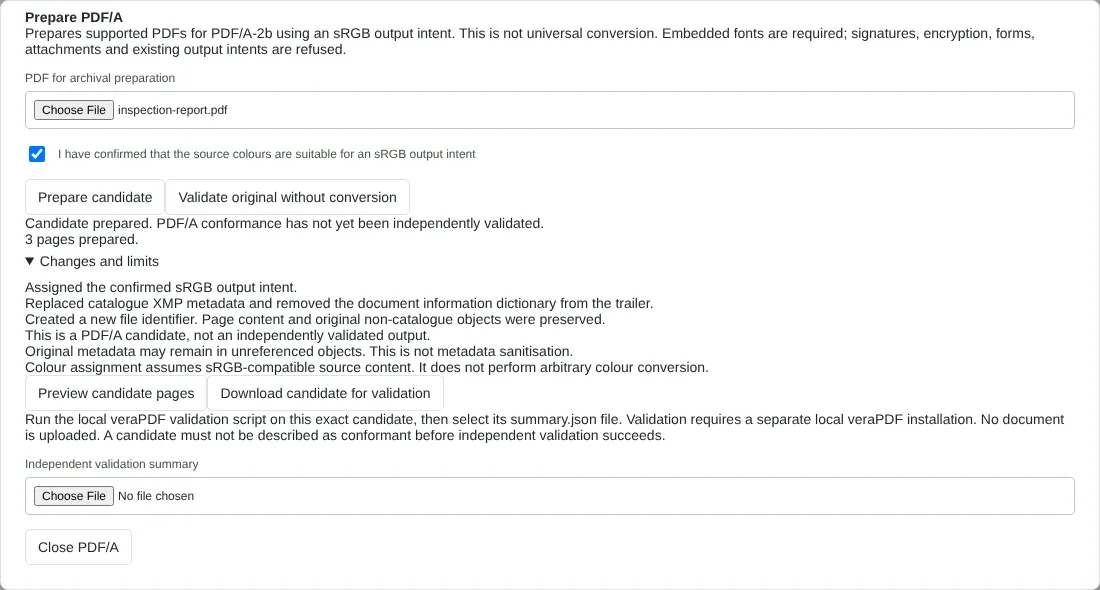
Worked example: preparing a PDF/A-2b candidate from an inspection report
In this test we used a fictional three-page property inspection report from Northfield Lettings (45,021 bytes), made with embedded TrueType fonts and no forms or attachments.
We selected the file on this page, ticked the sRGB confirmation and chose Prepare candidate. The editor reported 3 pages prepared and listed its changes: an sRGB output intent was assigned, the XMP metadata was replaced, the document information dictionary was removed and a new file identifier was created. We downloaded pdfa-2b-candidate-unvalidated.pdf, which was 46,036 bytes.
The candidate contained an sRGB output intent and an XMP packet declaring PDF/A part 2, conformance B. Both fonts were still embedded, and the extracted text was identical to the original. No validator was available in this test, so the candidate has not been confirmed as conformant.
Why a PDF can be refused for PDF/A
This tool only prepares files it can handle without changing page content. It refuses encrypted PDFs, digitally signed PDFs, files that already have an output intent, files with JavaScript or other active content, interactive forms, attachments and most fonts that are not embedded.
In our tests, a copy of the report using one font that was not embedded was refused with A font is not embedded, and a tenancy application with form fields was refused because forms need a separate archival conversion path. Unlock a protected file first with Unlock PDF. For missing fonts, create the PDF again from the source document with font embedding switched on. An image-only copy made with Flatten PDF was accepted as a candidate in our test, but it has no searchable text.
How to validate a PDF/A file
The download is named as unvalidated because nothing in the browser has checked it against the PDF/A standard. During preparation the editor compares each candidate page with the original, checking extracted text and rendering, but matching appearance does not prove conformance.
Validate the exact downloaded file with an independent PDF/A validator such as veraPDF, using the PDF/A-2B profile, and keep the report with the file. If validation fails, the report lists the rules that failed; fix the source document and prepare a new candidate. Do not edit or save the candidate again after validating it, because any change means it needs validating again. The import option accepts only the summary file from the local validation script described in the PDF/A validation guide; the browser checks that the summary matches the file's fingerprint but does not run the validator itself.
What changes in a PDF/A candidate
Page content, fonts and images are kept, and the tool checks that every original object survives unchanged. The file gains an sRGB output intent and new XMP metadata declaring PDF/A-2b. The document information dictionary is removed, so the original title no longer shows in document properties. In our test the PDF version in the file header also changed from 1.4 to 1.7. Old metadata may remain in unused objects, so use Remove PDF metadata if that matters. Colours are not converted: if the document uses print (CMYK) colours, an sRGB output intent is not suitable. Level 2b covers how the pages look; it does not add the tagged structure that screen readers use.
Good to know
- The output is a PDF/A-2b candidate. Conformance must be confirmed with an independent validator.
- Keep the validator's report with the file you downloaded, and do not change the file after validating it.
- Encrypted files, some fonts and certain features cannot be made conformant automatically.
Why your files stay on your device
RedactNinja PDF runs in your web browser. When you choose a file, it is read and processed on your own computer, tablet or phone. It is not uploaded to a server, so there is nothing for us to store, read or delete afterwards.
You can check this yourself: open your browser's developer tools, select the Network tab and use a tool. Your document does not appear in the requests. The editor also loads no advertising or analytics code. How to check that nothing is uploaded.
Free, with no sign-up and no watermark
Every tool is free to use without an account. Nothing is added to your documents, and there are no daily task limits. Large files depend on your device's memory, so very big scans may take longer on older machines.
Questions about PDF to PDF/A
What is PDF/A?
An archival version of PDF that embeds fonts and avoids features that may not display in the future.
Is the output guaranteed to pass validation?
No. Always validate it. The tool tells you what it changed and what it could not fix.
Which PDF/A level is produced?
PDF/A-2b, the most widely accepted level for visual reproduction.
Are my files uploaded?
No. The tool runs in your browser and processes the file on your device. Nothing is sent to a server.
Is it free?
Yes. There is no account, no watermark and no daily limit.
Further reading
Related tools
All PDF tools
Organise
- Merge PDF
- Split PDF
- Organise PDF
- Rotate PDF
- Delete PDF pages
- Extract PDF pages
- Crop PDF
- Resize PDF pages
- Batch PDF
Convert from PDF
- PDF to Word
- PDF to Excel
- PDF to PowerPoint
- PDF to JPG
- PDF to PNG
- PDF to text
- PDF to Markdown
- Extract images
- PDF to PDF/A
Convert to PDF
Edit and sign
- Edit PDF
- Edit PDF text
- Find and replace in PDF
- PDF comments list
- Fill PDF form
- Sign PDF
- Draw on PDF
- Watermark PDF
- Add page numbers
- Bates numbering