How to scan a document to PDF with your camera
- Open the tool and start the camera when your browser asks for permission.
- Capture each page.
- Add the pages to the document and export the PDF. To straighten pages or improve contrast, run the exported file through Clean up scanned PDF.
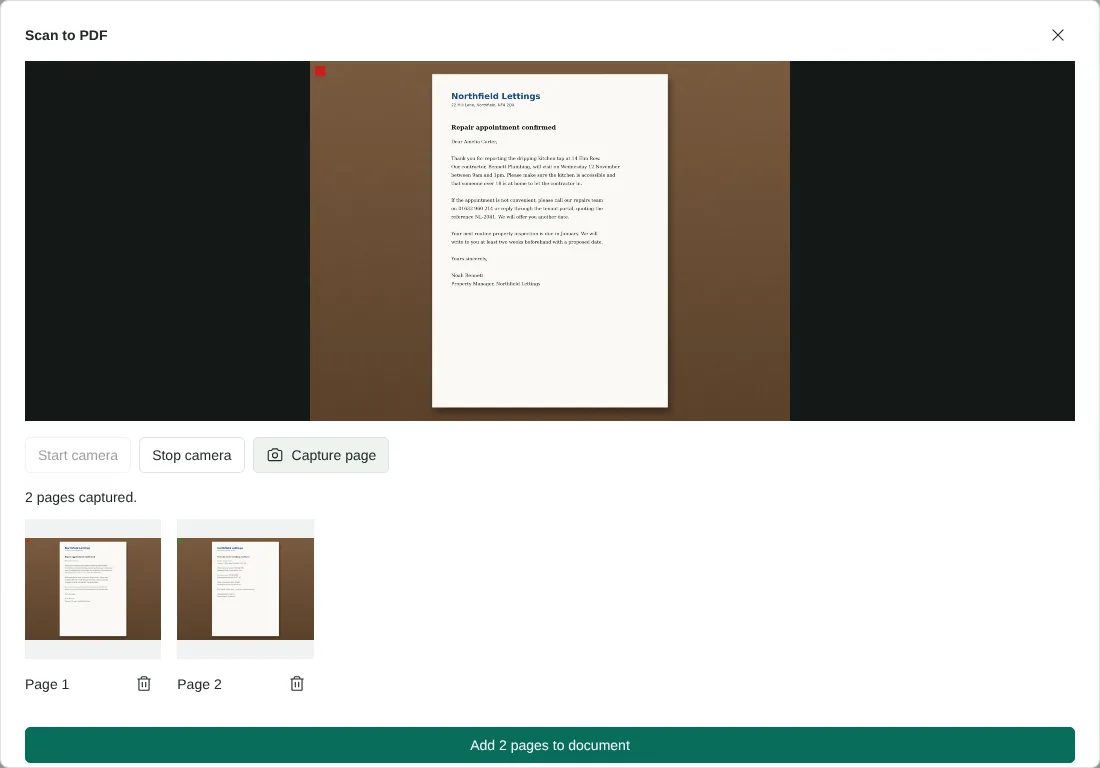
Worked example: capturing a letter and a form
In this test the camera was a simulated 1920 x 1440 pixel feed showing two fictional documents lying on a desk: a letting agent's repair appointment letter and a move-in meter readings form. After Start camera, we pressed Capture page once for each document.
Each capture was saved as a 1920 x 1440 JPG of 289 KB and 265 KB, shown as a thumbnail with a bin button to remove it. Add 2 pages to document switched the camera off and placed both captures in the editor as pages 1 and 2. Exporting gave a 2-page PDF of 2.6 MB with no searchable text. Each page measured 1440 x 1080 points, or 20 x 15 inches, because a page takes the size of the whole camera frame at 96 pixels per inch, and the desk around the paper was included. The download was named after the first capture, camera-page- followed by a number, so rename it to something you will recognise.
Getting a clean capture with a phone or laptop camera
On phones and tablets the tool asks for the rear camera, at 1920 x 1440 pixels where the camera supports it. It never asks for the microphone. Lay the page flat on a plain surface that contrasts with the paper, hold the camera directly above it so the page does not look like a trapezium, and fill as much of the frame with the paper as you can. Even light avoids the shadow of your hand or phone falling across the text.
Each capture is saved as a JPG at 92% quality, scaled down to 2048 pixels on its longest side if the camera gives more. You can capture up to 20 pages, up to 32 MiB of images, in one session. Captures stay in the list if you stop the camera, and the camera switches off by itself if you move to another tab or app.
After capture: straighten, crop and make the text searchable
Captured pages go into the document exactly as taken, background included, and they are large: each one is sized at 96 pixels per inch, so a 1920 x 1440 capture becomes a 20 x 15 inch page. To tidy them, export the PDF, then open it in Clean up scanned PDF. Correct perspective keeps only the area inside the four corners you set, which removes the desk, and the tone settings can whiten grey paper. Use Resize PDF pages if you need A4 pages for printing, and OCR PDF to make the text searchable.
The captures are added to the end of whatever is open in the editor. To add signed pages to an existing PDF, open that PDF first, capture the new pages, then put them in order with Organise PDF before you export.
Camera permission and privacy
The camera starts only when you press Start camera, and your browser shows its own permission prompt. Frames are processed in the page on your device and are not uploaded. The camera is switched off when you add the pages or close the dialog. If you refused permission by mistake, allow camera access for the site in your browser settings and press Start camera again. Camera access needs a secure HTTPS connection.
If your device has no camera, or you prefer your phone's own camera app, take the photos there and use JPG to PDF, which accepts up to 50 photos at once.
Good to know
- The camera feed is processed only in your browser.
- Good light and a flat page give the best results.
- Run OCR PDF afterwards to make the text searchable.
Why your files stay on your device
RedactNinja PDF runs in your web browser. When you choose a file, it is read and processed on your own computer, tablet or phone. It is not uploaded to a server, so there is nothing for us to store, read or delete afterwards.
You can check this yourself: open your browser's developer tools, select the Network tab and use a tool. Your document does not appear in the requests. The editor also loads no advertising or analytics code. How to check that nothing is uploaded.
Free, with no sign-up and no watermark
Every tool is free to use without an account. Nothing is added to your documents, and there are no daily task limits. Large files depend on your device's memory, so very big scans may take longer on older machines.
Questions about Scan to PDF
Do I need to install an app?
No. It works in a modern browser on phones, tablets and computers with a camera.
Why does my browser ask for camera permission?
The tool needs the camera to capture pages. You can turn the permission off afterwards.
Can I straighten the photos?
Yes. Use Clean up scanned PDF to straighten, correct perspective and adjust contrast.
Are my files uploaded?
No. The tool runs in your browser and processes the file on your device. Nothing is sent to a server.
Is it free?
Yes. There is no account, no watermark and no daily limit.
Further reading
Related tools
All PDF tools
Organise
- Merge PDF
- Split PDF
- Organise PDF
- Rotate PDF
- Delete PDF pages
- Extract PDF pages
- Crop PDF
- Resize PDF pages
- Batch PDF
Convert from PDF
- PDF to Word
- PDF to Excel
- PDF to PowerPoint
- PDF to JPG
- PDF to PNG
- PDF to text
- PDF to Markdown
- Extract images
- PDF to PDF/A
Convert to PDF
Edit and sign
- Edit PDF
- Edit PDF text
- Find and replace in PDF
- PDF comments list
- Fill PDF form
- Sign PDF
- Draw on PDF
- Watermark PDF
- Add page numbers
- Bates numbering