How to convert PowerPoint to PDF
- Select or drop a PPTX file and inspect the presentation.
- Choose the slides and resolution. Hidden slides are left out unless you allow them.
- Preview the PDF and download it.
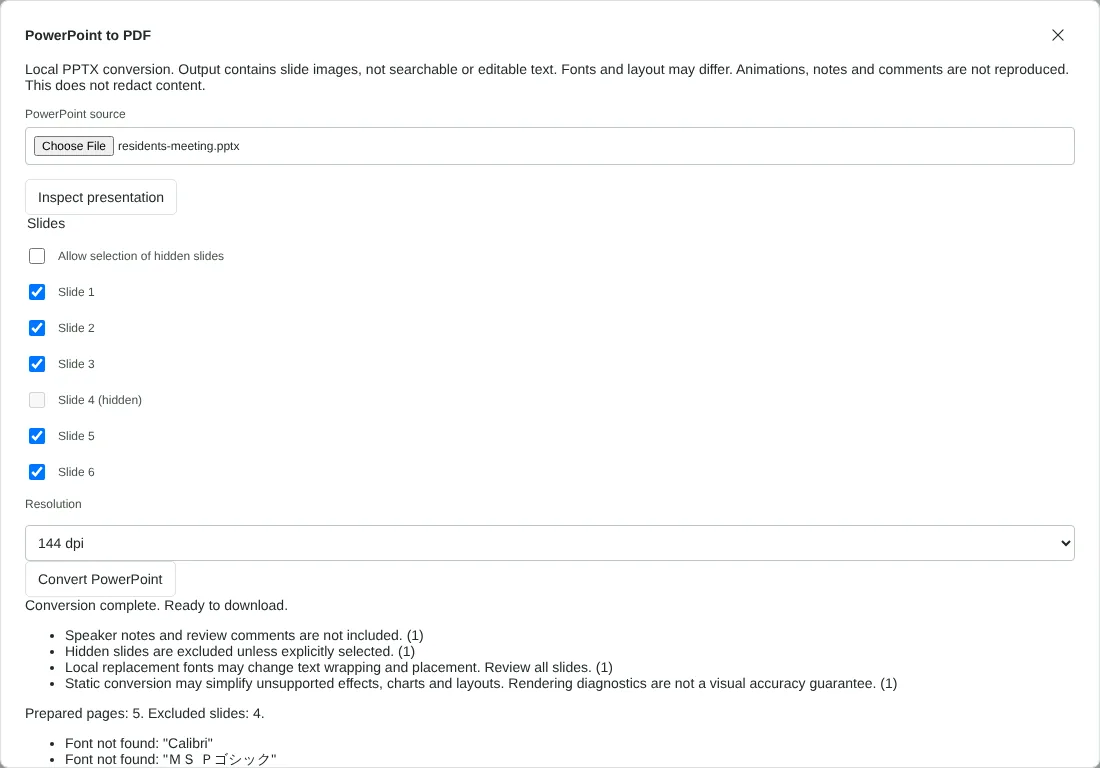
Worked example: a six-slide residents meeting deck
In this test we converted a fictional 40,759-byte PPTX with six widescreen slides (13.33 by 7.5 inches): a title slide, a slide with a garden plan picture and four slides of short bullet points. Slide 2 had speaker notes, and slide 4, a draft budget, was hidden.
Inspect presentation listed slides 1 to 6, with slide 4 marked hidden and unticked. We kept 144 dpi. The PDF had 5 pages and was 140,003 bytes. Slide 4 was reported as excluded, and the speaker notes were not included. Each page measured 960 by 540 points, the same shape as the slides, and held one picture of 1,920 by 1,080 pixels. A text extraction found no text at all, so the PDF cannot be searched or copied from.
The renderer listed Font not found warnings for Calibri and Arial, so replacement fonts were used. At 96 dpi the same slides made an 80,351-byte PDF; at 192 dpi it was 205,046 bytes, with pictures of 2,560 by 1,440 pixels.
Why the PDF has no selectable text
Each slide is drawn in your browser and placed in the PDF as a picture. That keeps the look of the slide, within the limits of the replacement fonts, but the words are part of the image. You cannot search, select or copy them, screen readers cannot read them, and links on the slides are removed.
If you need searchable text, run OCR PDF on the converted file and check the recognised words, or use Save as PDF in PowerPoint itself. Choose the resolution for how the PDF will be used: 96 dpi for a small file to email, 144 dpi for most screens, 192 dpi for sharper printing. Higher settings make bigger files.
Presentations that cannot be converted, and what to do
Some PPTX files are stopped before any slide is drawn. The presentation can only contain PNG and JPEG pictures, so a file with a video, an audio clip, a GIF, or an SVG or EMF graphic stored inside it is refused. Replace those items with PNG or JPEG pictures, or delete them, in a copy of the presentation.
Files with macros, ActiveX controls or embedded objects such as an inserted spreadsheet are refused too, as are slides with objects hidden in the selection pane. Show or delete hidden objects in a copy first. A presentation can have up to 200 slides, and each conversion has a 90-second limit, so select fewer slides or a lower resolution for long decks.
Choosing slides and checking the result
Untick any slides you do not want in the PDF. Hidden slides are greyed out until you tick Allow selection of hidden slides. Slides always stay in presentation order, whatever order you tick them in. Page size follows the slide size, so a 4:3 deck gives 4:3 pages and a widescreen deck gives widescreen pages. Fonts embedded in the PPTX are not used, so check text wrapping, charts and SmartArt on every page, especially where text sits close to the edge of a box. If you only need a few slides as pictures for a document or a post, convert them and then use PDF to PNG. To go the other way, use PDF to PowerPoint.
Good to know
- Slides are drawn in your browser and saved as images, so the PDF has no searchable text, and some fonts and effects will look different or be left out.
- Speaker notes are not included.
- Check charts and SmartArt against the original.
- Presentations that contain video, audio, GIF, SVG or EMF content are not accepted.
Why your files stay on your device
RedactNinja PDF runs in your web browser. When you choose a file, it is read and processed on your own computer, tablet or phone. It is not uploaded to a server, so there is nothing for us to store, read or delete afterwards.
You can check this yourself: open your browser's developer tools, select the Network tab and use a tool. Your document does not appear in the requests. The editor also loads no advertising or analytics code. How to check that nothing is uploaded.
Free, with no sign-up and no watermark
Every tool is free to use without an account. Nothing is added to your documents, and there are no daily task limits. Large files depend on your device's memory, so very big scans may take longer on older machines.
Questions about PowerPoint to PDF
Does it support PPT files?
PPTX only. Save older PPT files as PPTX first.
Are animations kept?
No. A PDF shows each slide as a static page.
Can I make handouts with several slides per page?
Yes. Convert first, open the PDF in the editor, then choose Export and set Sheet layout to Multiple pages per sheet.
Are my files uploaded?
No. The tool runs in your browser and processes the file on your device. Nothing is sent to a server.
Is it free?
Yes. There is no account, no watermark and no daily limit.
Related tools
All PDF tools
Organise
- Merge PDF
- Split PDF
- Organise PDF
- Rotate PDF
- Delete PDF pages
- Extract PDF pages
- Crop PDF
- Resize PDF pages
- Batch PDF
Convert from PDF
- PDF to Word
- PDF to Excel
- PDF to PowerPoint
- PDF to JPG
- PDF to PNG
- PDF to text
- PDF to Markdown
- Extract images
- PDF to PDF/A
Convert to PDF
Edit and sign
- Edit PDF
- Edit PDF text
- Find and replace in PDF
- PDF comments list
- Fill PDF form
- Sign PDF
- Draw on PDF
- Watermark PDF
- Add page numbers
- Bates numbering