How to convert PDF to PowerPoint
- Select or drop the PDF.
- Choose the source pages, Page images or Editable text, and the slide resolution.
- Convert and download the PowerPoint file.
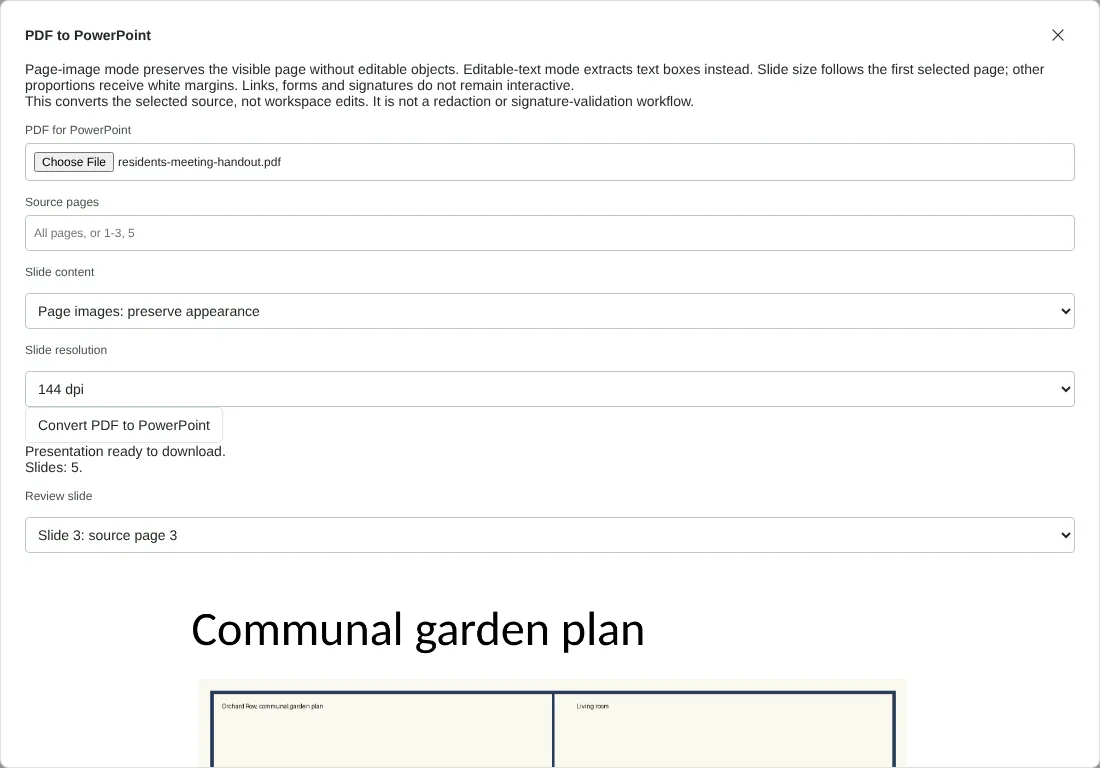
Worked example: rebuilding a deck from a five-page handout
In this test we used a fictional five-page PDF of 33,668 bytes, a residents meeting handout exported from a presentation. Its pages measure 960 by 540 points, the shape of a widescreen slide. They hold titles, bullet points and, on page 3, a garden plan picture.
With Page images and 144 dpi, the PowerPoint file had 5 slides of 13.33 by 7.5 inches and was 430,144 bytes, about 13 times the size of the PDF. Each slide held one picture of 1,920 by 1,080 pixels and no text boxes, so it looked like the PDF but nothing on it could be edited. The Review slide list in the dialog let us step through each slide and its source page number before downloading.
We then converted the same pages with Editable text. That file was 77,867 bytes, with 5 slides and 19 text boxes in black Arial and no pictures. The garden plan on slide 3 was dropped, leaving only its title. Each bullet symbol became a separate small text box, and a subtitle that ran over two lines became two boxes.
Page images or editable text: which to choose
Choose Page images when the slides need to look like the PDF, for example to present a report, add speaker notes or put new slides around existing pages. Each page becomes one picture, so you cannot change the words, and higher resolutions make sharper slides but larger files.
Choose Editable text when you want to reuse the wording. Each line of text becomes its own positioned text box in black Arial. Pictures, shapes, colours and the original fonts are left out, so expect to rebuild the design and join lines back into paragraphs. Every selected page must contain text. A scanned page stops the conversion with a message, so run OCR PDF first or use Page images for those pages.
In Editable text mode the dialog shows the text it found for each slide above a picture of the source page, so you can compare them before you download. The text can include words that are hidden or covered on the PDF page, so check it before you share the file.
Slide size, page limits and other things to check
The slide size follows the first page you select. Pages with a different shape are scaled to fit and get white margins rather than being cropped, so a portrait page in a widescreen deck sits in the middle of the slide. In Page images mode the resolution sets the picture size: on a widescreen page, 96 dpi gives 1,280 by 720 pixels, 144 dpi gives 1,920 by 1,080 and 192 dpi gives 2,560 by 1,440.
You can convert up to 100 pages at a time from a PDF of up to 500 pages and 100 MiB. Type ranges such as 1-3, 5 in Source pages. A PDF whose security settings do not allow copying is refused. Links, form fields and signatures in the PDF do not stay interactive on the slides. To turn slides back into a PDF, use PowerPoint to PDF; for single pages as pictures, PDF to PNG or PDF to JPG may be simpler.
Good to know
- Pages are placed on slides so they look like the original.
- Page images keeps the look of each page, but its text cannot be edited. Editable text adds the text as Arial text boxes, so the layout can shift.
- Higher resolution gives sharper slides and a bigger file.
Why your files stay on your device
RedactNinja PDF runs in your web browser. When you choose a file, it is read and processed on your own computer, tablet or phone. It is not uploaded to a server, so there is nothing for us to store, read or delete afterwards.
You can check this yourself: open your browser's developer tools, select the Network tab and use a tool. Your document does not appear in the requests. The editor also loads no advertising or analytics code. How to check that nothing is uploaded.
Free, with no sign-up and no watermark
Every tool is free to use without an account. Nothing is added to your documents, and there are no daily task limits. Large files depend on your device's memory, so very big scans may take longer on older machines.
Questions about PDF to PowerPoint
Can I edit the text on the slides?
Choose Editable text to get positioned text boxes you can edit. Page images keeps each page as a picture.
Which pages can I convert?
Choose any pages, up to 100 in one conversion.
Does it open in Google Slides?
Yes. PPTX files open in PowerPoint, Google Slides, Keynote and LibreOffice Impress.
Are my files uploaded?
No. The tool runs in your browser and processes the file on your device. Nothing is sent to a server.
Is it free?
Yes. There is no account, no watermark and no daily limit.
Related tools
All PDF tools
Organise
- Merge PDF
- Split PDF
- Organise PDF
- Rotate PDF
- Delete PDF pages
- Extract PDF pages
- Crop PDF
- Resize PDF pages
- Batch PDF
Convert from PDF
- PDF to Word
- PDF to Excel
- PDF to PowerPoint
- PDF to JPG
- PDF to PNG
- PDF to text
- PDF to Markdown
- Extract images
- PDF to PDF/A
Convert to PDF
Edit and sign
- Edit PDF
- Edit PDF text
- Find and replace in PDF
- PDF comments list
- Fill PDF form
- Sign PDF
- Draw on PDF
- Watermark PDF
- Add page numbers
- Bates numbering