How to extract images from a PDF
- Select or drop the PDF.
- Extract the images and preview each one.
- Download the images you want as PNG.
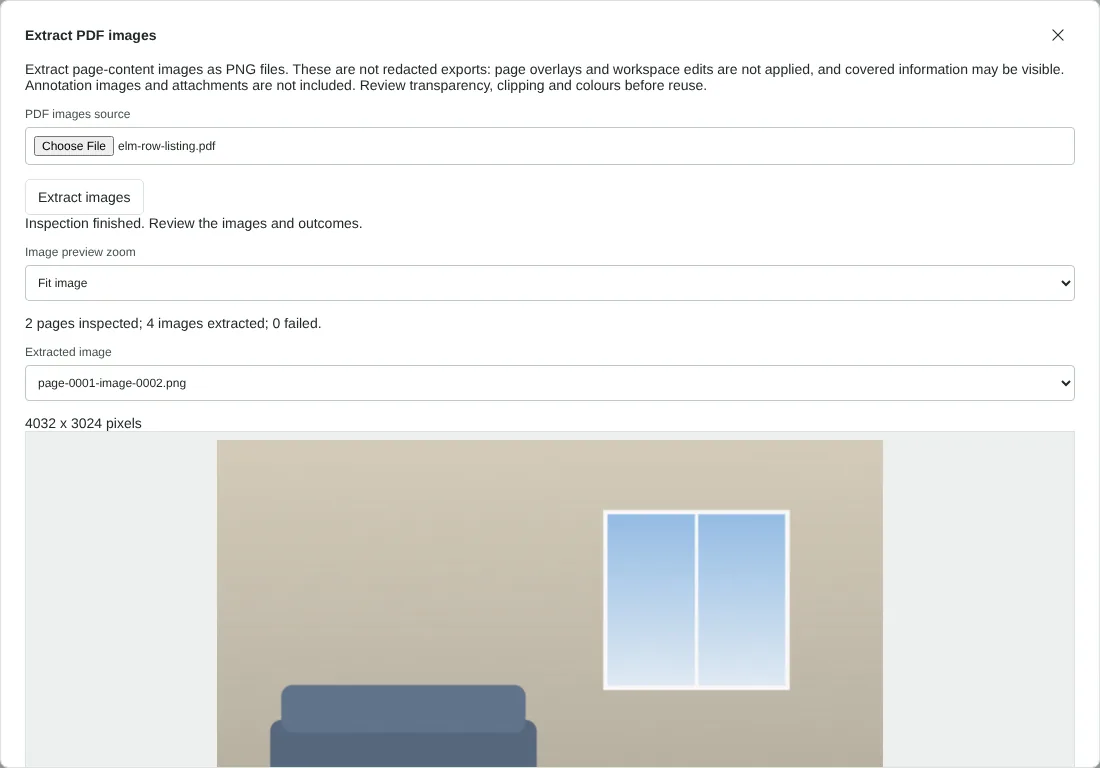
Worked example: photos and a logo from a property listing
In this test we used a fictional 2-page property listing PDF of 6.1 MB. Page 1 has the agent's round logo, a PNG with a transparent background, and a lounge photo. Page 2 has the same logo, a hallway photo and a bar chart of energy use drawn as vector graphics.
The tool reported 2 pages inspected, 4 images extracted and 0 failed. The photos came out at 4032 x 3024 and 3024 x 4032 pixels, their full stored size, even though they are printed much smaller on the page. The logo is stored once in the PDF but appears on both pages, so it was extracted twice, as page-0001-image-0001.png and page-0002-image-0003.png, each 600 x 600 pixels with its transparency kept. The bar chart was not extracted, because it is not an image.
Download images ZIP gave extracted-images.zip with the four PNG files and an image-report.json file listing each image's page, size and outcome. The two photo PNGs were 14.5 MB and 14.3 MB, against about 3 MB for each photo as stored in the PDF.
Why extracted photos can be larger than the PDF
Photos inside PDFs are often stored as JPEG. The tool decodes each image and saves its pixels as a PNG, which is lossless, so you get the full stored detail with no further loss. A PNG of a photo is much larger than the JPEG it came from, though: in our test each photo grew from about 3 MB to over 14 MB. If you need smaller files for a website or an email, open the PNG in a photo editor and save it as JPG at the size you need.
Images are saved as they are stored, not as they look on the page. If a picture was cropped, rotated or scaled when the PDF was made, the extracted file may show more of the picture, face a different way, or be far larger than it appears on the page. Check each one in the preview, which can zoom to 100%, 200% or 400%.
Extract images or export whole pages
Use this tool when you want the original pictures: product photos from a catalogue, illustrations from a report or a logo from a letterhead. Use PDF to PNG or PDF to JPG when you want what the page looks like, including text, charts and anything drawn as vector graphics, or when a picture is built from many small tiles. Charts in PDFs made from spreadsheets and presentations are often vector drawings, so exporting the page is the only way to capture them.
Every placement of an image is extracted separately, so a logo in the header of a 20-page report gives 20 copies. The file names start with the page number, and image-report.json lists every image with its page and size, so you can keep the ones you need. Extraction handles up to 1,000 image placements and 64 million decoded pixels per PDF, and the ZIP can be up to 128 MiB.
Images that fail, and what is not included
If an image cannot be decoded, for example because it uses an unusual colour format or has more than 16 million pixels, it is listed with its page and the reason, and the rest remain available through Download available images ZIP. Images in annotations, such as stamps added in a PDF reader, and file attachments are not included. Password-protected PDFs and PDFs that forbid copying are refused with a request for an authorised copy.
Extraction reads the original file. Anything you covered or redacted in the editor but have not exported is still there, and an image hidden under a box on the page is extracted in full. Use Redact PDF before you share a document whose images must stay private.
Good to know
- Recovers images stored inside the PDF, at their stored resolution.
- Vector drawings and charts are not images, so they are not extracted. Use PDF to PNG to capture the whole page.
- Some unusual image formats may not be supported.
Why your files stay on your device
RedactNinja PDF runs in your web browser. When you choose a file, it is read and processed on your own computer, tablet or phone. It is not uploaded to a server, so there is nothing for us to store, read or delete afterwards.
You can check this yourself: open your browser's developer tools, select the Network tab and use a tool. Your document does not appear in the requests. The editor also loads no advertising or analytics code. How to check that nothing is uploaded.
Free, with no sign-up and no watermark
Every tool is free to use without an account. Nothing is added to your documents, and there are no daily task limits. Large files depend on your device's memory, so very big scans may take longer on older machines.
Questions about Extract images
Is this the same as PDF to JPG?
No. PDF to JPG saves whole pages. This tool saves the individual pictures inside the pages.
Why is a picture missing?
It may be drawn as vector graphics, or split into tiles. Export the page as PNG instead.
Are the images full quality?
Yes, they are saved at the resolution stored in the PDF.
Are my files uploaded?
No. The tool runs in your browser and processes the file on your device. Nothing is sent to a server.
Is it free?
Yes. There is no account, no watermark and no daily limit.
Related tools
All PDF tools
Organise
- Merge PDF
- Split PDF
- Organise PDF
- Rotate PDF
- Delete PDF pages
- Extract PDF pages
- Crop PDF
- Resize PDF pages
- Batch PDF
Convert from PDF
- PDF to Word
- PDF to Excel
- PDF to PowerPoint
- PDF to JPG
- PDF to PNG
- PDF to text
- PDF to Markdown
- Extract images
- PDF to PDF/A
Convert to PDF
Edit and sign
- Edit PDF
- Edit PDF text
- Find and replace in PDF
- PDF comments list
- Fill PDF form
- Sign PDF
- Draw on PDF
- Watermark PDF
- Add page numbers
- Bates numbering