How to rotate PDF pages
- Select or drop the PDF.
- In Organise pages, select the pages to turn and rotate them.
- Apply the changes and export the PDF.
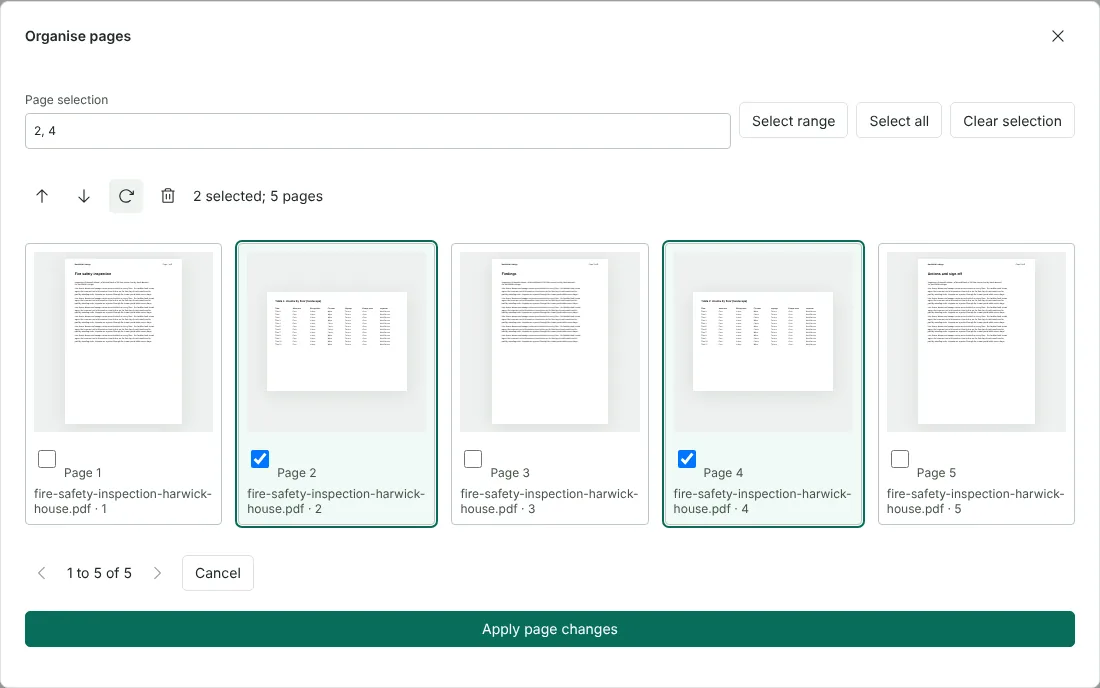
Worked example: fixing two sideways pages in an inspection report
In this test we used a fictional 5-page fire safety inspection report for Harwick House (6,195 bytes). Pages 2 and 4 are landscape tables that had been saved sideways, so their text ran from the bottom of the page to the top. We typed 2, 4 in Page selection, chose Select range and selected Rotate selected pages once. The two thumbnails turned straight away, and we chose Apply page changes and exported.
The download had 5 pages and was 4,865 bytes. Pages 2 and 4 were stored with a rotation of 90 degrees and the other pages with none. The page size was unchanged at 595 x 842 points, and the table text could still be selected and copied. Readers now show those two pages as landscape, 842 points wide.
How to rotate PDF pages anticlockwise or upside down
Each click of Rotate selected pages turns the selected pages 90 degrees clockwise. For 180 degrees, click twice. For 90 degrees anticlockwise, click three times. The thumbnails show the result before you apply it, so you can check the direction first.
To fix one page while you work in the editor, use Rotate page clockwise under Current page in the side panel. The panel also shows the page size and its current rotation in degrees.
To rotate pages in many PDFs at once, Batch PDF offers 90 degrees clockwise, 180 degrees and 90 degrees anticlockwise for every page of each file.
Rotate a whole PDF, or only some pages
Select all, then Rotate selected pages, turns every page. To turn only some pages in a long document, type them in Page selection, for example 2, 4, 6-9. The organiser shows 12 thumbnails at a time, with arrows to move through the rest, so typing a range is quicker than ticking boxes in a long file.
If you scanned double-sided paper as two files and every back page is upside down, open both files and use Alternate pages in the editor. With Rotate second group 180 degrees ticked, it interleaves the fronts and backs and turns the backs the right way up in one step.
What rotation changes in the file
Rotation is stored as a setting on each page, so the page content is not redrawn. That is why the text in the example stayed selectable and the file did not grow. Any rotation a page already had is added to, so a page saved at 90 degrees becomes 180 degrees after one more click.
Pages from a PDF with fillable form fields or a digital signature can be reordered in the organiser but not rotated, and a signed PDF cannot be exported after changes, because that would invalidate the signature. Flatten a form first if you need to turn its pages. The downloaded file is a new copy, named after the Document name in the editor.
Because rotation happens in the editor, you can finish the file in the same visit: the Export settings let you add page numbers, a watermark or a password before you download. To check the result, open the file in your reader's thumbnail view. If a page turned the wrong way, open the downloaded file again, select that page and rotate it twice more.
Good to know
- Rotation is saved in the file, so the pages open the right way in any PDF reader.
- Select a range to rotate many pages at once.
- For crooked scans that need a small angle correction, use Clean up scanned PDF.
Why your files stay on your device
RedactNinja PDF runs in your web browser. When you choose a file, it is read and processed on your own computer, tablet or phone. It is not uploaded to a server, so there is nothing for us to store, read or delete afterwards.
You can check this yourself: open your browser's developer tools, select the Network tab and use a tool. Your document does not appear in the requests. The editor also loads no advertising or analytics code. How to check that nothing is uploaded.
Free, with no sign-up and no watermark
Every tool is free to use without an account. Nothing is added to your documents, and there are no daily task limits. Large files depend on your device's memory, so very big scans may take longer on older machines.
Questions about Rotate PDF
Can I rotate just one page?
Yes. Select only that page before rotating.
Does rotating reduce quality?
No. Rotation changes how the page is displayed, not its content.
Can I rotate several PDFs at once?
Yes, with Batch PDF processing.
Are my files uploaded?
No. The tool runs in your browser and processes the file on your device. Nothing is sent to a server.
Is it free?
Yes. There is no account, no watermark and no daily limit.
Related tools
All PDF tools
Organise
- Merge PDF
- Split PDF
- Organise PDF
- Rotate PDF
- Delete PDF pages
- Extract PDF pages
- Crop PDF
- Resize PDF pages
- Batch PDF
Convert from PDF
- PDF to Word
- PDF to Excel
- PDF to PowerPoint
- PDF to JPG
- PDF to PNG
- PDF to text
- PDF to Markdown
- Extract images
- PDF to PDF/A
Convert to PDF
Edit and sign
- Edit PDF
- Edit PDF text
- Find and replace in PDF
- PDF comments list
- Fill PDF form
- Sign PDF
- Draw on PDF
- Watermark PDF
- Add page numbers
- Bates numbering