How to fill in a PDF form
- Select or drop the PDF form.
- Fill in the fields, tick checkboxes and choose options.
- Export the completed PDF and reopen it to check the values.
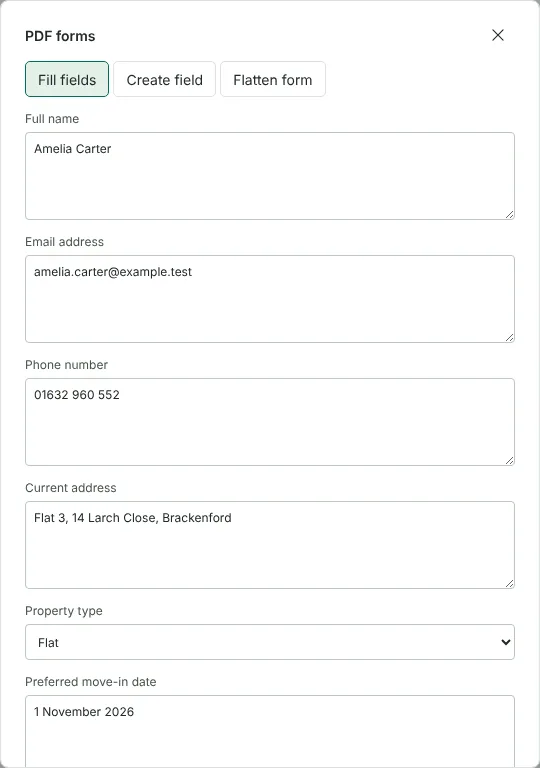
Worked example: filling in a tenancy application form
In this test we used a fictional one-page tenancy application from Northfield Lettings (9,653 bytes). It has 10 interactive fields: six text boxes, a Property type drop-down list, a Contact preference choice of Email or Phone, and two tick boxes.
We filled it in for the invented applicant Amelia Carter: name, email, phone number, address, move-in date and number of occupants, Flat from the drop-down list, Email as the contact preference, and a tick in the credit check box. After Apply field values and Export, the saved PDF was 12,451 bytes and still had all 10 fields, each holding the value we entered, so the answers could still be changed.
We then chose Flatten form, ticked Make the form non-editable and exported again. The flattened copy was 5,958 bytes and had no form fields or field widgets left, and the answers could still be selected and copied as text.
One thing to watch: this form sets a large font size for the address box, so the end of the address was cut off in the visible box, even though the full address was stored as the field value. Check every box on screen before you flatten, because flattening keeps only what is visible.
Which PDF forms you can fill in here
The tool works with standard interactive form fields: text boxes, tick boxes, radio buttons and single-choice drop-down lists. Each field is listed by the name stored inside the PDF, in the order the form defines them. Well-made forms use names such as Full name; others use names like Text1, so compare the list with the page if a name is unclear.
Some forms cannot be changed here, and the tool tells you why. These include XFA forms, signed forms and forms with scripted actions. Multi-select lists and list boxes are shown as unsupported fields and left unchanged. PDFs with automatic actions are blocked too, including some ordinary word processor exports that only set the opening view. In this test, a letter exported from LibreOffice Writer was blocked for that reason. Exporting it once from the editor removed the action, and the form tool then opened the exported copy.
Answers are written with the standard Helvetica font, which covers Western European letters. In this test, a name beginning with the Polish letter Ł was refused with an error, and the form was left unchanged.
Keep the fields or flatten the form?
Fill fields keeps the form interactive. Anyone who opens the PDF can still change the answers, and software that reads form data can pick them up. Keep the fields if the recipient asked for a fillable form.
Flatten form turns the current answers into ordinary page content and removes every field. Use it for a final copy you do not want changed by accident. Flattening does not hide anything you typed. Undo works in the editor, so you can flatten, check the result and undo if needed. Flatten PDF is a separate tool that goes further: it rebuilds every page as an image, so the copy has no selectable text at all.
What to do if your PDF form has no fields
If Fill fields says the document has no form fields, the form is a flat page. You can add fields under Create field: choose a text field, checkbox, radio group or dropdown, then set its page and position in points. Suggest fields on this page > Find underlined blanks looks for rows of underscores and proposes text fields named after the label beside them. On page 2 of our fictional renewal letter it found three: Tenant signature, Print name and Date.
To sign the completed form, use Sign PDF for a drawn signature, or Sign PDF with a certificate for a digital signature. In this test, the filled form was certificate-signed with a disposable test certificate and kept its fields. Sign last, because the editor will not export changes to a PDF that has a digital signature.
Good to know
- Works with interactive form fields. If a form has no fields, add text boxes with Edit PDF instead.
- You can also create new fields on a document.
- Add a signature with Sign PDF after filling in the form.
Why your files stay on your device
RedactNinja PDF runs in your web browser. When you choose a file, it is read and processed on your own computer, tablet or phone. It is not uploaded to a server, so there is nothing for us to store, read or delete afterwards.
You can check this yourself: open your browser's developer tools, select the Network tab and use a tool. Your document does not appear in the requests. The editor also loads no advertising or analytics code. How to check that nothing is uploaded.
Free, with no sign-up and no watermark
Every tool is free to use without an account. Nothing is added to your documents, and there are no daily task limits. Large files depend on your device's memory, so very big scans may take longer on older machines.
Questions about Fill PDF form
Why can I not type into the form?
The form is probably a flat page with printed lines. Use Edit PDF to add text where you need it.
Is my personal information stored anywhere?
No. The form is filled in your browser and nothing is sent to a server.
Can I flatten the form so it cannot be changed?
Yes. In the form tool choose Flatten form: the current values become part of the page and the fields are removed, while the rest of the page keeps its selectable text. To turn every page into an image instead, use Flatten PDF.
Are my files uploaded?
No. The tool runs in your browser and processes the file on your device. Nothing is sent to a server.
Is it free?
Yes. There is no account, no watermark and no daily limit.
Related tools
All PDF tools
Organise
- Merge PDF
- Split PDF
- Organise PDF
- Rotate PDF
- Delete PDF pages
- Extract PDF pages
- Crop PDF
- Resize PDF pages
- Batch PDF
Convert from PDF
- PDF to Word
- PDF to Excel
- PDF to PowerPoint
- PDF to JPG
- PDF to PNG
- PDF to text
- PDF to Markdown
- Extract images
- PDF to PDF/A
Convert to PDF
Edit and sign
- Edit PDF
- Edit PDF text
- Find and replace in PDF
- PDF comments list
- Fill PDF form
- Sign PDF
- Draw on PDF
- Watermark PDF
- Add page numbers
- Bates numbering