How to edit a PDF
- Select or drop the PDF.
- Add text, images, shapes, highlights or comments, or select existing text or images to edit them.
- Export the edited PDF.
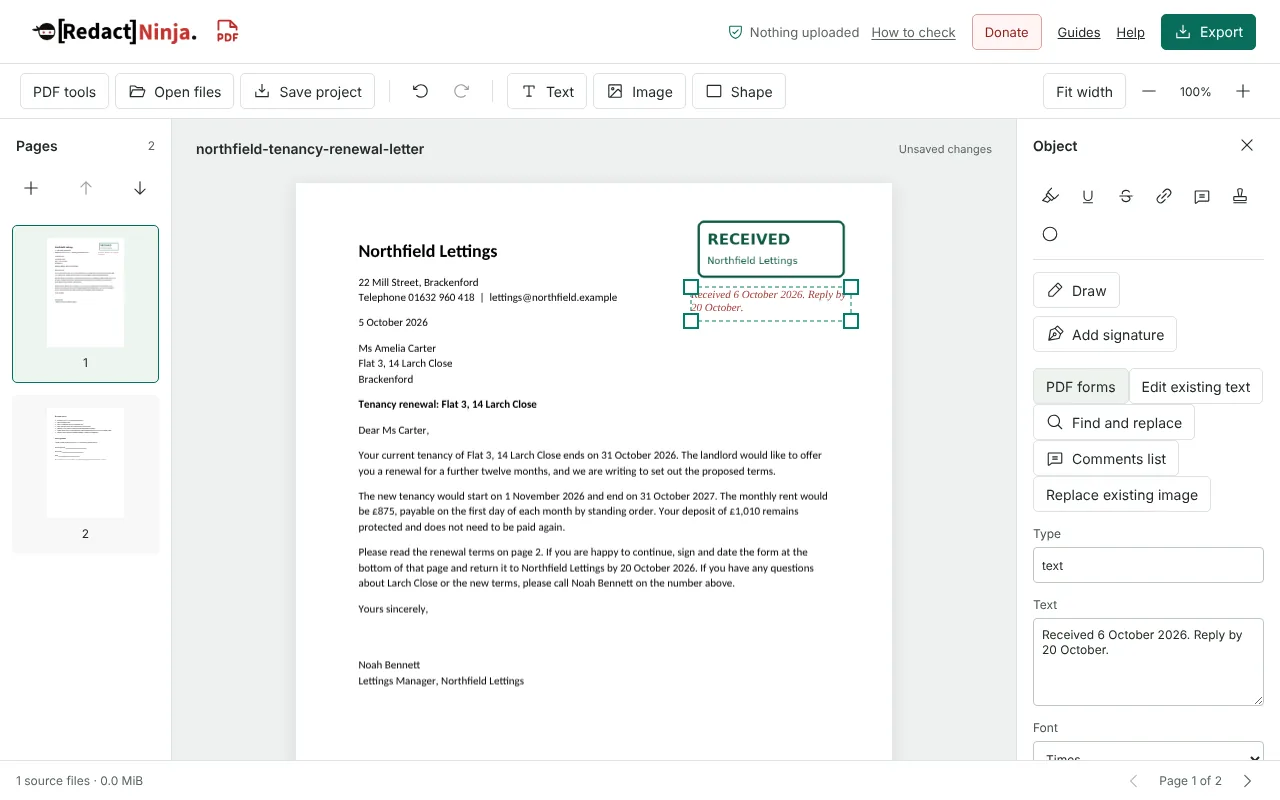
Worked example: adding a received stamp and a note to a letter
In this test we opened a fictional two-page tenancy renewal letter from Northfield Lettings, exported from a word processor (32,816 bytes, A4, with selectable text). On page 1 we added a PNG stamp image of 400 x 160 pixels reading RECEIVED, sized to 150 x 60 points, and below it a text box reading Received 6 October 2026. Reply by 20 October. The note used Times italic at 11 points in dark red.
The exported PDF had 2 pages and was 51,727 bytes. The stamp was embedded at its original 400 x 160 pixels, which works out at 192 pixels per inch at that size. The new note could be selected and copied as text, and the letter's own text was unchanged. No annotations were added, because text boxes and images become part of the page content.
What changes in the file when you export an edited PDF
Edit PDF builds a new PDF from your pages. Text boxes, images, shapes and freehand drawings are drawn into the page content. Highlights, underlines, strike-throughs, comments, stamps and links are saved as standard PDF annotations, so other readers can show, move or delete them.
Some things from the original are not carried over. In this test the source letter was a tagged PDF, with structure for screen readers, and the exported copy was not tagged. The opening view setting from the word processor was dropped, and the document title was set to the document name shown in the editor. If accessibility matters, check the exported copy with your usual accessibility checks. Your original file is never changed: Export always downloads a new copy.
Choosing a font for text you add to a PDF
Added text can use Liberation Sans, Times or Courier, with bold, italic, underline, alignment, line and paragraph spacing and simple lists. Liberation Sans is embedded in the exported file, so it adds to the file size. Times and Courier are standard PDF fonts that are not embedded, so they add very little, but they only cover Western European characters. If the chosen font lacks a character, export stops with a message asking you to choose another font or change the text.
If text does not fit its box, the properties panel warns you. Make the box taller or reduce the font size, because export stops rather than cutting text off. Images can be PNG or JPEG files up to 10 MiB. They are embedded at their own pixel size and stored as PNG, including JPEG photos, so a large photo can add a lot to the file. Resize big photos before you add them.
When to use Edit PDF and when another tool fits better
To correct a word or date that is already in the PDF, use Edit PDF text or Find and replace, which change the original text in place instead of placing a new box on top. To complete a form, use Fill PDF form so the answers go into the form fields. To hide personal details, use Redact PDF: shapes in the editor are outlines only and do not cover or remove anything underneath.
PDFs with a digital signature cannot be exported from the editor, because any change would invalidate the signature. In this test, a certificate-signed letter opened, but export was blocked with a message that signed documents are not editable. Add your text and images first, export, then apply the certificate signature with Sign PDF with a certificate.
Use Save project to keep unfinished work. It saves your pages and edits as a .rnpdf file on your device, which you can open again later with Open files. The project file contains full copies of your PDFs, so store it as carefully as the originals.
Good to know
- Added text supports fonts, bold, italic, underline, alignment, spacing and simple lists.
- Original text can be replaced one line at a time where the PDF structure allows it. Full paragraph reflow is not available.
- Images can be rotated, flipped, cropped and resized.
Why your files stay on your device
RedactNinja PDF runs in your web browser. When you choose a file, it is read and processed on your own computer, tablet or phone. It is not uploaded to a server, so there is nothing for us to store, read or delete afterwards.
You can check this yourself: open your browser's developer tools, select the Network tab and use a tool. Your document does not appear in the requests. The editor also loads no advertising or analytics code. How to check that nothing is uploaded.
Free, with no sign-up and no watermark
Every tool is free to use without an account. Nothing is added to your documents, and there are no daily task limits. Large files depend on your device's memory, so very big scans may take longer on older machines.
Questions about Edit PDF
Can I change the existing text in my PDF?
Supported text can be replaced line by line. Scanned pages have no editable text; add new text over them instead.
Is there a watermark?
No. Exports are free of watermarks.
Can I undo changes?
Yes. Undo and redo work until you close the page, and your original file is never changed.
Are my files uploaded?
No. The tool runs in your browser and processes the file on your device. Nothing is sent to a server.
Is it free?
Yes. There is no account, no watermark and no daily limit.
Related tools
All PDF tools
Organise
- Merge PDF
- Split PDF
- Organise PDF
- Rotate PDF
- Delete PDF pages
- Extract PDF pages
- Crop PDF
- Resize PDF pages
- Batch PDF
Convert from PDF
- PDF to Word
- PDF to Excel
- PDF to PowerPoint
- PDF to JPG
- PDF to PNG
- PDF to text
- PDF to Markdown
- Extract images
- PDF to PDF/A
Convert to PDF
Edit and sign
- Edit PDF
- Edit PDF text
- Find and replace in PDF
- PDF comments list
- Fill PDF form
- Sign PDF
- Draw on PDF
- Watermark PDF
- Add page numbers
- Bates numbering