How to draw and annotate on a PDF
- Select or drop the PDF.
- Use the drawing pen, highlights, underline, strike-through, shapes or comments.
- Export the annotated PDF.
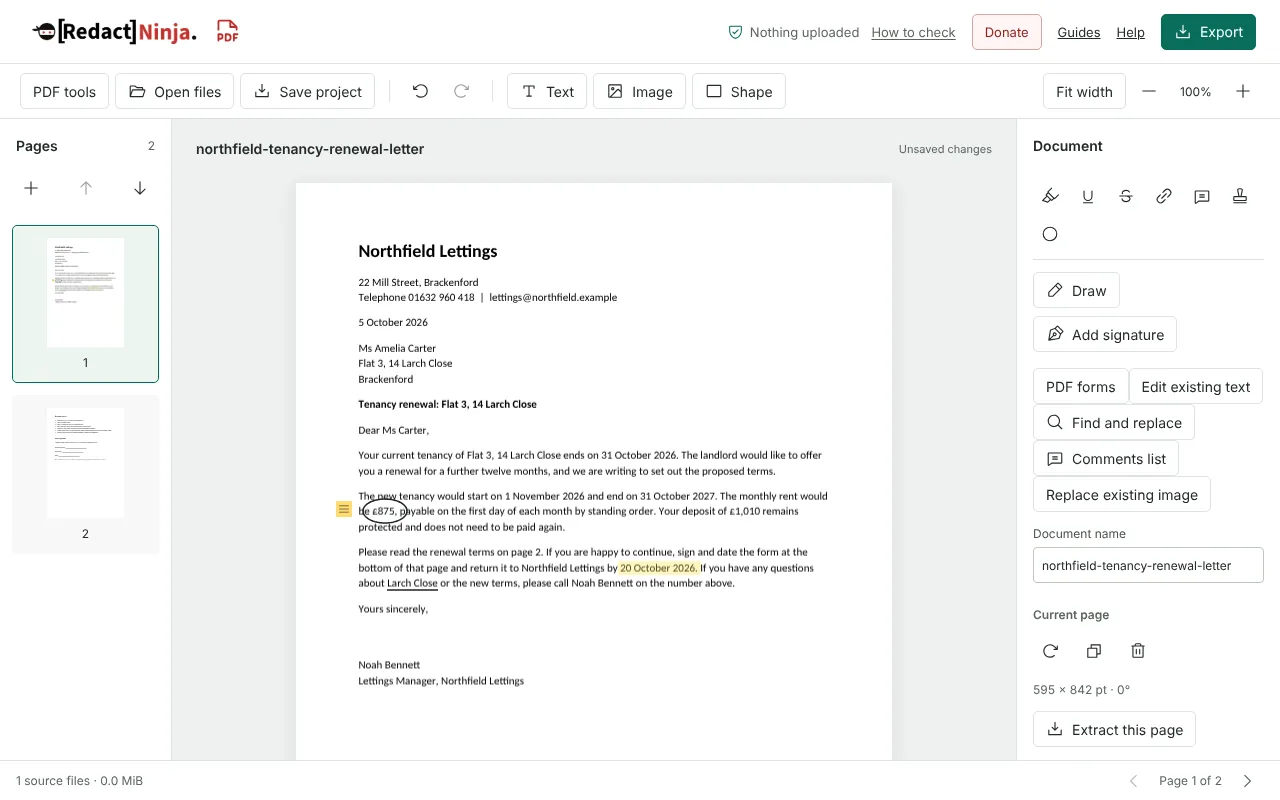
Worked example: marking up a tenancy renewal letter
In this test we marked up page 1 of a fictional two-page letter from Northfield Lettings (32,816 bytes). With Draw we sketched a loop on the pad, placed it and resized it to 44 x 24 points around the rent figure with a 1.5-point line. We then added a highlight over the reply deadline, an underline under the street name and a comment beside the rent reading Rent is the same as this year. Confirm before signing.
The exported PDF had 2 pages and was 50,701 bytes. Page 1 held 3 PDF annotations: a Highlight, an Underline and a Text note carrying our comment. The freehand loop was not an annotation: it was saved as 112 short line segments in the page content.
We then made a print copy, with Sheet layout set to Multiple pages per sheet and Flatten annotation appearances for printing ticked. Both pages of the letter went onto one A4 landscape sheet with the highlight, underline and note icon drawn into the page and no annotations left. Flatten PDF also worked on the annotated letter: it produced a 2-page image-only copy at 150 dpi, 184,756 bytes, with every marking visible.
Which PDF annotations stay editable and which become part of the page
The tools save your markings in two different ways. Highlight, Underline, Strikethrough, Add comment, Add stamp and Add link create standard PDF annotations. Other people can see them in most PDF readers and can usually move, reply to or delete them. Draw, Add signature, Shape and Ellipse are drawn into the page itself, like printed content, so readers do not list them as comments.
Highlights, underlines and strike-throughs are boxes that you place and resize over the words. They do not snap to the text, so zoom in before you export to check that they line up. You can change the colour of any marking in the properties panel.
Drawing on a PDF with a mouse, pen or touchscreen
Draw opens a drawing pad. Each stroke is recorded as you drag, and Undo stroke or Clear drawing lets you try again before you place it. A drawing can hold up to 8,192 points. After placing it, drag the handles or type its position and size in points, and set the stroke width anywhere from 0.5 to 20 points.
Upload image on the drawing pad places a PNG or JPEG instead, for example a sketch you made elsewhere. Comments list in the editor lists every comment, highlight, stamp and link in the document, but not freehand drawings or shapes. See PDF comments list for more on reviewing feedback.
Making annotations permanent before you share a PDF
If you do not want recipients to remove or change your highlights and notes, they need to become part of the page. Flatten PDF does this by rebuilding every page as an image, as in the example above. The trade-off is that the copy has no selectable or searchable text, and in our test it was more than three times the size of the annotated PDF.
The print copy option in Export only appears when Sheet layout is set to Multiple pages per sheet or Booklet, so it also changes the page layout. It keeps visible annotation appearances but not comment text held in pop-up notes, and it refuses to download if it cannot verify the result.
Markings are not redactions. A shape or highlight over a name leaves the name in the file. Use Redact PDF to remove text.
Good to know
- Freehand drawings work with a mouse, touchscreen or pen.
- Annotations are visible in most PDF readers.
- Freehand drawings, signatures and shapes are drawn into the page. Highlights, underlines and comments stay as annotations; use Flatten PDF for a copy where nothing can be edited.
Why your files stay on your device
RedactNinja PDF runs in your web browser. When you choose a file, it is read and processed on your own computer, tablet or phone. It is not uploaded to a server, so there is nothing for us to store, read or delete afterwards.
You can check this yourself: open your browser's developer tools, select the Network tab and use a tool. Your document does not appear in the requests. The editor also loads no advertising or analytics code. How to check that nothing is uploaded.
Free, with no sign-up and no watermark
Every tool is free to use without an account. Nothing is added to your documents, and there are no daily task limits. Large files depend on your device's memory, so very big scans may take longer on older machines.
Questions about Draw on PDF
Can I highlight text?
Yes, along with underline and strike-through.
Can others edit my annotations?
Highlights, underlines and comments can be changed in most readers. Drawings and shapes are part of the page. Use Flatten PDF to make a copy where nothing can be edited.
Does it work on a tablet?
Yes, in a modern browser with touch or pen input.
Are my files uploaded?
No. The tool runs in your browser and processes the file on your device. Nothing is sent to a server.
Is it free?
Yes. There is no account, no watermark and no daily limit.
Related tools
All PDF tools
Organise
- Merge PDF
- Split PDF
- Organise PDF
- Rotate PDF
- Delete PDF pages
- Extract PDF pages
- Crop PDF
- Resize PDF pages
- Batch PDF
Convert from PDF
- PDF to Word
- PDF to Excel
- PDF to PowerPoint
- PDF to JPG
- PDF to PNG
- PDF to text
- PDF to Markdown
- Extract images
- PDF to PDF/A
Convert to PDF
Edit and sign
- Edit PDF
- Edit PDF text
- Find and replace in PDF
- PDF comments list
- Fill PDF form
- Sign PDF
- Draw on PDF
- Watermark PDF
- Add page numbers
- Bates numbering